Connect Oracle Database to Mammoth and import tables
The Oracle Database connector imports a table, or the result of your own SQL query, into Mammoth as a dataset. It connects through a connection form, then opens in the connector workspace's SQL view, where you browse schemas and tables. Open it from Data Library > New dataset > Connectors and click Oracle Database. Project Admins create the connection; Project Editors can start datasets from a connection the project already has. Which connectors you can add depends on your plan.
What you can bring in from Oracle
- Any table the database user can read, in the Schema you pick.
- The result of your own
SELECTquery.
AI query writing (Write SQL) isn't available for Oracle. The dataset can refresh daily or only when you ask.
Before you connect Oracle Database
You need:
- An Oracle server reachable from the internet.
- A database user with read access to the tables you want to import.
- The server's hostname, port (default
1521), service name, username and password. - Mammoth's IP address allowed through your firewall. The connection form shows the address. See Allow Mammoth through your firewall.
Connect Oracle Database to Mammoth
- Go to the Data Library, click New dataset, and choose Connectors.
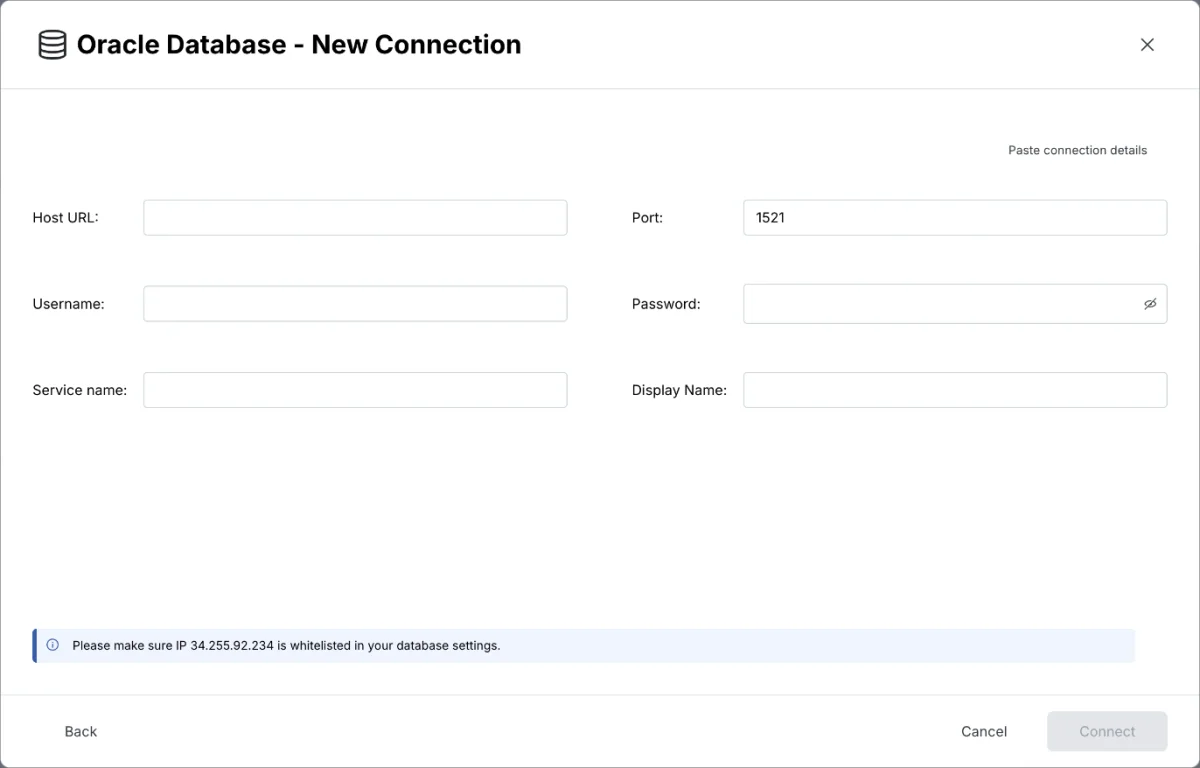
- Search for Oracle Database and click its tile. The connection form opens. See Connect a database or app for the shared steps.
- Fill in the connection form (see the table below).
- Click Connect. The connector workspace opens on your tables.
| Field | What to enter |
|---|---|
| Host URL | Hostname or IP address of your Oracle server |
| Port | The listener port. Default 1521 |
| Username | Database user with read access |
| Password | That user's password |
| Service name | The Oracle service name of the database |
| Display Name | Optional label for this connection in Mammoth |
Query an Oracle table in the SQL view
- In Tables, pick the Schema that holds your tables, then click a table. Mammoth opens its rows with the
SELECTquery that read them. - To change what you import, click Edit SQL, edit the query, and click Run (or press Ctrl+Enter).
- To keep only some columns, tick them in the table header.
Connect a database or app covers the full SQL view.
Save Oracle data as a dataset
- Click Save as dataset.
- Enter a Name and choose a folder under Save in.
- Under Keep it up to date, choose Daily at 06:00 or Only when I ask.
- Under On each refresh, keep Replace all rows (the default). Oracle refreshes don't track a key column (see below).
- Click Save as dataset. When the dataset is ready, click Open dataset.
Refresh Oracle data and choose an update method
Choosing Daily at 06:00 creates a Dataset Refresh automation that you can reschedule later.
After you save, an Oracle dataset's Update method offers two options:
| Update method | What it does |
|---|---|
| Replace all data | Rebuilds the dataset from the source on every refresh |
| Add to existing data | Adds every row the query returns again on each refresh |
Oracle refreshes don't use a key column, so Mammoth can't add only new rows. Use Replace all data unless you want a full copy appended each time.
Troubleshoot Oracle connections
| Symptom | Likely cause | Fix |
|---|---|---|
| Connection fails | Mammoth's IP address is blocked, or a detail is wrong | Allow Mammoth's IP address through your firewall, and check the host, port and service name |
| A table is missing | The user can't read it, or you're in another schema | Check the database user can read the table, and that you picked the right Schema |
Related
- Connect a database or app: the shared connector workspace steps and the full SQL view.
- Allow Mammoth through your firewall: the IP address to allow.
- Manage saved connections: edit, reuse or delete this connection.
- Refresh a dataset: change when the dataset refreshes.
- Connector reference: every source Mammoth connects to.
Something wrong? support@mammoth.io