Automations
This section is for anyone who wants data work in Mammoth to run without manual steps: refreshing cloud datasets, processing uploaded files, emailing reports, re-running pipelines when data changes, and gating data on quality checks or approvals. Mammoth offers three ways to automate, each at a different layer of the product. Start with Automation types if you want to schedule a recurring job, or read on to choose between the three.
The three automation levers
| Lever | What it automates | Where it lives | Trigger |
|---|---|---|---|
| Automations | Recurring data operations—refresh a cloud dataset, consolidate uploaded files, collect files from cloud storage, send a scheduled report | Automations tab in the Data Library | Schedule, manual run, or file event |
| Auto-sync | Automatic re-execution of pipeline steps and exports when upstream data changes | Per-view and per-export settings | Data change event |
| Pipeline governance | Data quality gates and human checkpoints within pipelines | Pipeline task settings | Manual approval or data condition |
These three levers work at different levels. Automations are project-level scheduling. Auto-sync is view-level and export-level reactivity. Pipeline governance is step-level control. You can combine them, as the workflow patterns below show.
Automations
Automations handle scheduled and event-driven data operations—the recurring jobs that keep your data flowing without manual intervention, such as keeping your datasets fresh, processing incoming files, and sending your team scheduled reports.
You create and manage automations from the Automations tab in the Data Library of any project, or from the Automations section of a dataset's side panel.
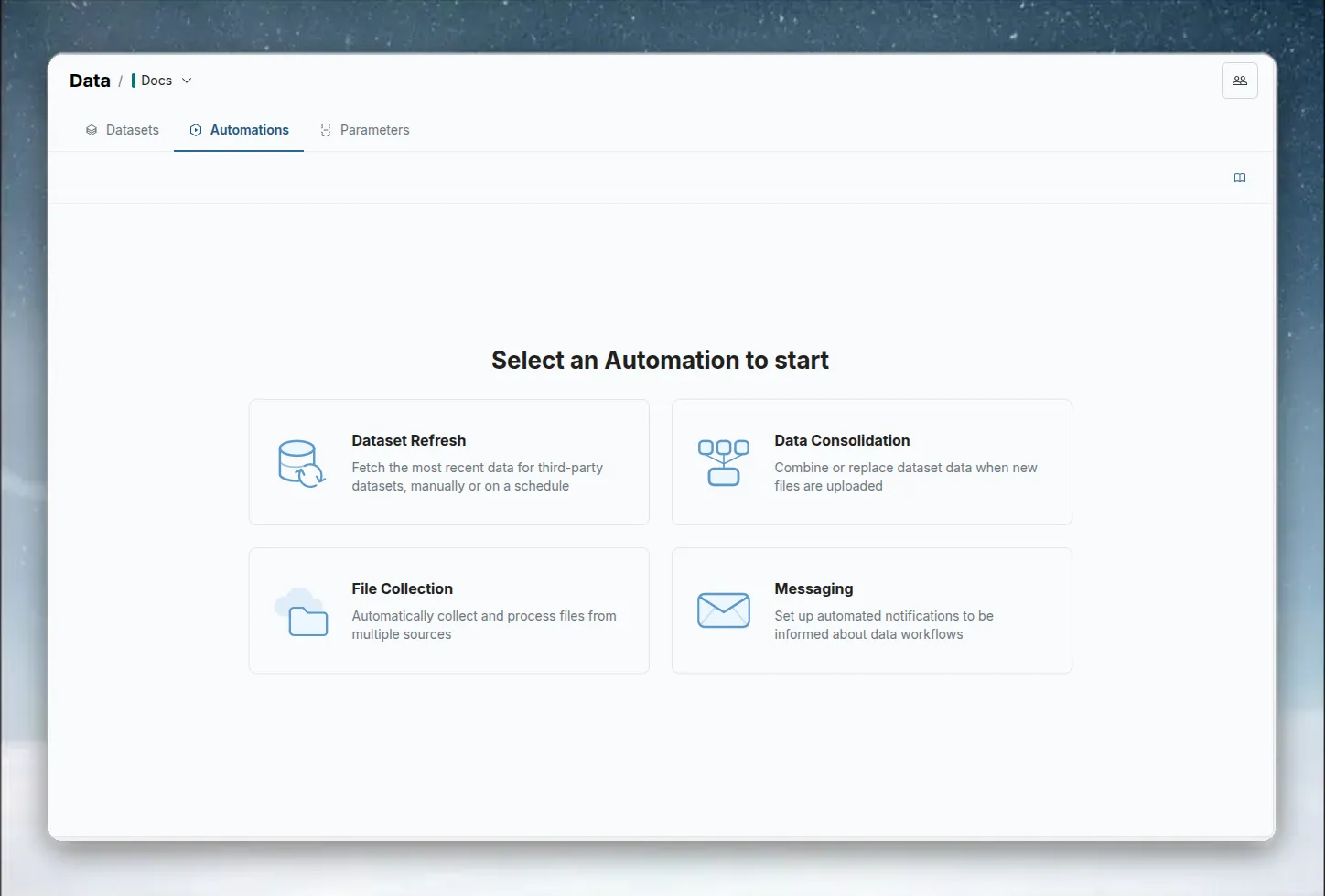
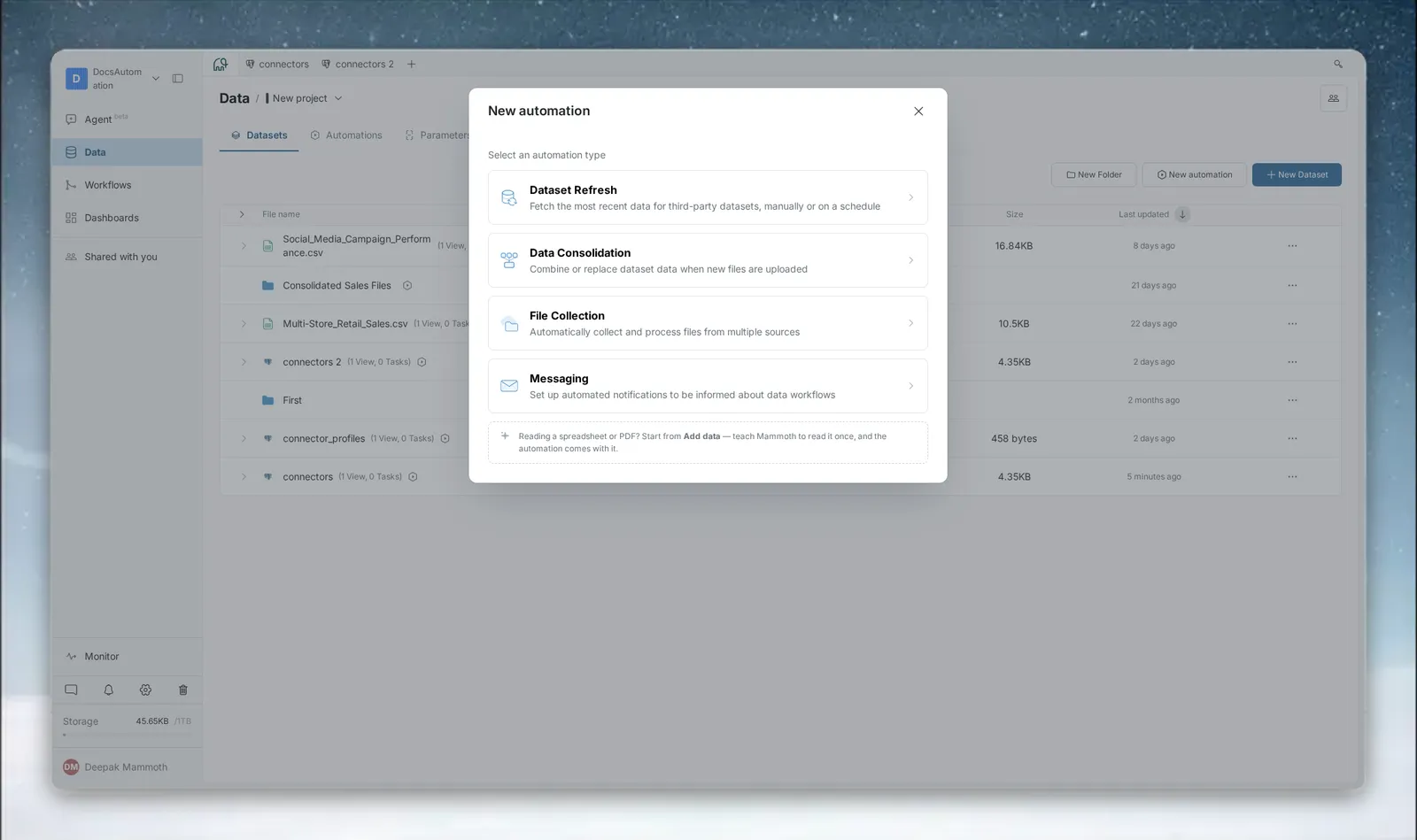
There are four automation types:
| Type | What it does | Trigger |
|---|---|---|
| Dataset Refresh | Re-fetches data from a cloud source (Google Sheets, Salesforce, databases) | Schedule (minutely to yearly, depending on your plan) or manual |
| Data Consolidation | Automatically appends or replaces data in a destination dataset when new files are uploaded to a source folder | File upload event |
| File Collection | Automatically pulls files in from external cloud storage sources into a destination folder in Mammoth. Available on plans that include it | Schedule or manual |
| Messaging | Sends scheduled emails with attached Dataset Views to a defined recipient list | Schedule (hourly to yearly, depending on your plan) |
Use an automation when you have a repeating data task that currently requires manual steps:
- You connect to a third-party data source (Google Sheets, Salesforce, and so on) and need it refreshed daily → use Dataset Refresh
- Your team uploads CSV exports to a folder each morning and you want them merged into one master dataset → use Data Consolidation
- You want files from an external cloud source collected into a Mammoth folder → use File Collection
- Stakeholders need a weekly email with the latest sales numbers attached → use Messaging
Once created, each automation appears as a row in the list with its name, a one-line summary, type, and status (Active, Suspended, or Error). Click a row to open the detail panel, where you can view the last run result, run it manually, edit it, or delete it.
Pages in this section:
- Automation types: compare Dataset Refresh, Data Consolidation, File Collection, and Messaging
- Creating an automation: steps shared by every automation type
- Dataset Refresh: re-fetch data for cloud-connected datasets on a schedule
- Data Consolidation: merge files uploaded to a folder into a dataset
- Messaging: email Dataset Views as CSV attachments on a schedule
- Managing automations: statuses, pause, run now, edit, delete
- Scheduling: frequency, start and end options, and ordering
- Triggers: schedules, manual runs, file uploads, webhooks, and API calls
Auto-sync
Auto-sync controls whether a pipeline step or export automatically re-runs when its upstream data changes.
Mammoth has two independent Auto-sync layers:
View Auto-sync
Each pipeline view (a step in your data transformation) has an Auto-sync toggle. When enabled, the view re-processes automatically whenever the source data changes—a new file lands, a refresh runs, a manual edit is saved.
When disabled, the view "freezes"—changes flow up to that point but stop. This is useful when you want to review data before it propagates downstream.
Export Auto-sync
Each export (a connection from a view to an external destination—database, SFTP, live link) also has its own Auto-sync toggle. When enabled, the export fires automatically whenever the view it's connected to produces new output.
When disabled, you control exactly when data leaves Mammoth—useful for staging environments, approval workflows, or rate-limited destinations.
Paused tab: Steps and exports with Auto-sync turned off are listed in Monitor's Paused tab, where you can turn Auto-sync back on.
Pipeline governance
Pipeline governance gives you human checkpoints and data quality gates within a pipeline—so data only advances when it meets your standards or has been reviewed by the right person.
Data check tasks
A Data Check task validates the data at a pipeline step against a set of conditions you define—row counts, column values, null thresholds, or custom expressions. If the check fails, the pipeline halts at that step and flags the run for review.
Use Data Check tasks when you need to guarantee data quality before downstream steps execute (for example: before an export fires, or before a report is sent to stakeholders).
Checkpoint tasks
A Checkpoint task pauses pipeline execution at a specific step and requires a designated user to manually approve it before the pipeline continues.
Use Checkpoint tasks for compliance workflows, staged rollouts, or any scenario where a human needs to sign off on data before it advances.
Pipeline governance tasks appear in the Needs Attention tab of Monitor when they require action—your inbox for checkpoint approvals and failed data checks.
Monitor
Monitor gives you real-time visibility into everything actively happening in your workspace across all three automation layers—items needing action, running pipelines and automations, tasks with Auto-sync disabled, and a full activity log.
Click Monitor in the left sidebar (available from any project view).
The Monitor modal has four tabs:
| Tab | What it shows |
|---|---|
| Needs Attention | Pipeline errors, pending data updates, pending pipelines, checkpoint approvals, and failed data checks |
| Running | All pipeline views, tasks, and automations currently executing or queued—with status badges and task counters |
| Paused | Every pipeline step, export, or dependency where Auto-sync has been disabled—re-enable per row |
| Activity Log | Chronological audit trail of all workspace events, filterable by project or workspace scope |
Monitor refreshes every 5 seconds. Tab counts update automatically.
Which lever should I use?
Use this decision tree to choose the right automation lever for your scenario:
I want to see what's running right now across my workspace
└─→ Open MONITOR (left sidebar)
My data source needs to stay current automatically
└─→ It's a cloud-connected dataset (Google Sheets, Salesforce, etc.)
    └─→ Use an AUTOMATION → Dataset Refresh
My team uploads files and they need to be processed automatically
└─→ Use an AUTOMATION → Data Consolidation
I need files from external cloud storage collected into Mammoth
└─→ Use an AUTOMATION → File Collection
I need to send a scheduled email report with data attached
└─→ Use an AUTOMATION → Messaging
I want pipeline steps to re-run automatically when data changes
└─→ Use AUTO-SYNC (View Auto-sync on each pipeline step)
I want exports to fire automatically when a view updates
└─→ Use AUTO-SYNC (Export Auto-sync on each export)
I need to validate data quality before it moves downstream
└─→ Use PIPELINE GOVERNANCE → Data Check task
I need a human to approve data before it advances in the pipeline
└─→ Use PIPELINE GOVERNANCE → Checkpoint task
Common workflow patterns
Keep cloud datasets fresh and trigger downstream pipelines
- Set up Dataset Refresh automations for each cloud-connected dataset
- Enable View Auto-sync on all downstream pipeline views
- Enable Export Auto-sync on any exports to external destinations
- Monitor health in Monitor → Running
Process files as they arrive and notify stakeholders
- Set up a Data Consolidation automation to append files as they're uploaded
- Enable View Auto-sync on the pipeline views that transform the consolidated data
- Set up a Messaging automation to send a daily summary email
- Add a Data Check task before the final export to catch schema issues
Add human review before data ships
- Set up the data pipeline with View Auto-sync enabled on each step
- Add a Data Check task at the point where data must meet quality thresholds
- Add a Checkpoint task requiring approval before the final export
- Enable Export Auto-sync—the export fires only after the Checkpoint is approved
- Reviewers see pending checkpoints in Monitor → Needs Attention
Getting started with automations
If you're new to automations in Mammoth, work through these pages in order:
- Automation types—understand what each type does before creating one
- Creating an automation—step-by-step walkthrough of the create wizard, launched from a "New Automation" entry point (no separate "Automation" page required)
- Managing automations—open the edit modal to pause, resume, run manually, edit configuration, or delete
- Monitor—watch everything in real time
What changed in how automations are created and edited
Automations are no longer created or edited on dedicated full-page forms. Instead:
- Creating an automation opens a Create Automation modal—a multi-step wizard that walks you through: picking an automation type, filling in type-specific steps (such as selecting a source/destination or setting a schedule), and a final review step where you name the automation and confirm its settings before saving.
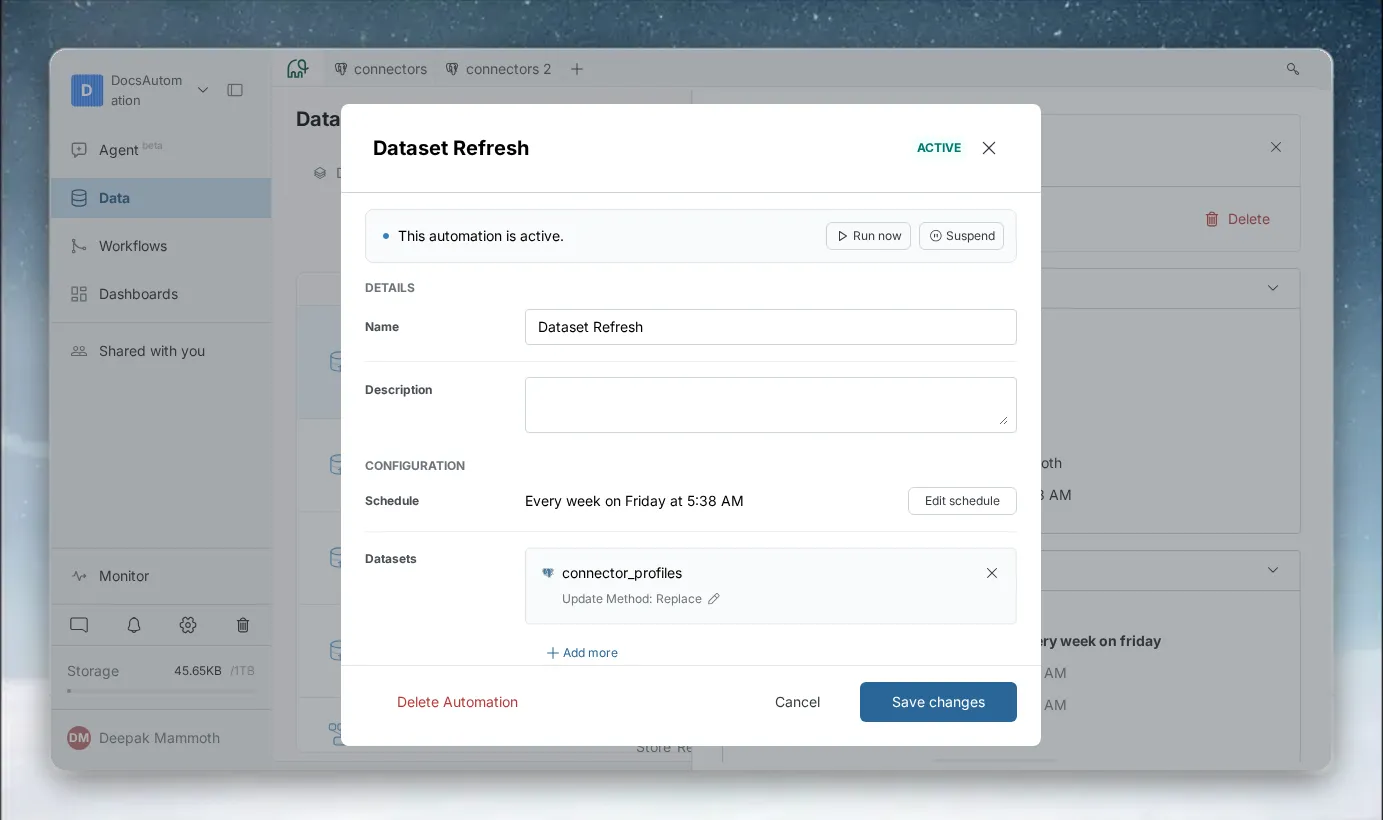
- Editing an automation opens an Edit Automation modal—a single screen with collapsible configuration sections for that automation's settings, plus a status banner showing whether the automation is active, suspended, or has an error, with inline Suspend, Resume (when suspended), and Run Now actions you can trigger without leaving the modal. Deleting an automation is also done from this modal, moving it to trash.