Live links
A Live Link is a persistent URL tied to a Mammoth View. When your pipeline runs and produces updated results, the URL automatically serves the new data. The URL never changes—BI tools, dashboards, and scripts pointing at it always receive the latest output.
Live Links always deliver data as CSV.
How live links work
When you create a Live Link, Mammoth:
- Generates a unique, persistent URL of the View
- Adds a Live link task pinned to the end of your pipeline
- After each pipeline execution, uploads the current View output to that URL
- The URL immediately serves the updated CSV
The filename follows the pattern {dataset_name}_{view_name}_{unique_id}.csv, served from a Mammoth-hosted URL. The dataset and View names are converted to lowercase and cut to their first 10 characters. The {unique_id} is 32 random letters and digits generated by Mammoth, so the URL isn't predictable or user-chosen.
The file contains the View as it is shown: hidden columns are not included.
Live links depend on your plan. If yours doesn't include them, the Live link card in the Export menu shows a plan label.
Creating a live link
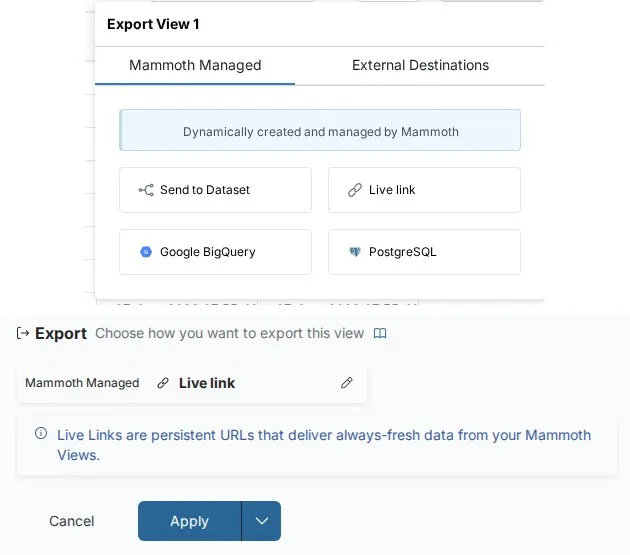
- Open the View you want to share.
- Click the Export button in the toolbar.
- On the Mammoth Managed tab, select Live link.
- The Live link form opens in the pipeline panel. It has no fields, only an information callout. Click Apply.
Mammoth creates the Live Link and pins it as a task at the end of your pipeline. The export runs when you apply it. In the pipeline panel you'll see the task with a Copy link to get the URL.
Click Copy to copy the URL to your clipboard. Only one Live Link can exist per View. If the Live link option appears disabled in the Export menu, a Live Link already exists for this View. Find it in the pipeline panel under "Tasks pinned to the end."
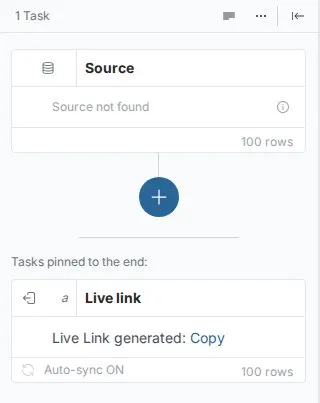
Auto-sync
The Live Link task has an Auto-sync setting. The task card shows ON or OFF, and you change it from the task's options menu in the pipeline panel.
- Auto-sync ON (default)—the URL is refreshed automatically every time the pipeline executes. Anyone accessing the URL immediately gets the new data.
- Auto-sync OFF—the pipeline runs but the URL is not updated. The previous data continues to be served until you manually release the update from the Monitor panel's Needs Attention tab.
Turn Auto-sync OFF when you need to review pipeline output before it becomes publicly accessible via the Live Link URL—for example, before a scheduled stakeholder report window. You can keep Auto-sync ON for a Live Link while keeping it OFF on a database destination from the same View. Each export destination is controlled independently—different audiences can receive data on different schedules.
Connecting to BI tools
Live Links deliver a CSV file over HTTPS. Most BI tools can connect to a CSV URL directly.
Tableau—Connect to the Live Link URL via the Web Data Connector or by using the URL as a text file source. Set a scheduled extract refresh to pull updated data on your desired cadence.
Power BI—Use Get Data → Web and enter the Live Link URL. Power BI fetches the CSV and loads it as a table. Publish to the Power BI Service and configure a scheduled refresh.
Excel—Use Data → From Web and enter the Live Link URL. Excel fetches the latest CSV each time you refresh the connection.
For large datasets, schedule BI tool refreshes rather than using live connections—this avoids timeout issues on very large Views.
Sharing the URL
The Live Link URL is a plain HTTPS address that returns a CSV file. You can:
- Paste it into a BI tool's data source configuration
- Use it in a script with a standard HTTP request
- Share it directly with someone who needs to download the latest data
The URL does not require authentication by default. Treat it like a shared link—anyone who has it can access the data. If your data is sensitive, consider using a destination export with access controls instead.
Troubleshooting
Live link option is greyed out in the Export menu
Cause: A Live Link already exists for this View. Only one Live Link is allowed per View.
Fix: Find the existing Live Link in the pipeline panel under "Tasks pinned to the end."
URL returns old data
Cause: The pipeline has not run recently, or Auto-sync is OFF for the Live Link task.
Fix: Check that the pipeline has executed recently and that Auto-sync is ON for the Live Link task. Open the pipeline panel and verify the task shows the current row count.
URL is not accessible
Cause: The Live Link export may not have finished its first run yet, or the Live link task failed.
Fix: Wait for the task to finish, check the Monitor panel's Needs Attention tab for errors, then try the URL again.