Netsuite connector
The Netsuite connector imports ERP and accounting data from your Oracle NetSuite account into Mammoth as a dataset. Authenticate with OAuth using your NetSuite account URL—no API keys required.
Before you start
You need:
- A NetSuite account
- Your NetSuite account URL, which contains your account ID (for example,
https://1234567.app.netsuite.com)
Step 1: Select the Netsuite connector
- In Mammoth, go to Data Library and click + New Dataset
- Select Connectors
- Search for Netsuite or find it in the Accounting category
- Click the Netsuite tile
Step 2: Authenticate with NetSuite
The Netsuite connector asks for your account URL before opening the OAuth flow.
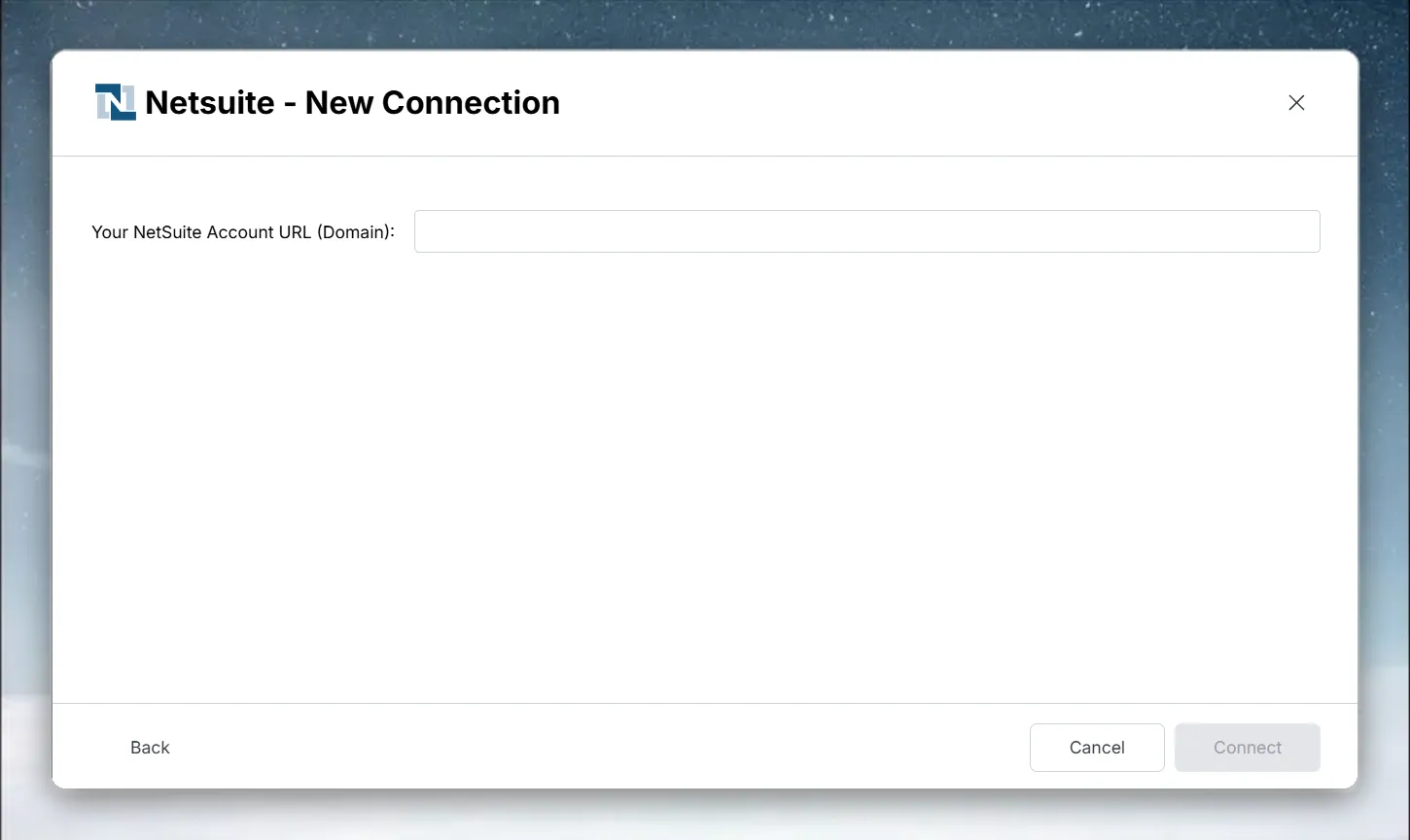
- In the Your NetSuite Account URL (Domain) field, enter your NetSuite account URL, for example
https://1234567.app.netsuite.com - Click Connect—Mammoth extracts your account ID from the URL and sends you to NetSuite's login page in the same browser tab
- Sign in with your NetSuite credentials and authorize Mammoth
- You're redirected back to Mammoth automatically with the connection active
Step 3: Select NetSuite data and query
After authenticating, select the connection under Existing Connections to open the query builder. The List of tables panel shows the tables this connector exposes. Click a table to load a SELECT * query for it and its preview.
Write a custom NetSuite query
Edit the SQL in the Enter SQL query editor and click Run. Use the table and column names shown in the table list and the preview.
See Understanding data preview & query for a full guide.
Step 4: Save the NetSuite dataset
- Enter a dataset name in the Save table as field (e.g., "NetSuite Sales Orders")
- Check the Update Method (the default is Replace all data). To change it, click the edit icon, pick an option, and click Save changes:
- Replace all data—Replaces all existing data
- Add new data—Adds new data based on a unique sequential column
- Replace with new data—Replaces existing data with new data based on a unique sequential column For Add new data and Replace with new data, also choose a Key column—a numeric or date column with incrementing values, such as an ID or a date.
- Click Save as dataset. When the dataset is saved, click Done
Troubleshoot NetSuite connections
Authorization does not complete
- Mammoth sends you to NetSuite in the same browser tab and returns you to Mammoth afterwards. If you close the tab or deny access, start the connection again
- Confirm the account URL is correct—Mammoth reads the account ID directly from the domain, so a malformed URL prevents the OAuth redirect from being built correctly
Record type not visible
- The authenticated NetSuite role may not have permission on that record type. Ask your NetSuite admin to check the role's permissions.