Dataset Creation Options
Mammoth offers several ways to create datasets. This guide helps you choose the right method for your situation and move between methods as your needs change.
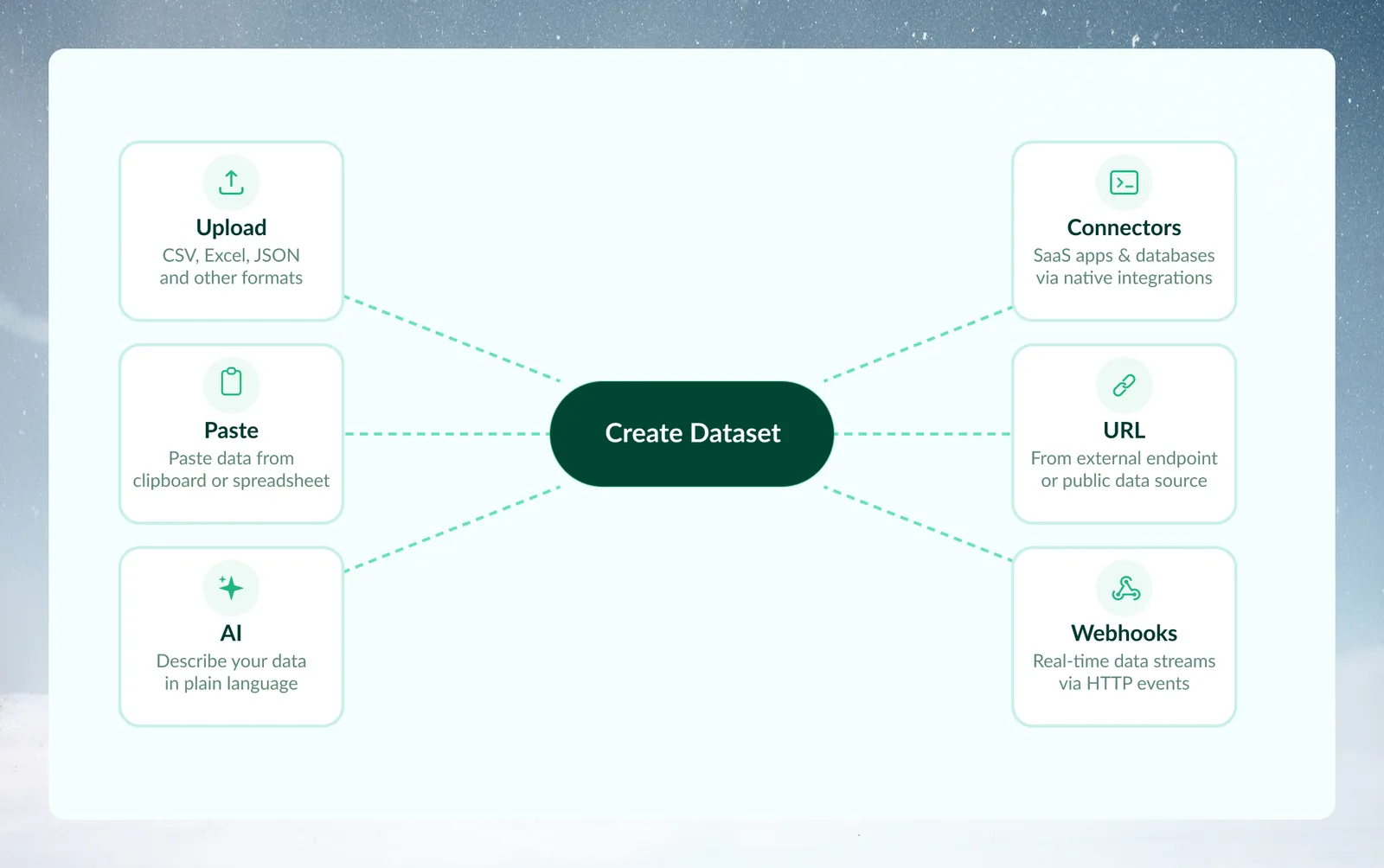
Quick method comparison
| Feature | File Upload | Paste | Live Connections | AI Generation | From URL | Webhooks |
|---|---|---|---|---|---|---|
| Data Size Limit | 50 MB per upload | Limited by browser memory | Depends on the source | User-defined (max 500 rows) | Larger files take longer to fetch | Payloads held until processed |
| Recurring Updates | Manual or automation | Manual only | Dataset Refresh automation | Manual only | Manual only | Source pushes; processed daily or on Refresh |
| Batch Versioning | Yes | Single snapshot | Yes | Single snapshot | Single snapshot | Combine or Replace |
| Automation Support | Data Consolidation | None | Dataset Refresh | None | None | Automation on the dataset |
| Authentication | None | None | Saved connection | None | None (signed URLs supported) | Optional X-SECRET header |
| Primary Use Case | Ad-hoc analysis | Quick exploration | Production workflows | Testing/prototyping | Public datasets | Event-driven pipelines |
The best method can change as your use case evolves. If you start with file uploads and later need automation, move to a connector (Live Connection) or a webhook.
Ways to create datasets
Upload (files)
Drag-and-drop or browse for files from your computer. Best for one-time analysis, ad-hoc exploration, and working with Excel or CSV files you already have.
- Handles: CSV, Excel (.xlsx, .xls), TSV, XML, and other formats (PDF and images when enabled for your workspace) listed in Supported formats
- Size limit: 50 MB per upload; a folder counts as one upload (see limits and quotas)
- Best for: Exploring new data, one-time projects, partner-provided files
- Multiple files: A folder becomes one dataset. Files you select individually each become their own dataset.
Paste from clipboard
Copy data directly from Excel, Google Sheets, or any spreadsheet—then paste into Mammoth. The fastest way to get started with small datasets.
- Handles: Tab-separated or comma-separated text, such as cells copied from a spreadsheet
- Practical limit: Browser memory
- Best for: Quick tests, small datasets, data entry
Connectors (Live Connections)
Connections to databases, APIs, and business applications. Mammoth pulls data from the source into a dataset, and you can refresh it later.
- Handles: SQL Server, PostgreSQL, MySQL, Snowflake, BigQuery, Salesforce, and more
- Best for: Recurring analysis and large datasets
Connectors work with the Dataset Refresh automation to pull data from the source on a schedule. If you need your analysis to update automatically from a database or application, use Connectors rather than file uploads.
Generate with AI
Describe the dataset you need in natural language, and AI creates realistic sample data for you. No source data required.
- Generates: Any data structure you describe
- Size: User-defined or AI-determined (maximum 500 rows per generation)
- Best for: Testing pipelines, prototyping dashboards, training scenarios
From URL
Provide a file URL (a public link or a signed URL), and Mammoth will fetch and ingest the file automatically.
- Handles:
.txt,.csv,.tsv,.psv,.xls,.xlsx,.xml,.zip,.bz2,.gz,.tar,.7z, plus.pdf,.tiff,.tif,.jpeg,.jpg,.png,.heic,.heif,.webpwhen enabled for your workspace - Best for: Public datasets, API exports, shared cloud storage
Webhooks
Receive data pushed directly into Mammoth from external systems via a unique webhook URL. Ideal for event-driven pipelines where data is sent to Mammoth automatically as it is generated.
- Handles: JSON or form data sent in a POST request from external applications, automation tools, or custom event triggers
- Dataset modes: Replace existing data each time held payloads are processed, or combine them with existing records (new webhooks start in Replace mode)
- Data shape: Each payload lands as a raw JSON row in a single text column
- Processing: Received payloads are held and processed into a batch once a day, or immediately when you click Refresh
- Best for: Event data, third-party app integrations, automated data pipelines
Sample files
Pick one of the sample datasets that come with Mammoth, grouped into Business, Technology, Finance & Real Estate, and Healthcare & Entertainment. No source data required.
- Best for: Exploring Mammoth, training, and demos
Choosing the right method
With several options available, how do you choose? Start with these questions:
Decision framework
Is this one-time or recurring?
- One-time analysis → Upload or Paste
- Recurring analysis → Connectors
- Automated event-driven ingestion → Webhooks
What is the data size?
- Small tables → Paste from Clipboard
- Files up to 50 MB → Upload
- Larger data → Connectors
Where is the data now?
- Excel file open → Paste from Clipboard
- File on disk → Upload
- Database or API → Connectors
- File URL → From URL
- Don't have data yet → Generate with AI or Sample Files
- External system pushing events → Webhooks
Do you need real data?
- Testing/prototyping → Generate with AI
- Actual analysis → Use the appropriate method for your source
Common scenarios
Use these methods for typical situations:
- "I got an Excel file from my colleague" → Use Upload (drag file into Mammoth)
- "I need to analyze data from our SQL database every week" → Use Connectors (create Live Connection, enable Dataset Refresh automation)
- "I want to test my pipeline before the real data arrives" → Use Generate with AI (describe expected data structure)
- "I'm looking at data in Excel right now and want to try one transformation" → Use Paste from Clipboard (copy range, paste into Mammoth)
- "I found a public dataset on GitHub" → Use From URL (paste raw file URL)
- "I need to combine 50 CSV files from different regional offices" → Use Upload folder (select the folder with all files)
- "Our CRM automatically sends a record every time a lead is submitted" → Use Webhooks (configure your CRM to POST to your Mammoth Webhook URL, choose Combine with older data to accumulate records)
Ready to get started?
Each method has a dedicated guide with step-by-step setup instructions:
- File Upload—upload files from your computer
- Paste from Clipboard—paste cells copied from a spreadsheet
- Connectors (Live Connections)—connect to databases and applications
- Generate with AI—create sample data from a description
- From URL—fetch a file from a link
- Webhooks—receive data pushed from external systems
- Sample files—start from a built-in sample dataset