Publishing and sharing dashboards
Once your dashboard is ready, you can publish it and share it with anyone—teammates, clients, or external stakeholders. Publishing creates a live, shareable version at a unique link. Access settings decide who can open it.
Opening the Share panel
- Open your dashboard in the editor and save your changes. You can't publish with unsaved changes.
- Click the primary button in the header. It reads Publish while the dashboard has something to publish, and Share when it's live and up to date.
The Share panel opens. Before publishing it reads Not published yet.
Publishing your dashboard
Click Publish to make the dashboard live. Click Publish & copy link to publish and copy the link in one step.
Once published, the panel shows:
- A Live badge and when it was Last published
- View, which opens the live dashboard
- The share link, with a Copy button
- A Link preview of how the link looks when pasted in Slack or LinkedIn (layout and style only, never your data)
- Unpublish
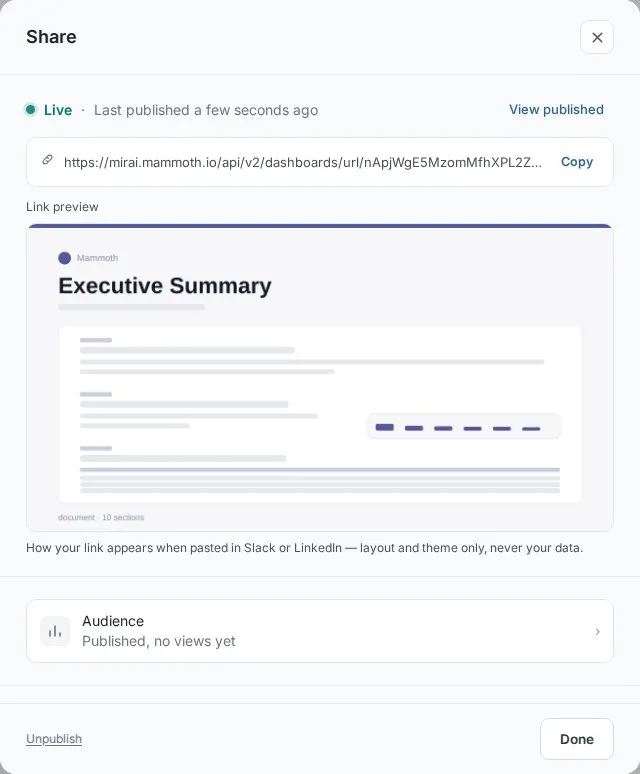
If you change a published dashboard, the panel lists the Unpublished changes so you can see what is waiting. Click Publish to make them live. When another author made some of the changes, the panel offers Let <names> know it's published.
Some things block publishing:
- Sample data. A template on sample data can't be published until you connect your own data (Use my data)
- Plan limit. If your plan's published-dashboard limit is reached, unpublish another dashboard or upgrade. The limit depends on your plan
Access
The panel shows who has access. By default, everyone in the dashboard's project does. The Access menu controls who else can open the published link.
Sign-in required
Viewers must sign in to Mammoth. Everyone in the project has access, and you can invite people outside the project by email.
Best for: Internal dashboards, sensitive business data, or when you want to control exactly who has access.
Anyone with the link
Anyone with the link can view the dashboard, including all of its data. No sign-in required.
Best for: External reports, client-facing summaries, or public data shared by email or in presentations.
Inviting viewers
Enter email addresses in Invite by email to share with people outside the project. For a draft, the button reads Publish & invite: it publishes first, then sends the invite. Invited people are always viewers. The panel lists your Viewers, and you can remove one to end their access.
Viewers can view charts, use filters, and move between pages. They can't edit the dashboard. To let someone edit it, give them a role in the project.
Advanced
The Advanced section holds more options:
- Embed—put the dashboard on your own site
- Row-level security—restrict which rows each viewer sees, with values assigned per viewer
- Viewer Q&A—let viewers ask questions. It isn't available on a public link
Some of these depend on your plan and workspace settings.
Share as video
For a dashboard that is a motion story, Share as video generates an MP4 you can download and post. Upload the video itself, then paste your share link in the post text.
Unpublishing
To take a dashboard offline, open the Share panel and click Unpublish. Mammoth asks you to confirm: it revokes the shareable link, and anyone who has it loses access immediately. If the dashboard is embedded, you get a warning first.
Your draft and its settings stay intact. You can republish later and the same link works again.
What viewers see
Viewers who open the link see the published dashboard, with its filters and pages. They can explore but can't change it. You can check this view yourself from Preview or View. Your own visits aren't counted in Audience.