Google BigQuery connector
The Google BigQuery connector imports data from your BigQuery data warehouse into Mammoth as a dataset. Authentication uses a Google Cloud service account key file—no OAuth sign-in is required.
Before you start
You need:
- A Google Cloud project with BigQuery enabled
- A service account with the BigQuery Data Viewer role (or equivalent)
- The service account's JSON key file downloaded to your computer
Create a BigQuery service account
- In the Google Cloud Console, go to IAM & Admin → Service Accounts
- Click Create Service Account
- Give it a name (e.g.,
mammoth-bigquery) - Grant the role BigQuery Data Viewer (for read access) and BigQuery Job User (to run queries)
- Click Done
- Open the service account, go to Keys, click Add Key → Create new key, and select JSON
- Save the downloaded JSON file—you'll upload it to Mammoth in the next step
Step 1: Select the BigQuery connector
- In Mammoth, go to Data Library and click + New Dataset
- Select Connectors
- Search for BigQuery
- Click the Google BigQuery tile
Step 2: Create a connection
Click New Connection. BigQuery uses a service account file rather than username/password.
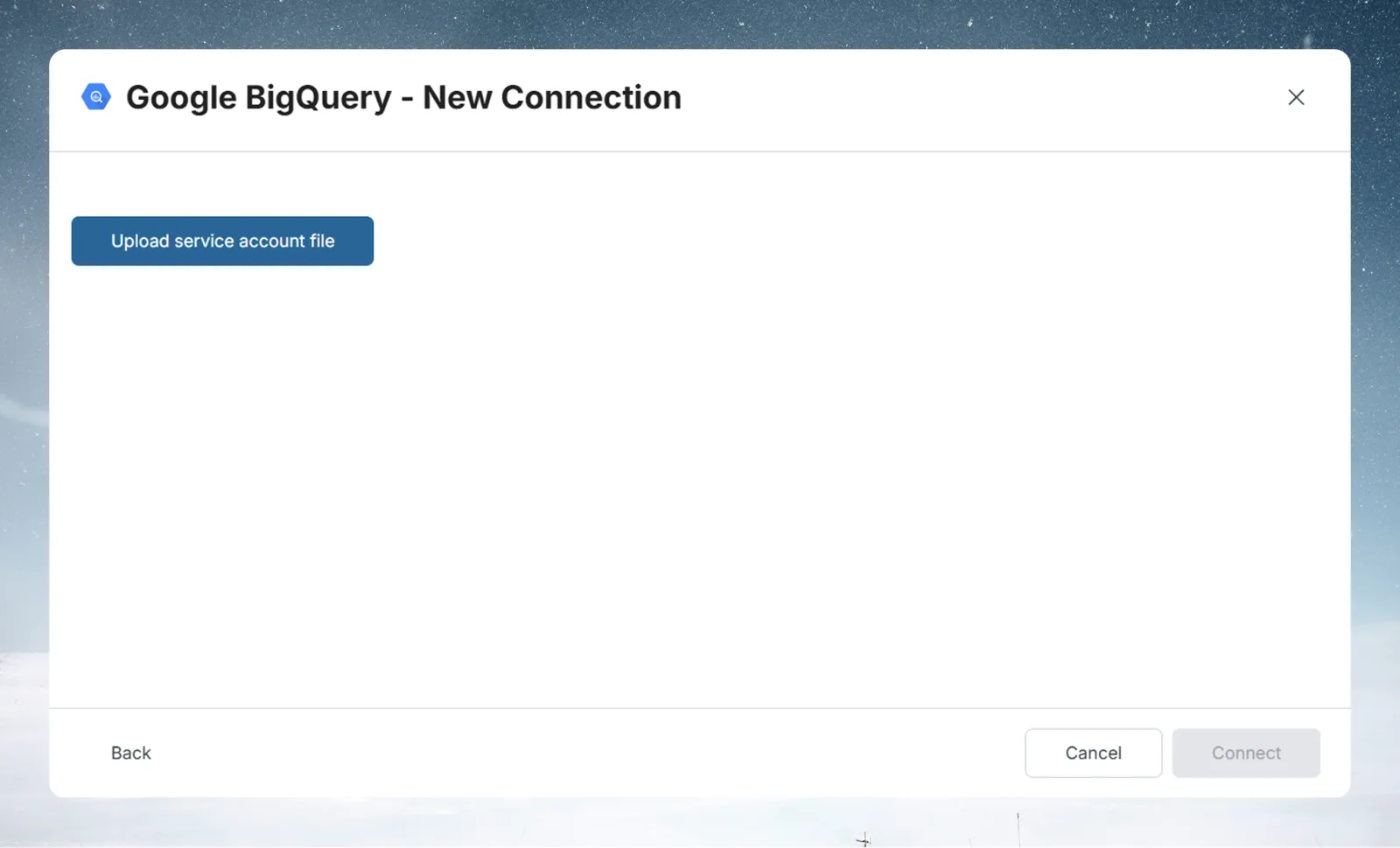
- Click Upload service account file
- Select the JSON key file you downloaded from Google Cloud Console
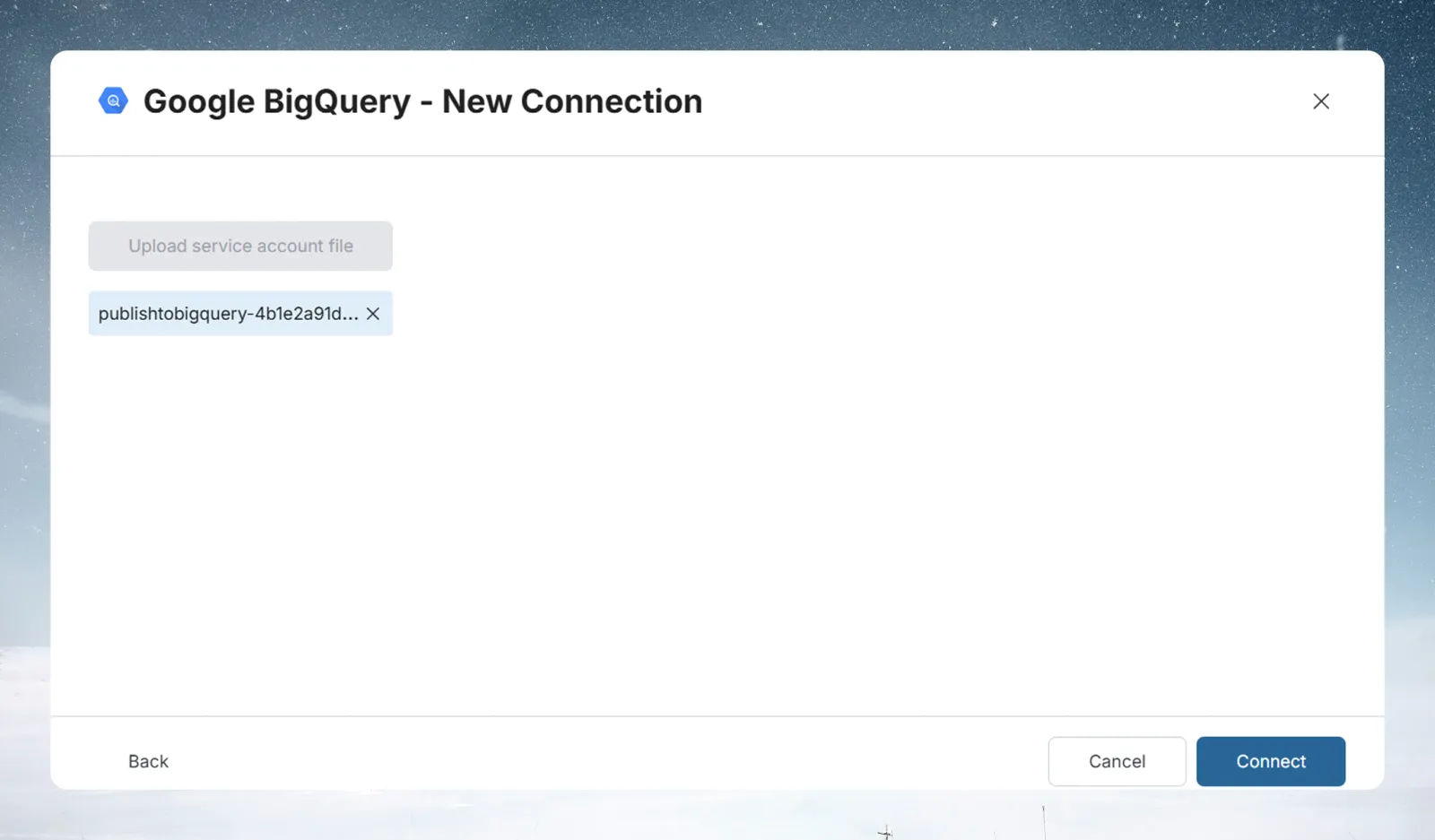
- Mammoth reads the credentials from the file
- Click Connect to validate and save the connection
Keep your key file secure. The service account JSON key grants access to your BigQuery project. Store it securely and do not share it. If you need to revoke access, delete the key in Google Cloud Console under IAM & Admin → Service Accounts → {your account} → Keys.
Step 3: Select a BigQuery dataset and query your data
In BigQuery, data is organized into datasets (equivalent to schemas). After connecting:
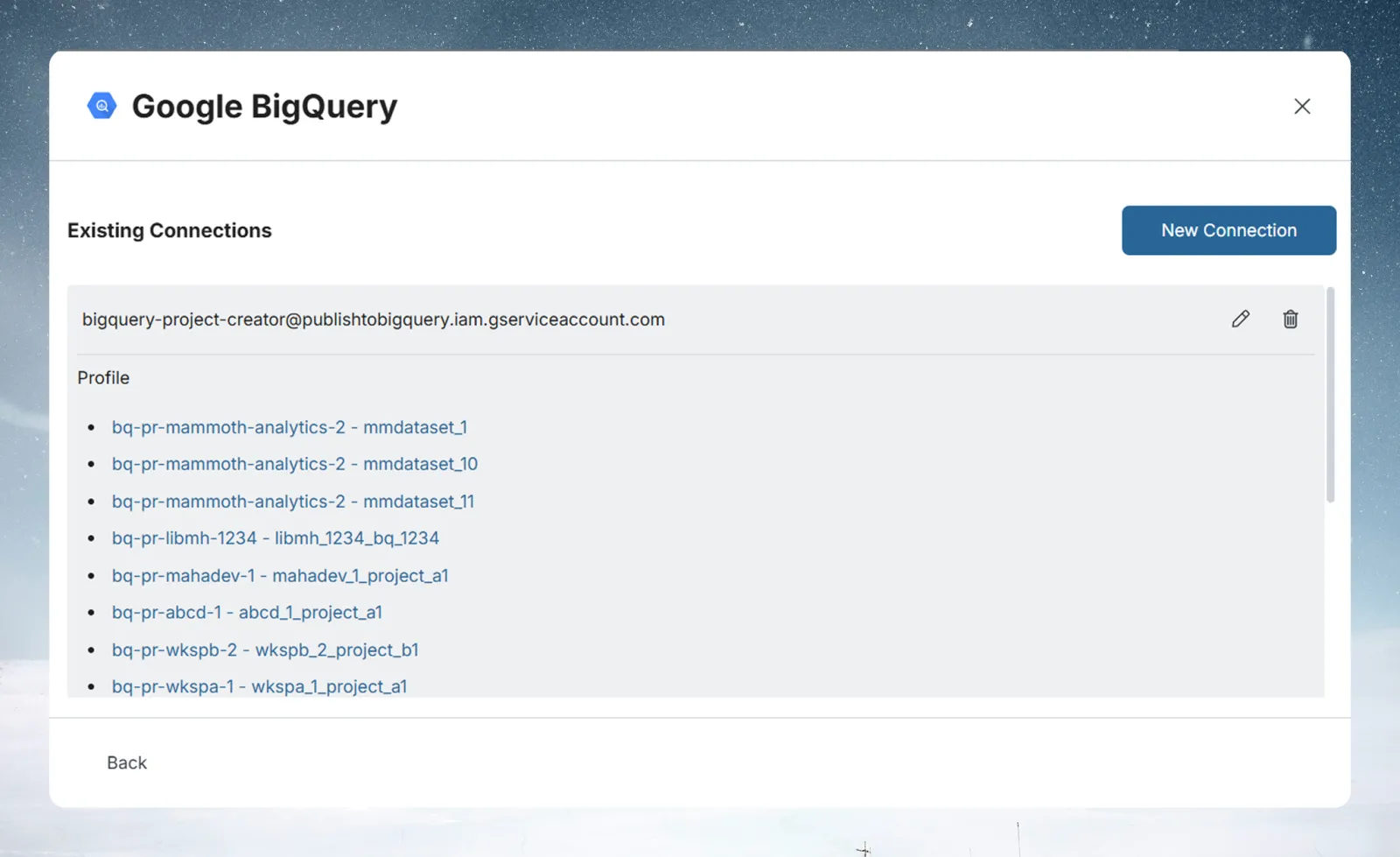
- Your BigQuery datasets appear as profiles, named
project - dataset, under your connection in Existing Connections - Click a profile to open it and see its tables in the List of tables panel
- Click a table to load a
SELECT *query for it and its preview
Write a custom BigQuery query
SELECT order_id, customer_id, amount, created_at
FROM `my-project.analytics.orders`
WHERE DATE(created_at) >= DATE_SUB(CURRENT_DATE(), INTERVAL 90 DAY)
  AND status = 'completed'
BigQuery uses backtick-quoted fully qualified table names: project.dataset.table.
See Understanding data preview & query for a full guide.
Step 4: Save the BigQuery dataset
- Enter a dataset name in the Save table as field (e.g.,
Hokulani_Data) - Check the Update Method (the default is Replace all data). To change it, click the edit icon, pick an option, and click Save changes:
- Replace all data—Replaces all existing data
- Add new data—Adds new data based on a unique sequential column
- Replace with new data—Replaces existing data with new data based on a unique sequential column For Add new data and Replace with new data, also choose a Key column—a numeric or date column with incrementing values, such as an ID or a date.
- Click Save as dataset. When the dataset is saved, click Done
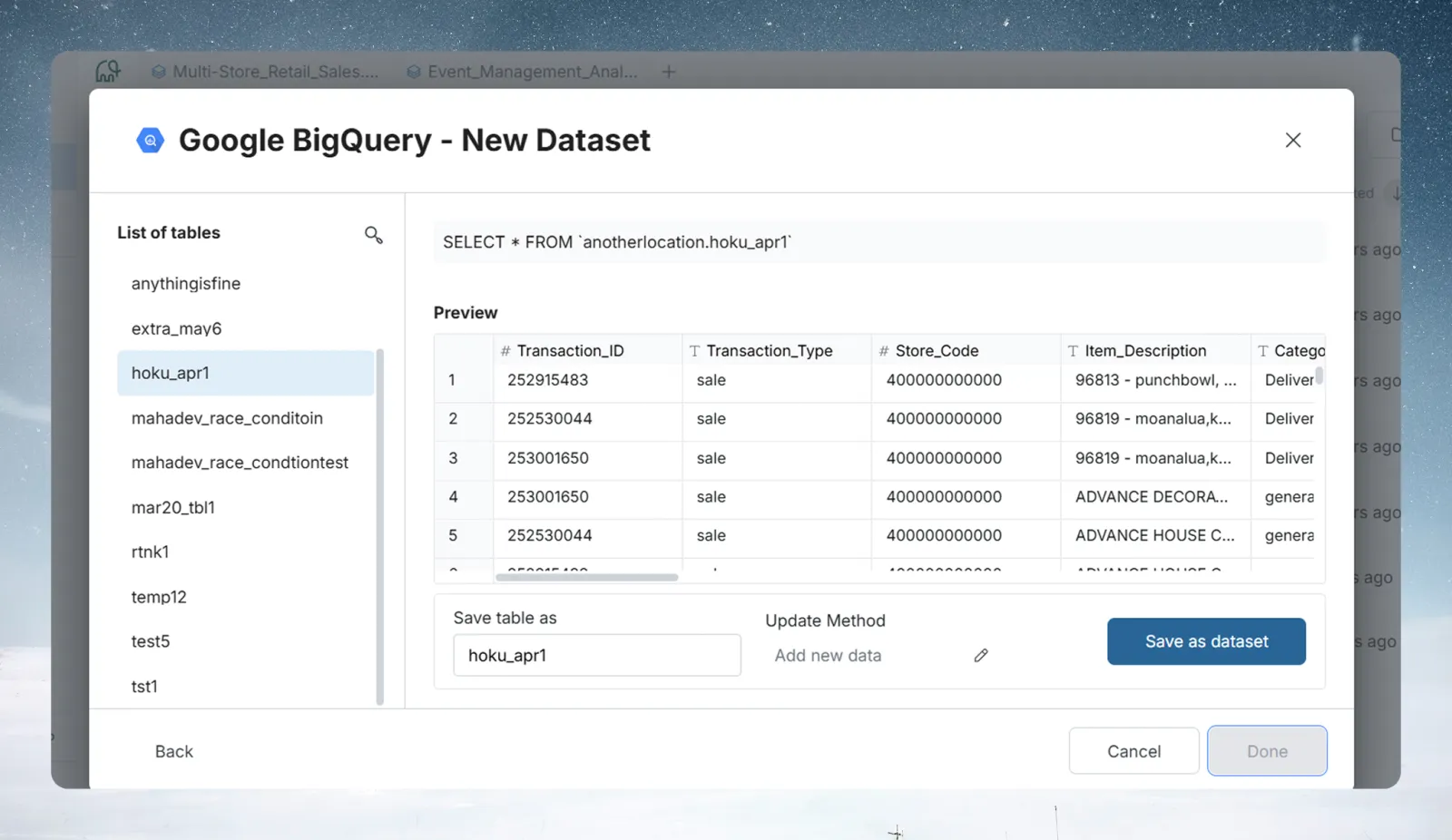
After saving, your dataset appears in the Data Library.
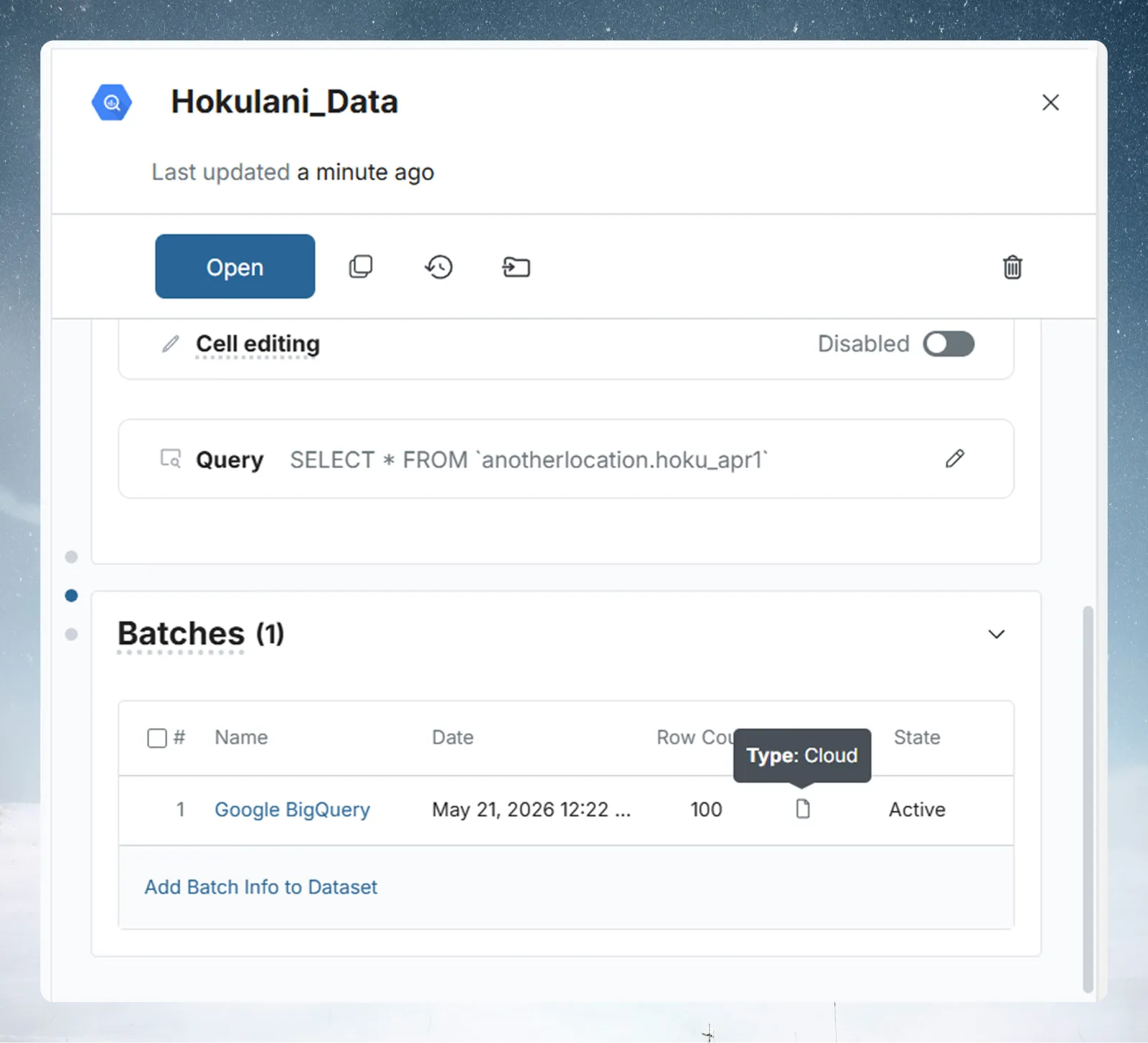
To refresh data from BigQuery, create a Dataset Refresh automation, which you can run manually or on a schedule.
Troubleshoot BigQuery connections
Permission denied errors
- Confirm the service account has both BigQuery Data Viewer and BigQuery Job User roles
- For table-level access instead of project-level, grant the roles directly on the BigQuery dataset in BigQuery → {dataset} → Sharing → Permissions
Project not visible
- The service account must belong to the same Google Cloud project, or be granted access cross-project through IAM