Dashboard themes
A dashboard's look is set by its style, together with a light or dark mode. Styles control colors, fonts, backgrounds, and component styling. You choose them in the Design tab of the editor.
The default style for new dashboards is Stone.
Applying a style
- Open your dashboard in the editor
- Click the Design tab in the left panel
- Under Style, pick a style from System styles or Workspace styles
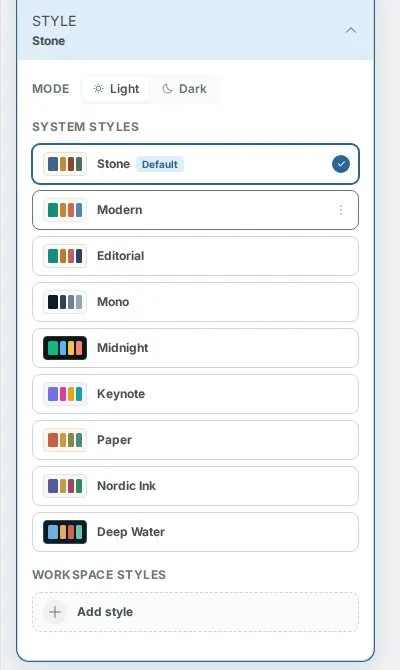
The preview updates as you choose. Save the dashboard to keep the change.
System styles
Mammoth includes these system styles:
- Stone (default)
- Modern
- Editorial
- Mono
- Keynote
- Midnight
- Paper
- Nordic Ink
- Deep Water
Light and dark mode
Mode is separate from the style. Choose Light or Dark to switch any style. Some styles work in only one mode and show Dark only or Light only.
Workspace styles
Workspace styles are custom styles shared in your workspace. Create one with New style or Add style. The style editor can read your brand from a logo, an uploaded image, or a website address (From a website), and you can adjust it from there. You can also change these controls:
- Corners—from sharp to extra-round
- Density—compact or comfortable padding inside tiles
- Card style—flat, bordered, or elevated
On a style you can Edit, Rename, Delete, Duplicate to customize, or Set as default. Deleting a style makes dashboards that use it fall back to the default.
Signature
The Signature section adds a logo and footer to your dashboard. The Mammoth Signature is included on plans that have it, and adding or changing a signature depends on your plan.
Format and sections
The Format section of the Design tab sets whether the item is a Dashboard, Doc, Slides, or Q&A page. Changing the format re-composes the canvas. Sections turns optional sections on and off, like Key insights and the Filters bar.