Parquet (Azure) connector
The Parquet connector reads Parquet files stored in Azure Data Lake Storage and imports them into Mammoth as datasets. The connection form is titled "Azure Data Lake Storage Credentials." This connector is for Parquet-format files on Azure—use the Google Cloud Storage connector for Parquet files on GCS.
Before you start
You need:
- An Azure storage account containing Parquet files
- Your storage account's Access Key (found in Azure Portal → Storage Account → Security + networking → Access keys)
- The Account name and Container (File System) name where your Parquet files are stored
Step 1: Select the Parquet connector
- In Mammoth, go to Data Library and click + New Dataset
- Select Connectors
- Search for Parquet
- Click the Parquet tile
Step 2: Create a connection
Click New Connection to open the credential form.
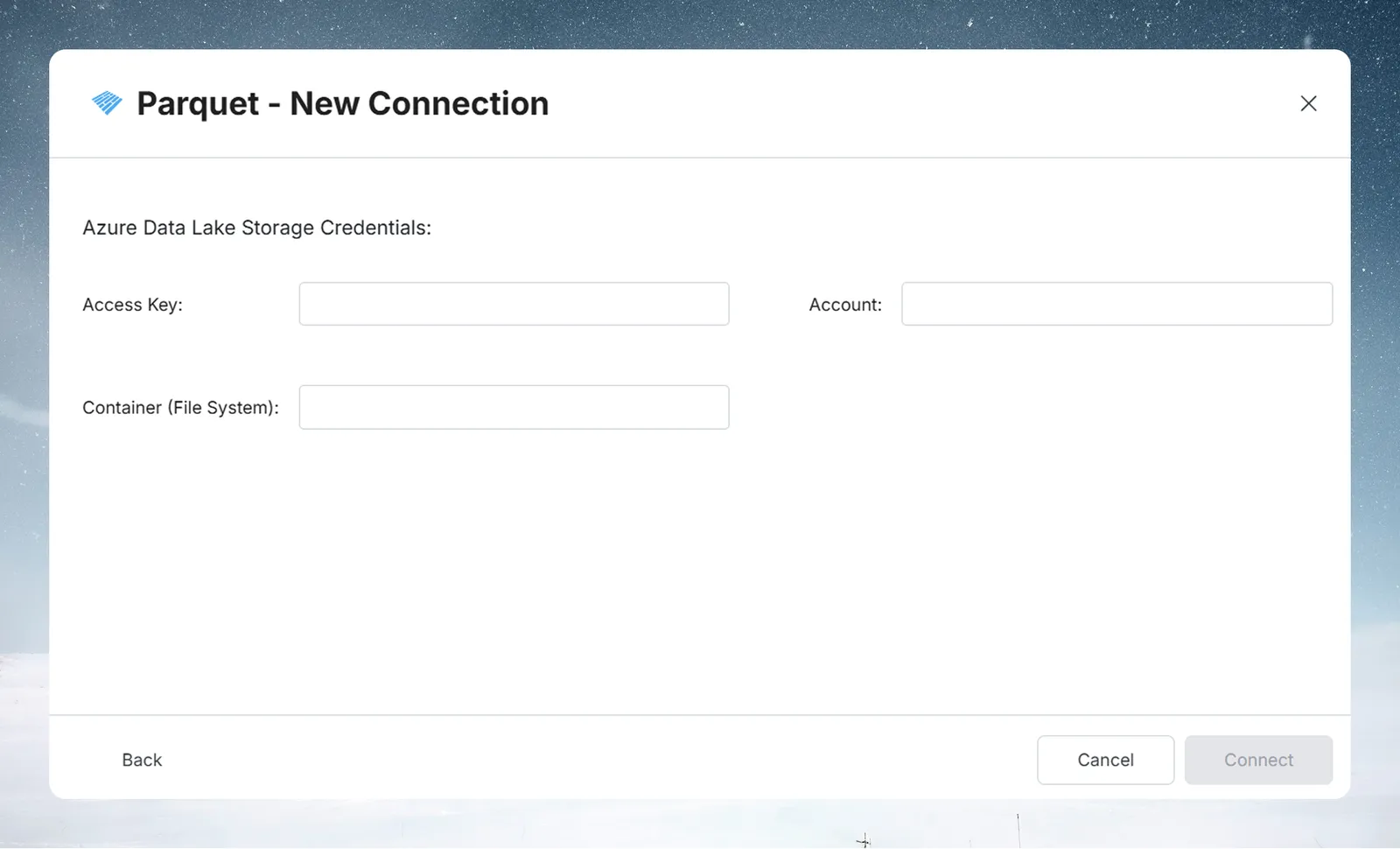
| Field | Description | Example |
|---|---|---|
| Access Key | Azure Storage account access key (Key 1 or Key 2) | abc123... (long string) |
| Account | Azure storage account name | mydatalake |
| Container (File System) | Blob container name where your Parquet files are stored | analytics-data |
Find your Azure access key
- Open Azure Portal and go to your storage account
- Under Security + networking, select Access keys
- Copy key1 (or key2)
After filling in the fields, click Connect. Mammoth validates the credentials and saves the connection; if validation fails, the error message appears at the bottom of the form.
Step 3: Select a Parquet file and query your data
After connecting, select the connection under Existing Connections. Mammoth lists the folders (directory paths) in your container as Profile entries. Select one to browse the Parquet files within it in the List of tables panel, then click a file or directory to load a preview.
The Enter SQL query editor lets you write SQL against the selected data:
SELECT customer_id, event_type, event_date, revenue
FROM my_parquet_schema
WHERE event_date >= '2024-01-01'
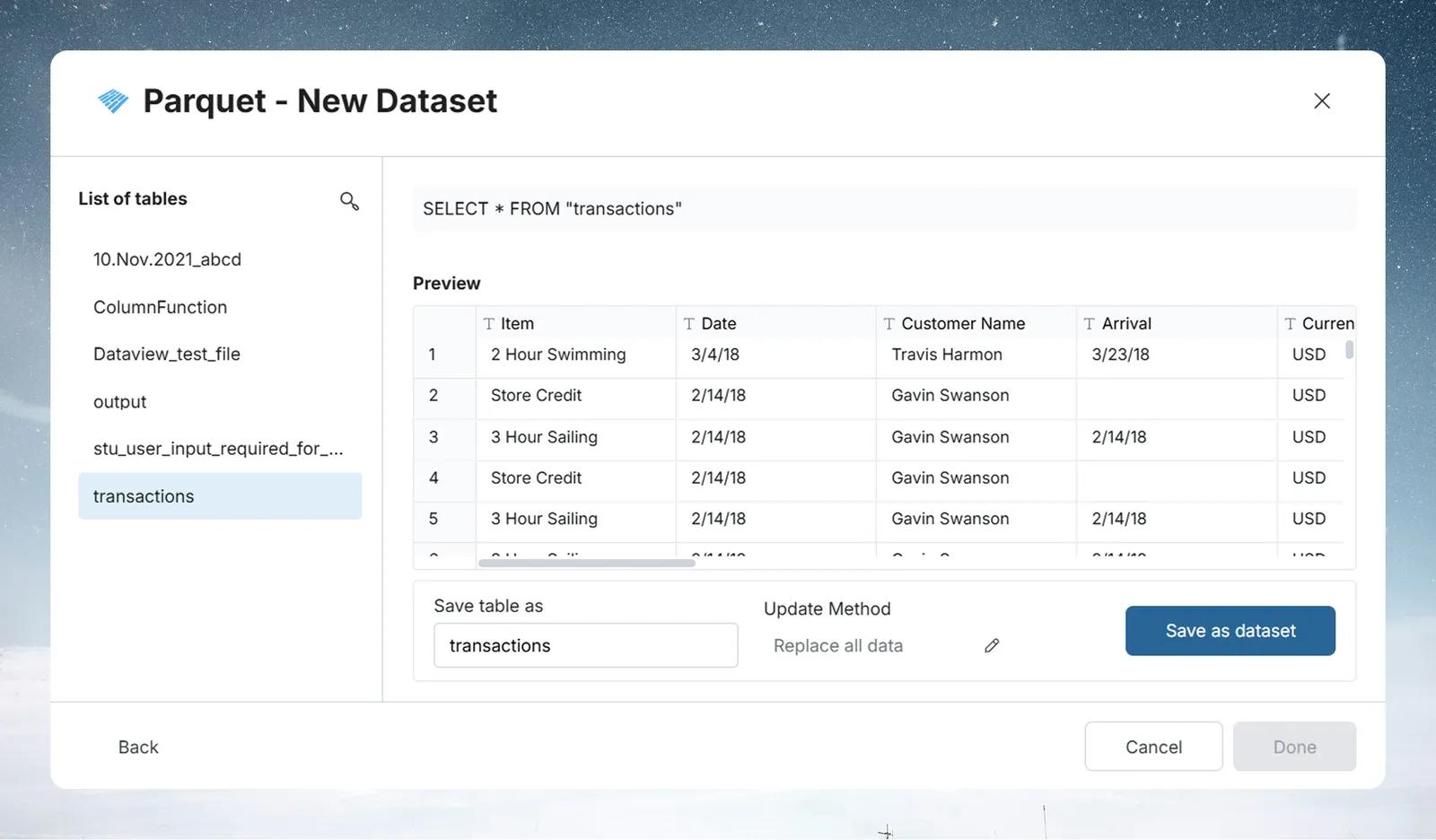
See Understanding data preview & query for a full guide.
Step 4: Save the Parquet dataset
- Enter a dataset name in the Save table as field
- Check the Update Method (the default is Replace all data). To change it, click the edit icon, pick an option, and click Save changes:
- Replace all data—Replaces all existing data
- Add new data—Adds new data based on a unique sequential column
- Replace with new data—Replaces existing data with new data based on a unique sequential column For Add new data and Replace with new data, also choose a Key column—a numeric or date column with incrementing values, such as an ID or a date.
- Click Save as dataset. When the dataset is saved, click Done
Troubleshoot Parquet connections
Authentication fails
- Double-check the access key—it's a long base64 string; a single character error will fail
- Confirm the account name matches exactly (case-sensitive)
Container not found
- The container name is case-sensitive in Azure
- Confirm the container exists in the Azure Portal under Containers