Paste from Clipboard
Paste from Clipboard is a quick way to get a small table into Mammoth: copy cells, paste them, and create the dataset. Use it for quick tests and ad-hoc questions that do not need a formal file upload.
When to use paste from clipboard
- Executive asks a question during a meeting → copy Excel data → paste it into Mammoth and explore it
- Testing transformation logic with sample data before building full pipelines
- Small reference tables (department codes, product categories) for lookup operations
- Quick data quality validation before committing to formal uploads
Paste data to create a dataset
To go from a spreadsheet to a Mammoth dataset:
- Copy your data: Select cells in Excel or Google Sheets and copy them (Ctrl+C on Windows, Cmd+C on Mac)
- Start new dataset: Click "+ New Dataset" in Mammoth
- Choose paste option: Select "Paste from Clipboard"
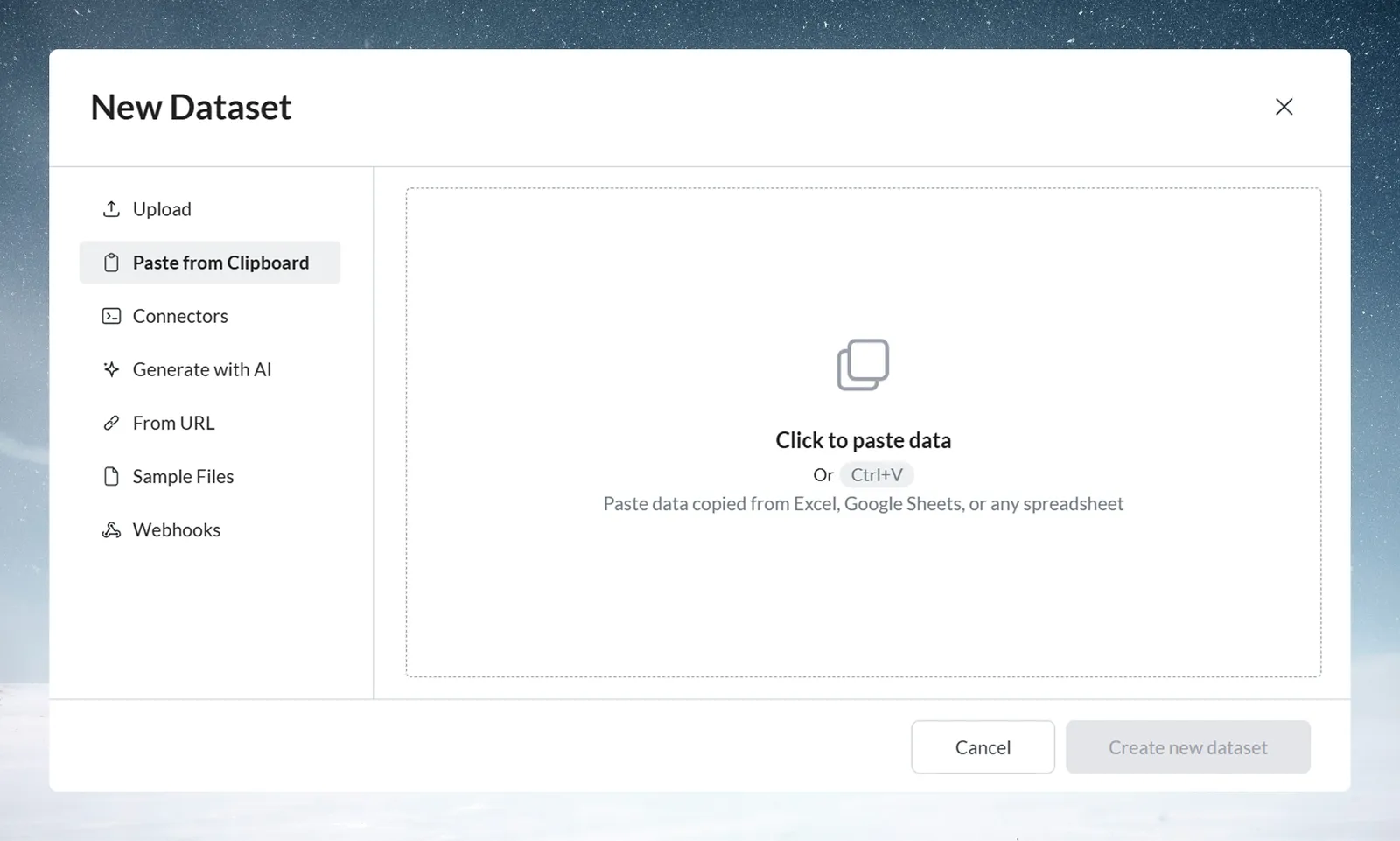
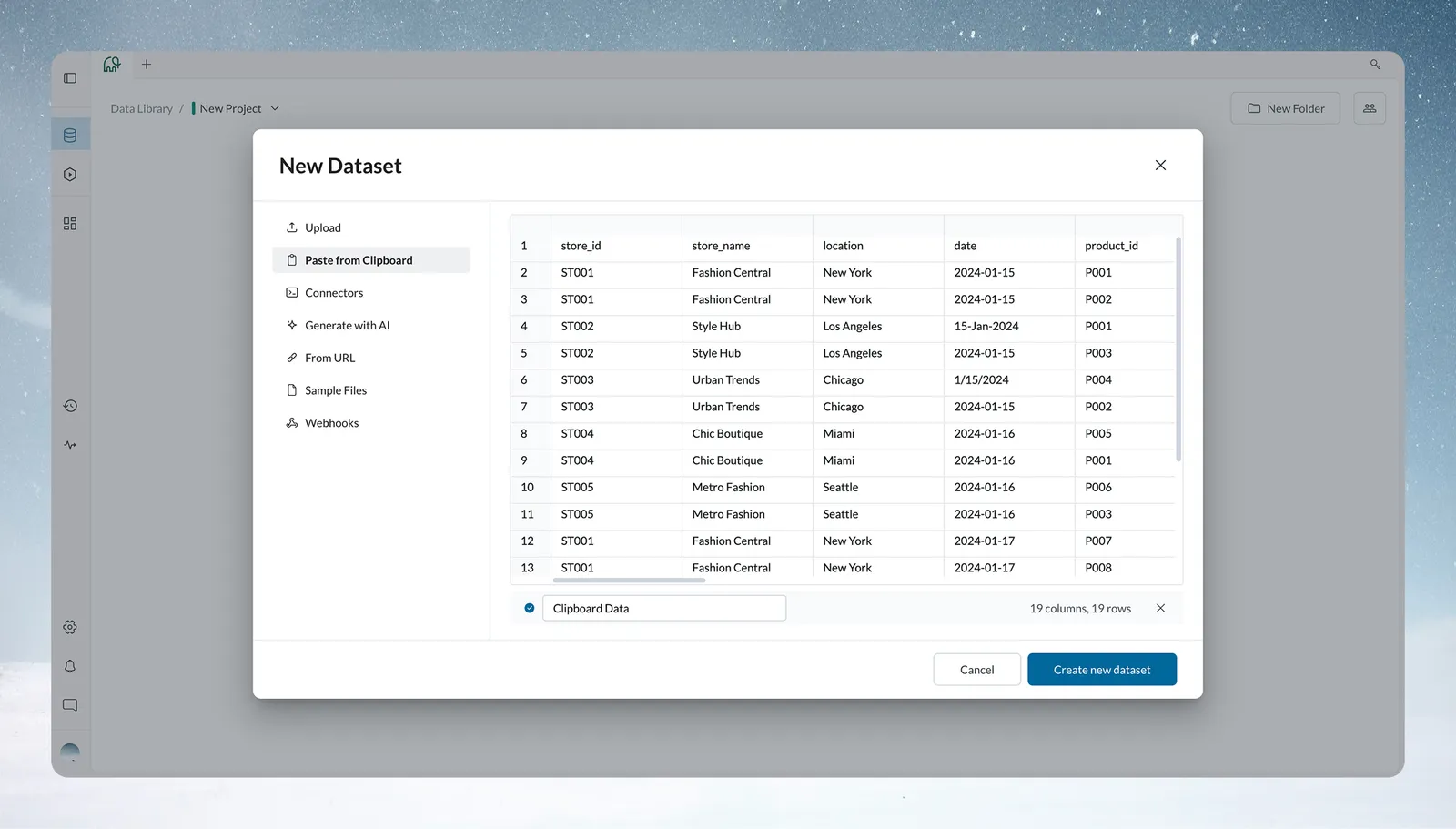
- Paste: Select Click to paste data OR press Ctrl+V/Cmd+V. Mammoth shows an editable preview of the pasted table. To discard the preview, select the X button in the preview bar. If you paste again while a preview exists, Mammoth asks "Are you sure you want to replace this preview?" before replacing it. If the browser blocks clipboard access, Mammoth shows "Clipboard access was blocked. Allow access or press Ctrl+V." (Cmd+V on Mac).
- Auto-detection: Mammoth identifies the columns and detects the header row
- Name and submit: Give your dataset a name → click Create new dataset
Mammoth creates the dataset from the pasted table.
What you can paste
Mammoth accepts structured data from these sources:
Spreadsheet applications
- Excel ranges (with or without headers)
- Google Sheets selections
- Any other spreadsheet application that copies cells as tab-separated text
Web sources
- HTML tables from websites (copy table → paste directly)
- Database query results (copied as text from tools like pgAdmin)
- CSV text from text editors or command-line tools
Delimited text
- Tab-delimited data (most common from Excel)
- Comma-separated values
Mammoth splits the pasted text on tabs if it contains any tab, and on commas otherwise. Other delimiters such as pipes (|) and semicolons are not detected.
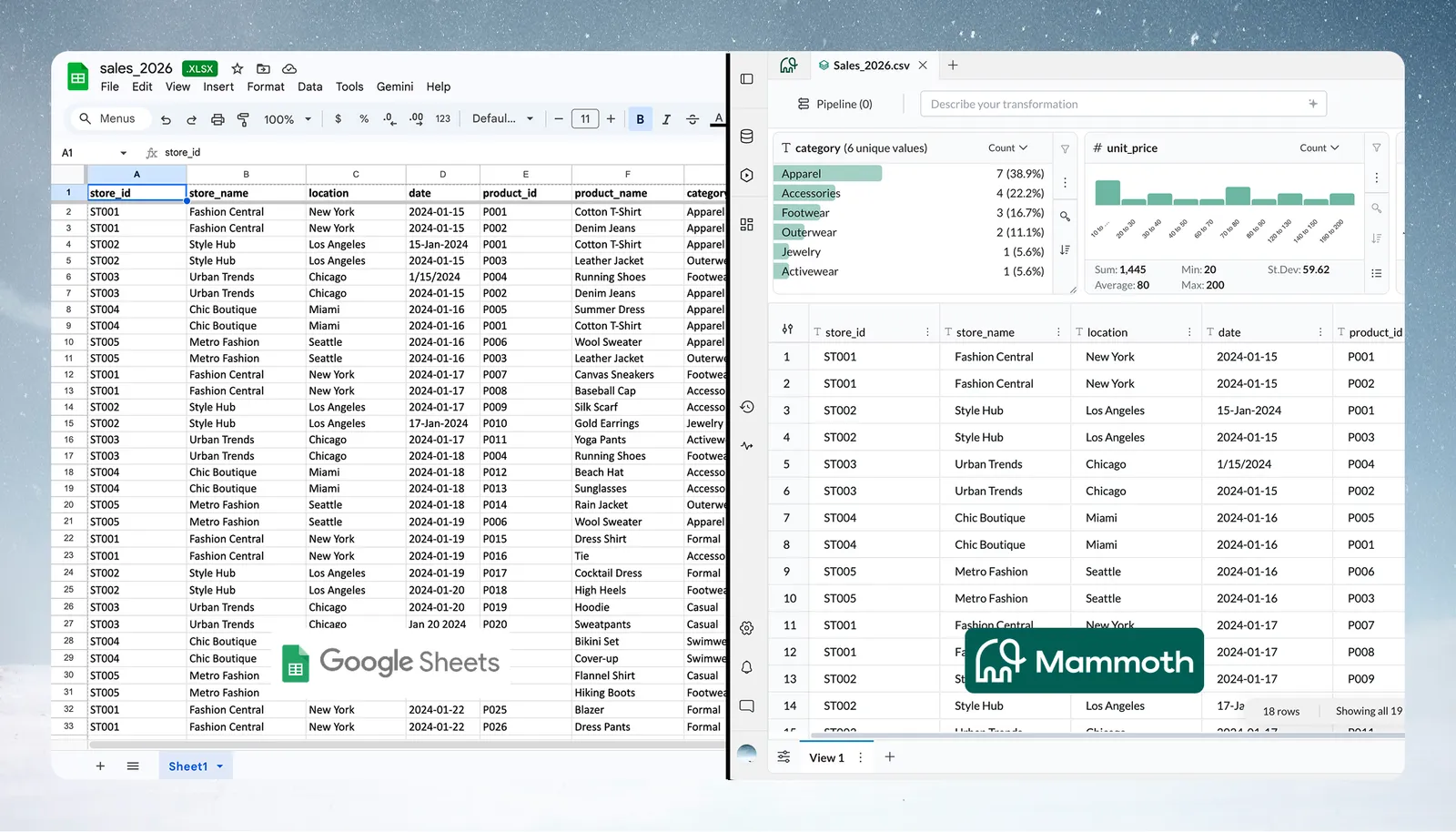
Always include the header row in your selection. This improves column naming and type detection.
Non-tabular content
Paste from Clipboard works best with tabular data—rows and columns copied from Excel, Google Sheets, or any spreadsheet application.
If the pasted content is not in tabular form, Mammoth puts each line in a single column as text values. This includes:
- Plain sentences—
hello this is not a table - JSON—
{"key": "value"} - HTML—
<div>test</div> - Special characters—
@#$%^&*()_+=~
Mammoth rejects pasted file paths, file names (for example report.xlsx), and images with the message "Invalid pasted data. Please copy cells from Excel, Google Sheets, or a CSV file."
In these cases, review the dataset preview before proceeding. If the result is not what you expected, use a different creation method or restructure your data into rows and columns before pasting.
Automatic schema detection
When you paste data, Mammoth analyzes it as follows:
Column headers
- Detects a header row when the first line has a non-numeric label in every column and there is at least one more line
- Leaves the first line as data when it does not look like a header row
Data type recognition
Mammoth detects column data types when it creates the dataset, in the same way as for a file upload. Review the types after creation and use Convert Column Type where needed.
Delimiter detection
Mammoth identifies:
- Tab separation (most common from spreadsheets)
- Comma separation (CSV format)
Example paste from clipboard use cases
Executive meeting response
Scenario: CFO asks "What's our average deal size by region?" during board meeting
Workflow:
- Open CRM report in another tab
- Copy relevant data
- Paste into Mammoth
- Use Explore Cards to analyze by region
- Share screen with answer
Result: The question is answered without leaving the meeting.
Training and testing
Scenario: Teaching a team member transformation logic
Workflow:
- Create 50-row sample from production data
- Paste sample into Mammoth
- Demonstrate pipeline building without affecting production
- Show before/after transformation results
Result: Safe training environment with real data structure but limited scope.
Reference table creation
Scenario: Need department codes for lookup operations
Data: 30-row table with Department Name and Department Code columns
Workflow:
- Paste reference table
- Use in Join operations across multiple Views
- Update by pasting new version when codes change
Result: A quick lookup table without a formal import.
Paste from clipboard best practices
Data preparation
- Include header row: Select headers with your data for better column naming
- Clean obvious errors: Fix typos and formatting issues before pasting
- Test with subset first: Use a few rows to verify detection before pasting the full dataset
- Consistent formatting: Same date format, number format throughout columns
Size management
- Start small: Test with a small range before pasting a large table
- Monitor browser: Watch for slowdown with large datasets
- Alternative for big data: Use File Upload for large tables. If the clipboard content is too large, Mammoth shows "Content too large to paste. Use the file upload option instead."
Data types
- Check numeric codes: Product IDs might be detected as numbers (want text)
- Verify dates: Different date formats might parse incorrectly
- Review text columns: Check long text values in the preview before you create the dataset
Paste prepares the dataset in your browser's memory first. For large tables, close other browser tabs to free up memory and prevent slowdowns.
Paste from clipboard limitations and alternatives
Size constraints
- Browser memory: The pasted table is held in your browser until you create the dataset, so very large tables can be slow
- Clipboard size: Content that is too large for the browser to read shows "Content too large to paste"
- Alternative: Use File Upload for large tables
Version control
- Single snapshot: Each paste creates a new dataset. To add to it later, use a file with Add data or Replace data
- Manual refresh: Must copy-paste again for updated data
- No automation: Cannot schedule or refresh automatically
- Alternative: Use a Connector for data that updates regularly
Data persistence
- Browser-dependent: Data exists only in current session
- No autosave: Must click on Create New Dataset to create permanent dataset
- Lost on refresh: Browser refresh before Submit loses all data
Troubleshoot paste from clipboard
Paste didn't work
Symptoms: Nothing appears after pasting
Causes:
- Data is plain text paragraph (not structured rows/columns)
- Clipboard contains an image, a file path, or a file name
- Browser clipboard permissions blocked
Solutions:
- Verify data has clear rows and columns structure
- Try pasting into text editor first to see raw format
- Enable clipboard permissions in browser settings
Wrong column types detected
Symptoms: Numbers detected as text, dates as text, text as numbers
Causes:
- Inconsistent formatting within columns
- Missing header row
- Special characters in numeric data
Solutions:
- Include header row in selection
- Clean data formatting before pasting
- Use Convert Column Type after upload
Browser performance issues
Symptoms: Browser freezes, becomes unresponsive
Causes:
- Dataset too large for browser memory
- Multiple browser tabs consuming memory
- Complex data with many columns
Solutions:
- Close other browser tabs
- Paste smaller subset first
- Switch to File Upload method
Lost data after browser refresh
Symptoms: Pasted data disappeared
Causes:
- Browser refresh before clicking on Create new dataset
- Browser crash or tab closure
Solutions:
- Always click on Create new dataset immediately after paste
- Keep source data available for re-pasting
- Save work frequently in source application
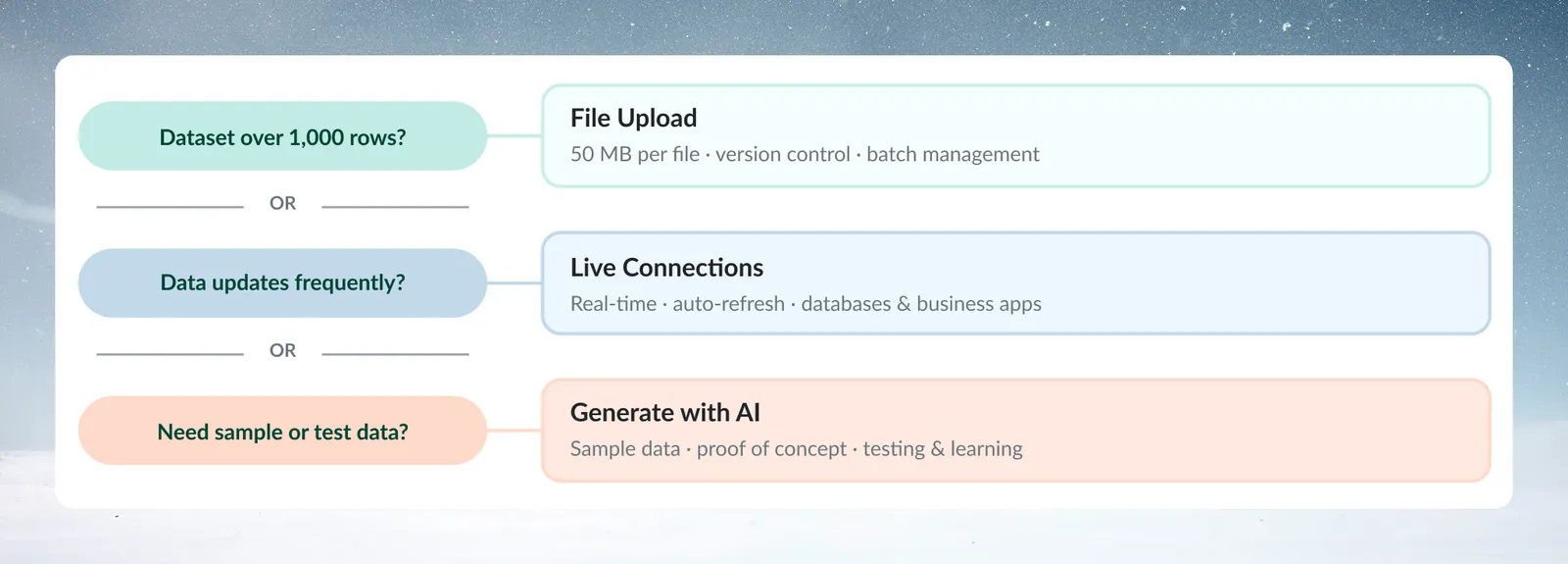
When to use another dataset method
Use file upload instead when
- Dataset is large
- Need version control (Replace/Combine batches)
- Data will be updated regularly
- Working with multiple related files
Use a connector instead when
- Data updates frequently (daily/hourly)
- Need real-time analysis
- Data lives in database or business application
- Want automated refresh scheduling
Use Generate with AI instead when
- Need sample data for testing
- Building proof-of-concept workflows
- Learning Mammoth features
- Creating training scenarios