Import from URL
From URL creates a dataset from a file at a web-accessible address, so you do not have to download and re-upload it. Paste a URL that points to a supported file, and Mammoth fetches it and creates a dataset in your Data Library.
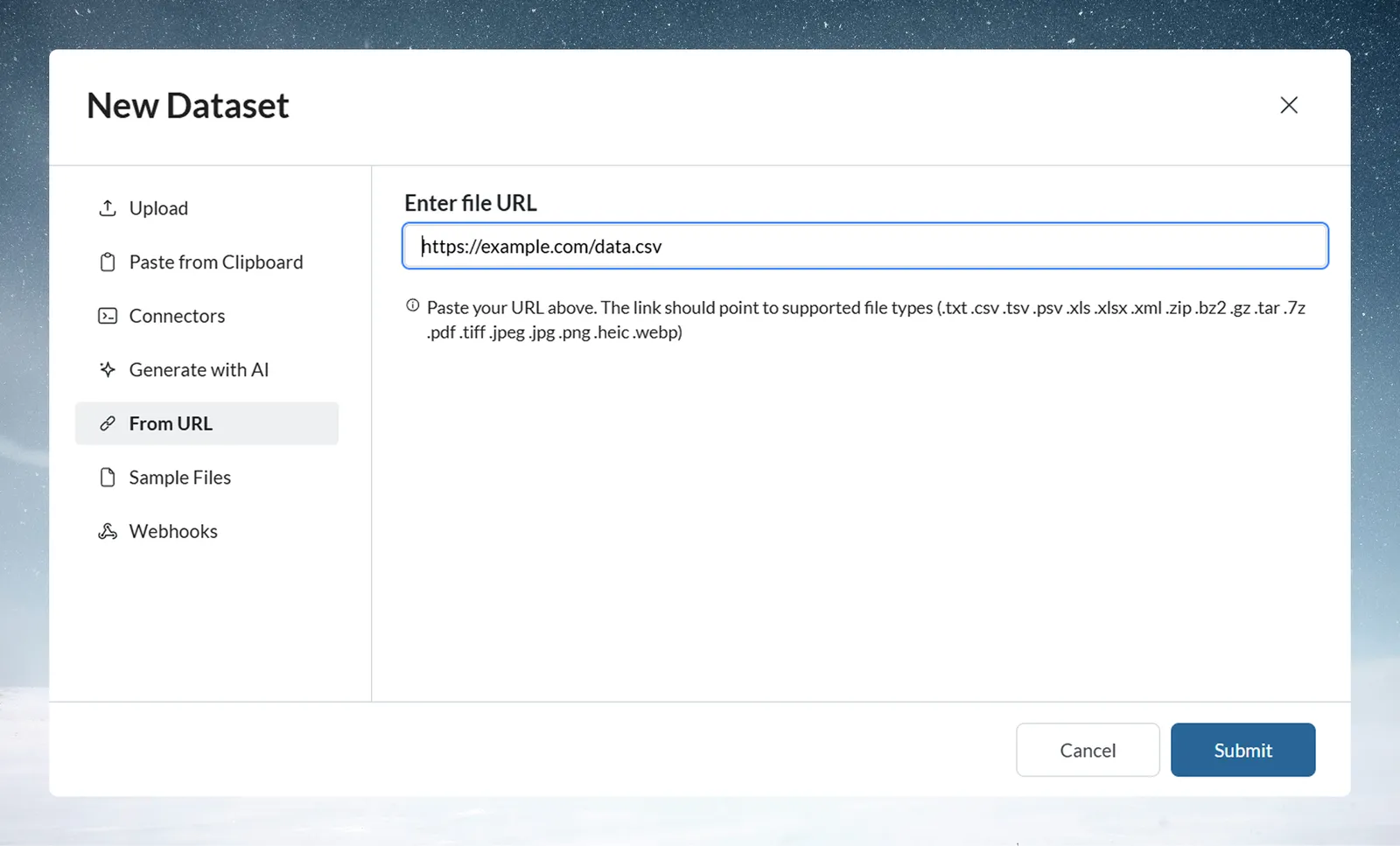
It works with direct file URLs and with cloud storage URLs such as S3, Google Cloud Storage, Azure Blob Storage, and Dropbox. No other configuration is needed.
When to use URL import
Good fit for
- One-time imports from web-accessible file locations
- Vendor or partner data files published to a stable URL
- Cloud storage files shared via public or signed URLs
- Report servers generating downloadable data files
Use a connector instead when
- You need scheduled, automated data refresh from a database
- Complex authentication flows are required
- Bidirectional communication is necessary
Use File Upload instead when
- Your file is stored locally on your machine
- The source does not have a stable or accessible URL
Supported URL types
Direct file URLs
https://example.com/data/sales_report.csv
https://reports.company.com/Q1_2024.xlsx
Cloud storage URLs
AWS S3 signed URLs
https://bucket-name.s3.amazonaws.com/file.csv?X-Amz-Algorithm=AWS4-HMAC-SHA256&X-Amz-Credential=EXAMPLE&X-Amz-Date=20240315T120000Z&X-Amz-Expires=3600&X-Amz-SignedHeaders=host&X-Amz-Signature=EXAMPLE_SIGNATURE
Note: The above is an example format only. A valid S3 signed URL must include all X-Amz-* parameters to work correctly. The base S3 URL without these parameters will return an Access Denied error.
Google Cloud Storage
https://storage.googleapis.com/bucket-name/monthly-data.csv
Azure Blob Storage
https://storageaccount.blob.core.windows.net/container/file.csv
Dropbox shared links
https://www.dropbox.com/s/abc123/data-export.csv?dl=1
Mammoth automatically sets dl=1 on Dropbox shared links so that the file is downloaded instead of the preview page.
URL requirements
- URL must start with
http://orhttps:// - The file name must be derivable: Mammoth takes it from the
Content-Dispositionheader or the last segment of the URL path. A URL such ashttps://example.com/download?id=7with neither fails - URL must return file content directly, not an HTML page or download landing page
- File format must be supported (see list below)
- URL must be accessible at the time of import
Steps to create a dataset from a URL
- Navigate to your Data Library and select the project you want to add data to.
- Click + New Dataset in the top right corner.
- In the New Dataset modal, select From URL from the left-hand menu.
- Paste your direct file URL into the Enter file URL field.
- Click Submit.
Mammoth fetches the file and creates a new dataset in your project. The dialog closes right away and a placeholder row for the new dataset appears in the Data Library while the file is downloaded. Download time depends on the file size.
Supported file types
.txt, .csv, .tsv, .psv, .xls, .xlsx, .xml, .zip, .bz2, .gz, .tar, .7z, .pdf, .tiff, .tif, .jpeg, .jpg, .png, .heic, .heif, .webp
Note: The URL must point directly to the file, not to a webpage or landing page containing the file.
Security
Prefer HTTPS URLs
- Preferred:
https://example.com/data.csv - Avoid:
http://example.com/data.csv
Private cloud storage
For private cloud storage, use signed URLs that embed time-limited access credentials directly in the URL string. Mammoth fetches the file using the URL as provided—no separate credential fields are available in the From URL interface.
The following S3 signed URL shows the format only. It is not a working URL.
https://my-bucket.s3.amazonaws.com/exports/data.csv?
X-Amz-Algorithm=AWS4-HMAC-SHA256&
X-Amz-Credential=EXAMPLE_CREDENTIAL&
X-Amz-Date=20240315T120000Z&
X-Amz-Expires=3600&
X-Amz-SignedHeaders=host&
X-Amz-Signature=EXAMPLE_SIGNATURE
Example From URL use cases
Example: vendor data integration
Scenario: An accounting firm receives transaction files from multiple vendors published to secure portals
Implementation:
- Vendors publish CSV files to a stable, accessible URL
- Team imports each file using From URL into the relevant project
- Downstream pipelines categorize and validate transactions
Outcome: No manual file downloads or re-uploads are needed.
Example: cloud storage file access
Scenario: An engineering team exports production metrics to S3 and shares them with the data team
Implementation:
- Engineer generates a signed S3 URL after export completes
- Data team pastes the signed URL into Mammoth's From URL import
- Dataset is created and available for pipeline processing and dashboard visualization
Outcome: Data team accesses files directly without needing S3 permissions or manual file transfers
From URL performance considerations
File size
Larger files take longer to download. For very large files, plan for additional wait time before the dataset becomes available.
If your source consistently produces very large files, consider asking your data provider to compress files (gzip, zip) or split them into smaller chunks to improve import speed and reliability.
Network and availability
- The URL must be accessible from Mammoth's servers at the time of import
- Mammoth waits up to 9 seconds to connect and 27 seconds for the server to respond. If the source server is slower or temporarily unavailable, the import fails
- For time-limited signed URLs, ensure the URL has not expired before submitting
Troubleshoot From URL
URL not accessible
What you will see: An error message, and the placeholder row disappears. Failures such as a wrong URL, an expired link, a timeout or a refused connection all produce the same error.
Common causes:
- URL changed or file moved
- Signed URL has expired
- File temporarily unavailable
Solutions:
- Test the URL in a browser to verify it returns the file directly
- If using a signed URL, generate a fresh one and retry
- Contact your data provider to verify URL stability
File format issues
What you will see: An error message, and the placeholder row disappears.
Common causes:
- No file name in the URL path and no
Content-Dispositionheader - Server returns audio or video content
- Server returns an HTML page instead of the data file
- File extension does not match actual content
- Unsupported file format
Solutions:
- Verify the URL returns the file directly, not a download or preview page
- Ensure the file format is in the supported list
- Test the URL in a browser—if you see a webpage rather than a file download, the URL is not suitable for From URL import
Access denied
What you will see: The same error as for an inaccessible URL (the source responds with 401 Unauthorized or 403 Forbidden)
Common causes:
- File is not publicly accessible
- Signed URL has expired
- URL requires authentication headers that cannot be passed through From URL
Solutions:
- Verify the URL is publicly accessible or uses a valid signed URL with embedded credentials
- Generate a new signed URL if the previous one has expired
- For files requiring header-based authentication (Bearer tokens, Basic Auth), use the REST API connector instead, as From URL does not support separate authentication headers
Large file taking a long time
What you will see: A placeholder row on the Data Library page while the file is being downloaded
This is expected behavior. Download time depends on file size and source server speed. Wait for the dataset to finish loading. If the import ultimately fails after a long wait, consider using a compressed version of the file or splitting it into smaller parts.
Comparison with other import methods
| Method | Best for | Pros | Cons |
|---|---|---|---|
| URL Import | Web-accessible files | No manual download required, works with signed URLs | One-time import, no scheduled refresh |
| File Upload | Local files | Simple, immediate, 50 MB limit per file | Manual process |
| Connectors (Live Connections) | Database sources | Scheduled automated refresh, always current | Requires database connector setup |
| REST API connector | Custom integrations | Supports authentication headers and custom requests | Requires API setup |
Next steps
Once your dataset is created from a URL import:
- Explore your data using Explore Cards to understand structure and quality
- Build transformations in a Pipeline to clean and standardize the imported data
- Create dashboards to visualize key metrics
- Set up Automation if you need recurring data workflows. Scheduled refresh requires a Live Connection, not From URL.