Google Cloud Storage connector
The Google Cloud Storage (GCS) connector imports files from your GCS bucket into Mammoth as a dataset. Authentication uses a Google Cloud service account—no OAuth popup required. Supports a wide range of file formats including CSV, Excel, Parquet, JSON, compressed archives, and more.
Before you start
You need:
- A GCS bucket with the files you want to import
- A Google Cloud service account that can list buckets (the
storage.buckets.listpermission) and read the objects in your bucket - The service account's JSON key file downloaded to your computer
Create a Google Cloud service account
- In Google Cloud Console, go to IAM & Admin → Service Accounts
- Click Create Service Account and give it a name (e.g.,
mammoth-gcs) - Grant a role that includes
storage.buckets.listand read access to the bucket's objects - Under Keys, click Add Key → Create new key → JSON and download the file
Step 1: Select the Google Cloud Storage connector
- In Mammoth, go to Data Library and click + New Dataset
- Select Connectors
- Search for Google Cloud Storage
- Click the Google Cloud Storage tile
Step 2: Create a connection
Click New Connection. GCS uses a service account file for authentication.
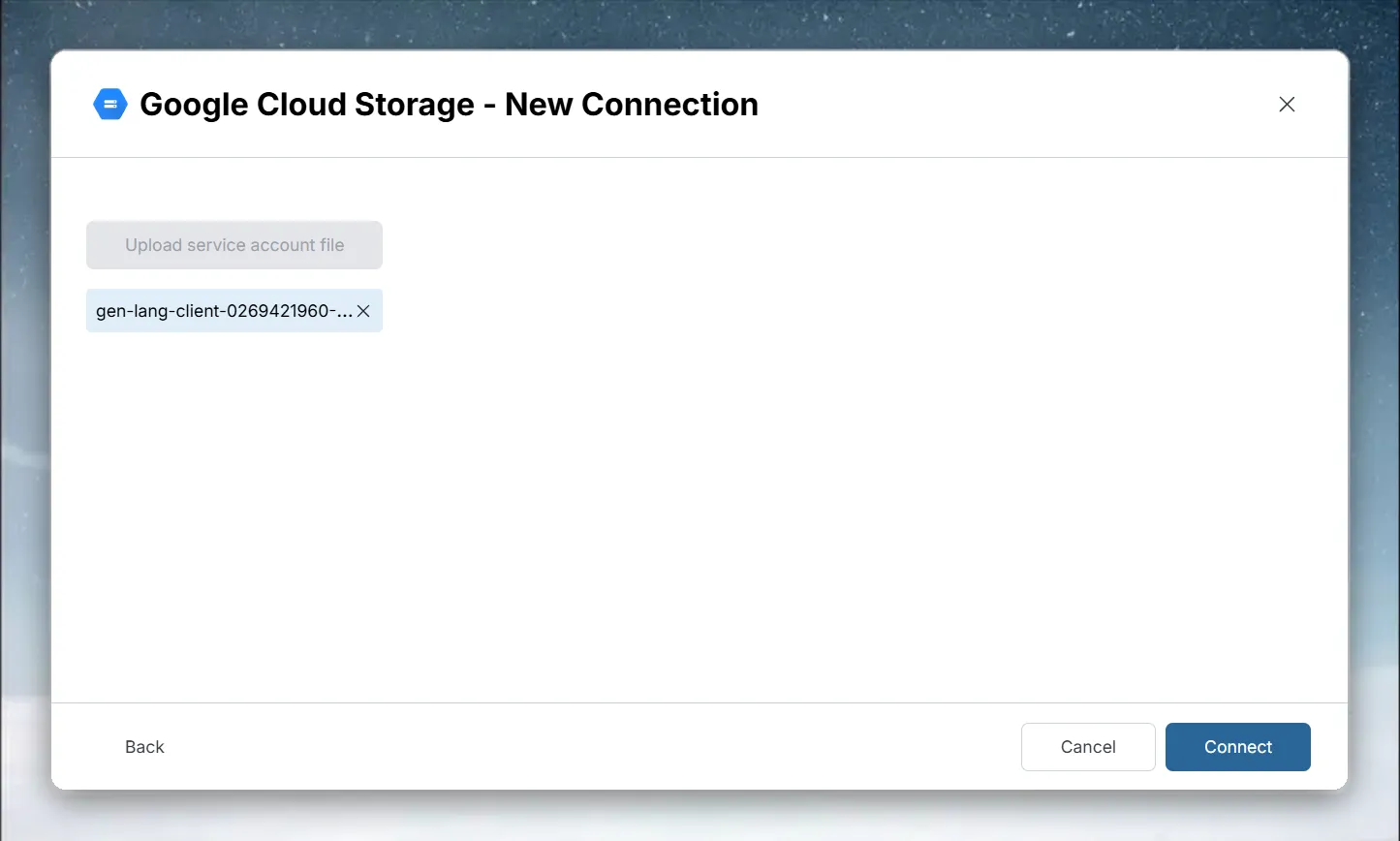
- Click Upload service account file
- Select the JSON key file you downloaded from Google Cloud Console
- Mammoth reads the credentials from the file
- Click Connect to validate and save the connection
Step 3: Select your Google Cloud Storage file
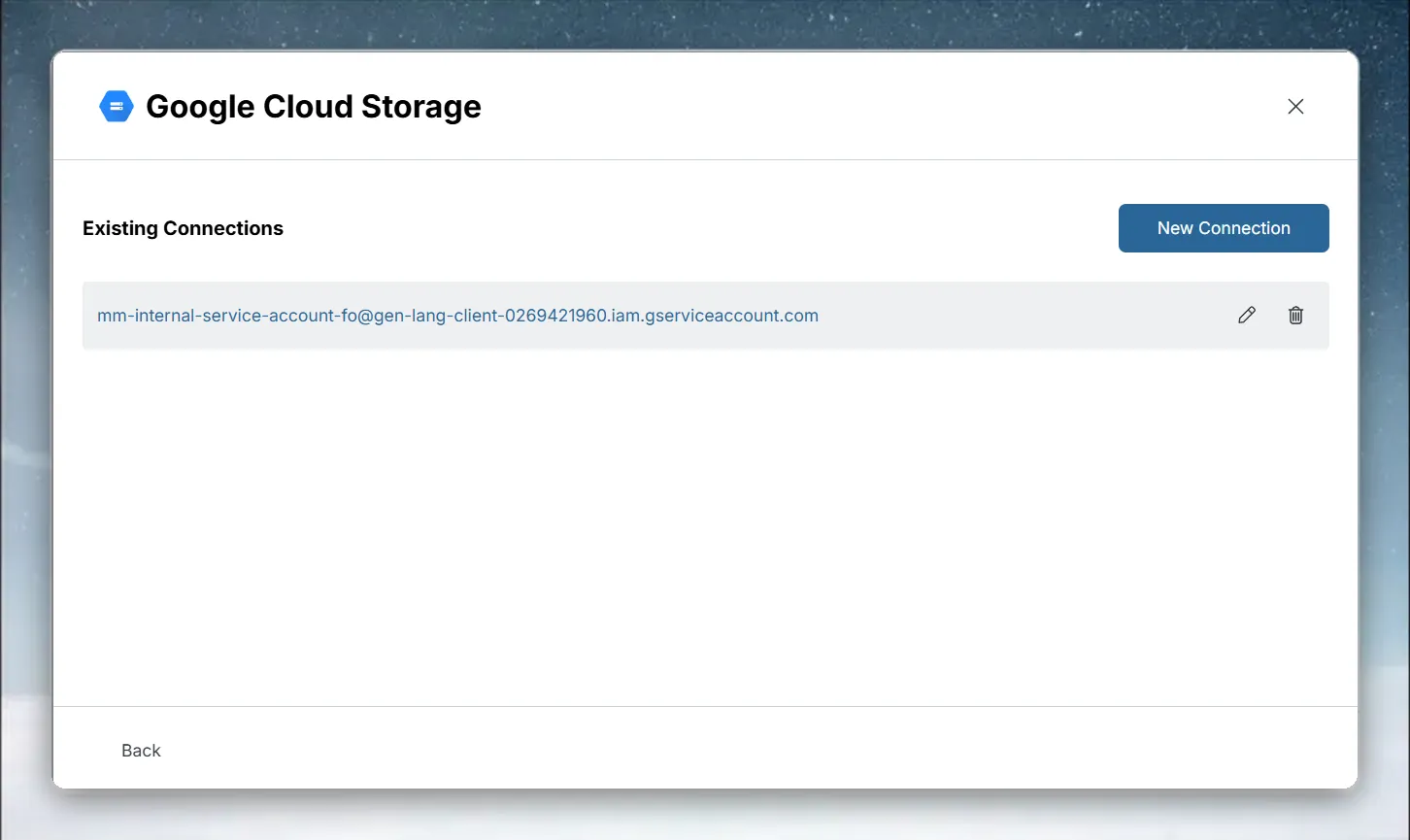
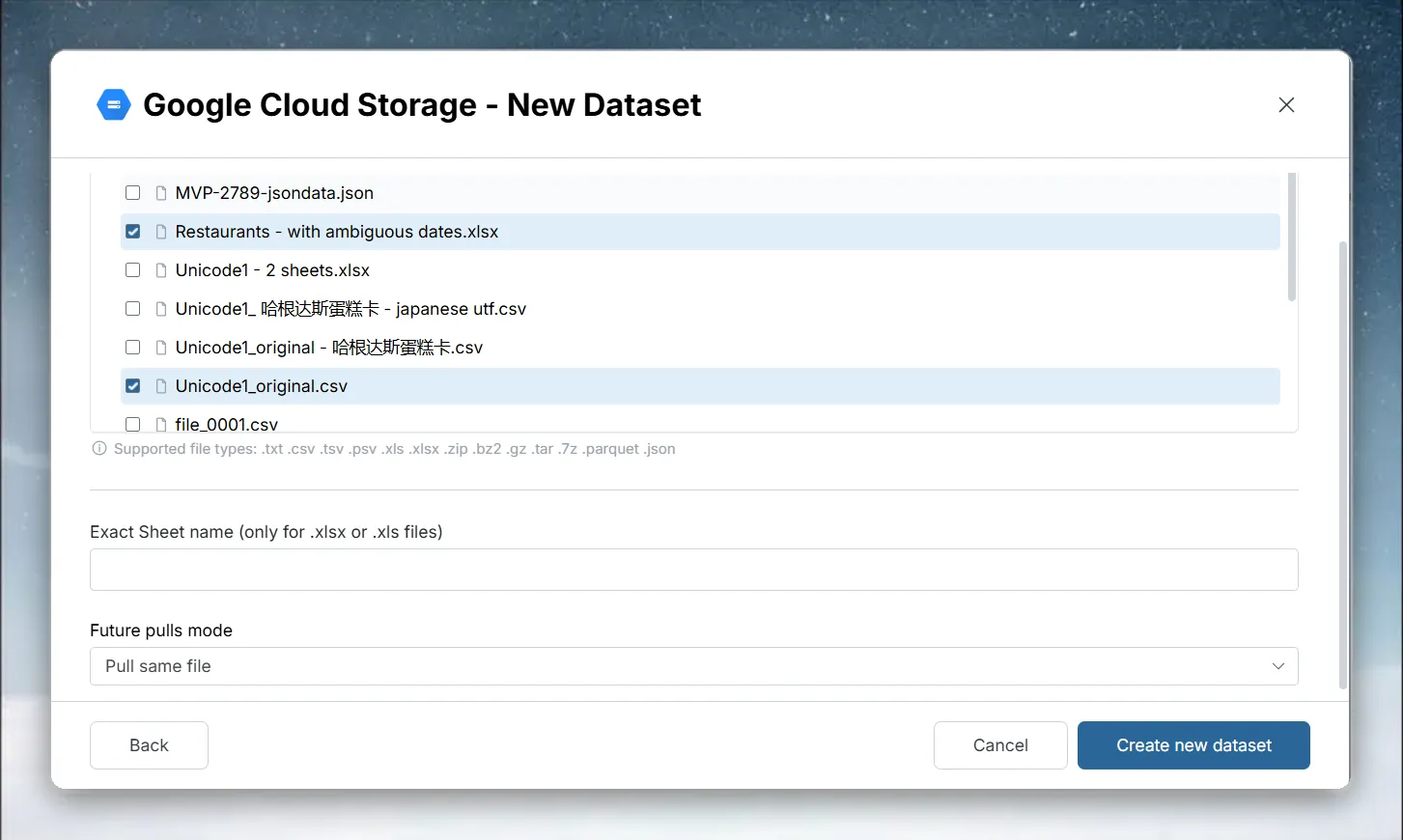
After connecting, select the connection under Existing Connections. Mammoth lists your buckets as Profile entries; click a bucket, then browse the file tree and select the file you want to import.
Supported Google Cloud Storage file formats
.txt · .csv · .tsv · .psv · .xls · .xlsx · .zip · .bz2 · .gz · .tar · .7z · .parquet · .json
Choose a future pulls mode
After you select a file, a Future pulls mode list appears:
- Pull same file—Every refresh re-reads the file you selected
- Pull next file based on name pattern—Available only when a single file is selected. Every refresh looks for the next file that matches a date pattern in the file name. Choose the Folder to pull from and enter a File pattern. For example, for the file
sftp_Tue-01-November-2022_daily.csvthe pattern issftp_<dy>-<dd>-<mon>-<yyyy>_daily.csv
In a file pattern, put a date format inside <>. The supported formats are dd, mm, yyyy, yy, month, mon, day, dy, hh, mi, and ss, in full lower case, upper case, or capitalized. The selected file name must contain at least one date format, and the pattern must match the selected file name.
If the file is an Excel workbook (.xls/.xlsx), also enter the Exact Sheet name to import.
Step 4: Create the Google Cloud Storage dataset
Click Create new dataset. Mammoth does not ask you to choose an update method for this connector.
Keep Google Cloud Storage data up to date
Set up a Dataset Refresh automation to re-import the file from GCS on a schedule.
If your GCS bucket receives new files regularly (for example, daily export files named orders_2024-01-15.csv), choose Pull next file based on name pattern when you create the dataset so each refresh picks up the next matching file.
Troubleshoot Google Cloud Storage connections
Permission denied
- Mammoth shows "Permission denied" when the service account can't list buckets. Grant it a role that includes
storage.buckets.listand access to the target bucket's objects - Check permissions in GCS → {bucket} → Permissions
Invalid service account file
- "Invalid service account file. Please upload a valid JSON key file." means the uploaded file isn't a service account JSON key. Download a new key from Keys in Google Cloud Console and upload it again
- "Authentication failed. Please verify your service account JSON file." means Google rejected the key. Confirm the key still exists and the service account is enabled
No buckets or files appear
- "No buckets found for this service account." means the service account can't see any bucket
- "No supported files found in bucket" means the bucket is empty or contains only file types outside the supported list above