Sample Files
Sample files are built-in datasets you can load without uploading your own data. Use them to evaluate Mammoth, train team members, or build demos.
Why use sample files?
- No data preparation: Start exploring right away.
- Business scenarios: Each dataset represents a common business problem.
- No sensitive data: Test features without using company data.
- Shared training data: Teams can practice on identical datasets.
- Demo preparation: Build presentations with familiar data patterns.
Available sample datasets
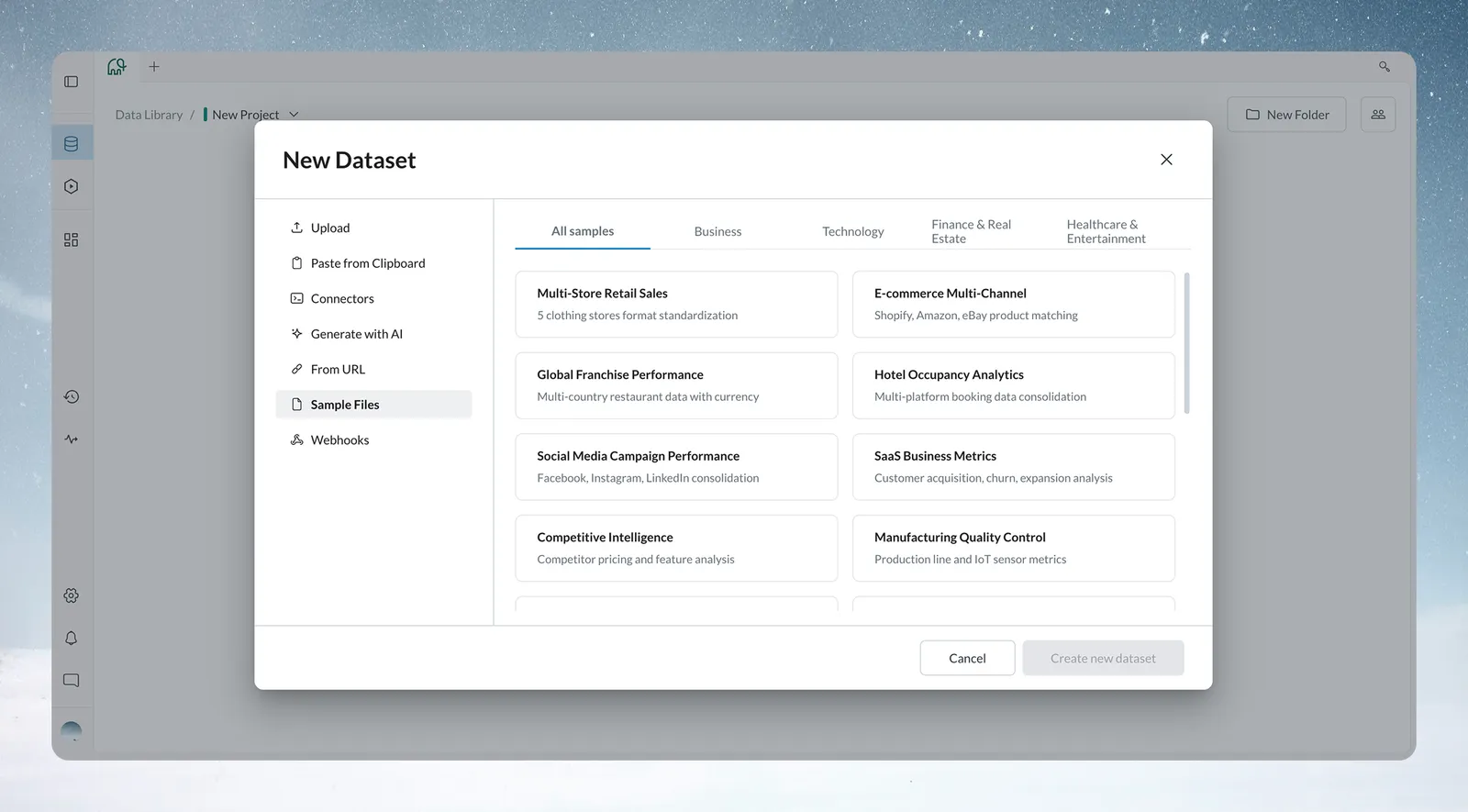
Each sample is a CSV file of 25 to 63 rows, so it loads quickly and is easy to inspect. Samples are grouped into four categories.
Business
| Dataset | Description |
|---|---|
| Multi-Store Retail Sales | 5 clothing stores format standardization |
| E-commerce Multi-Channel | Shopify, Amazon, eBay product matching |
| Global Franchise Performance | Multi-country restaurant data with currency |
| Hotel Occupancy Analytics | Multi-platform booking data consolidation |
| Social Media Campaign Performance | Facebook, Instagram, LinkedIn consolidation |
Technology
| Dataset | Description |
|---|---|
| SaaS Business Metrics | Customer acquisition, churn, expansion analysis |
| Competitive Intelligence | Competitor pricing and feature analysis |
| Manufacturing Quality Control | Production line and IoT sensor metrics |
| Supply Chain Optimization | Global vendor performance and delivery |
| Media & Entertainment ROI | Cross-platform content performance |
Finance & Real Estate
| Dataset | Description |
|---|---|
| Financial P&L Consolidation | Multi-subsidiary revenue with currency conversion |
| Credit Risk Assessment | Multi-bureau loan data risk scoring |
| Real Estate Portfolio Analytics | Multi-market property performance and occupancy |
| Construction Project Tracking | Multi-site timelines, costs, resources |
Healthcare & Entertainment
| Dataset | Description |
|---|---|
| Patient Outcome Tracking | Clinical data ID standardization and metrics |
| Educational Institution Analytics | Student performance, enrollment, resource data |
| Non-Profit Fundraising Analytics | Multi-platform donor and campaign data |
| Sports Team Performance | Player stats, financials, fan engagement |
| Event Management Analytics | Multi-venue ticket sales and attendance |
How to access sample files
Create a dataset from sample data
-
Start Dataset Creation
- Click + New Dataset in your Project
- Select Sample Files from the data source options
-
Browse by Category
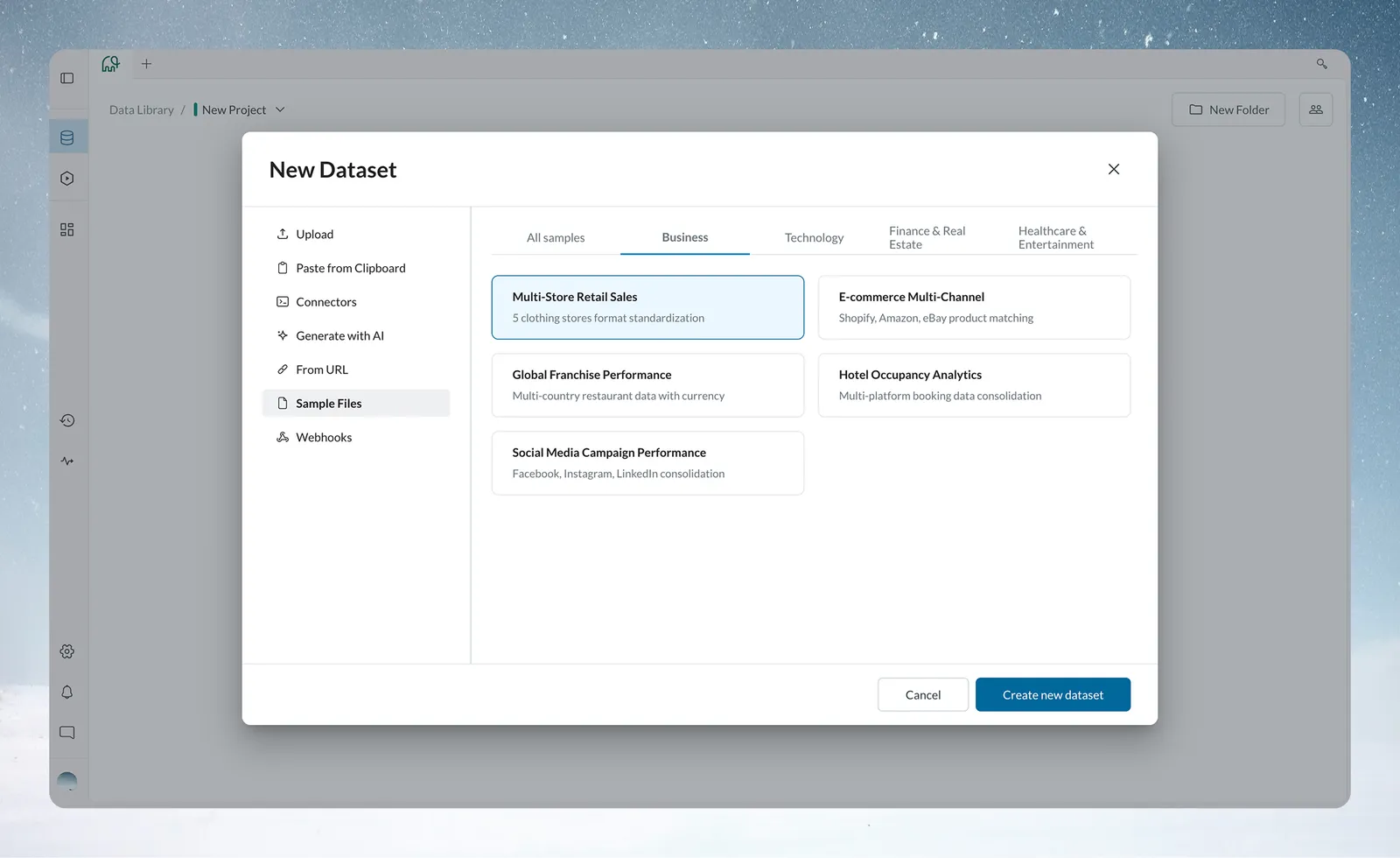
- Choose the All samples tab, or one of the Business, Technology, Finance & Real Estate, or Healthcare & Entertainment tabs
- Review dataset descriptions
- Consider your learning objectives or demo requirements
-
Select
- Click the card of your chosen dataset. The card is highlighted; there is no data preview
- Confirm the description matches your intended use case
-
Create Dataset
- Click Create new dataset to load the sample data
- Your new dataset appears in the Project with sample data ready for exploration
Tip: Choose sample data that matches your team's domain, for example a manufacturing quality dataset for an operations team.
Choosing the right sample dataset
For first-time exploration
Recommended: Multi-Store Retail Sales
- Familiar business concepts (sales, products, regions)
- Suits several transformation types
- Has patterns for data quality assessment
- Fits aggregation and filtering scenarios
For advanced feature testing
Recommended: E-commerce Multi-Channel or Supply Chain Optimization
- Complex multi-source scenarios
- Data standardization challenges
- Advanced calculation opportunities
For team training
Recommended: Match your industry (Manufacturing → Quality Control, SaaS → Business Metrics)
- Domain-relevant scenarios keep exercises practical
- Team members recognize the patterns and problems
For client demonstrations
Recommended: Industry-specific datasets
- Stakeholders recognize familiar data
- Use cases map to real business problems
Get the most from sample data
Exploration best practices
Start with a data quality assessment
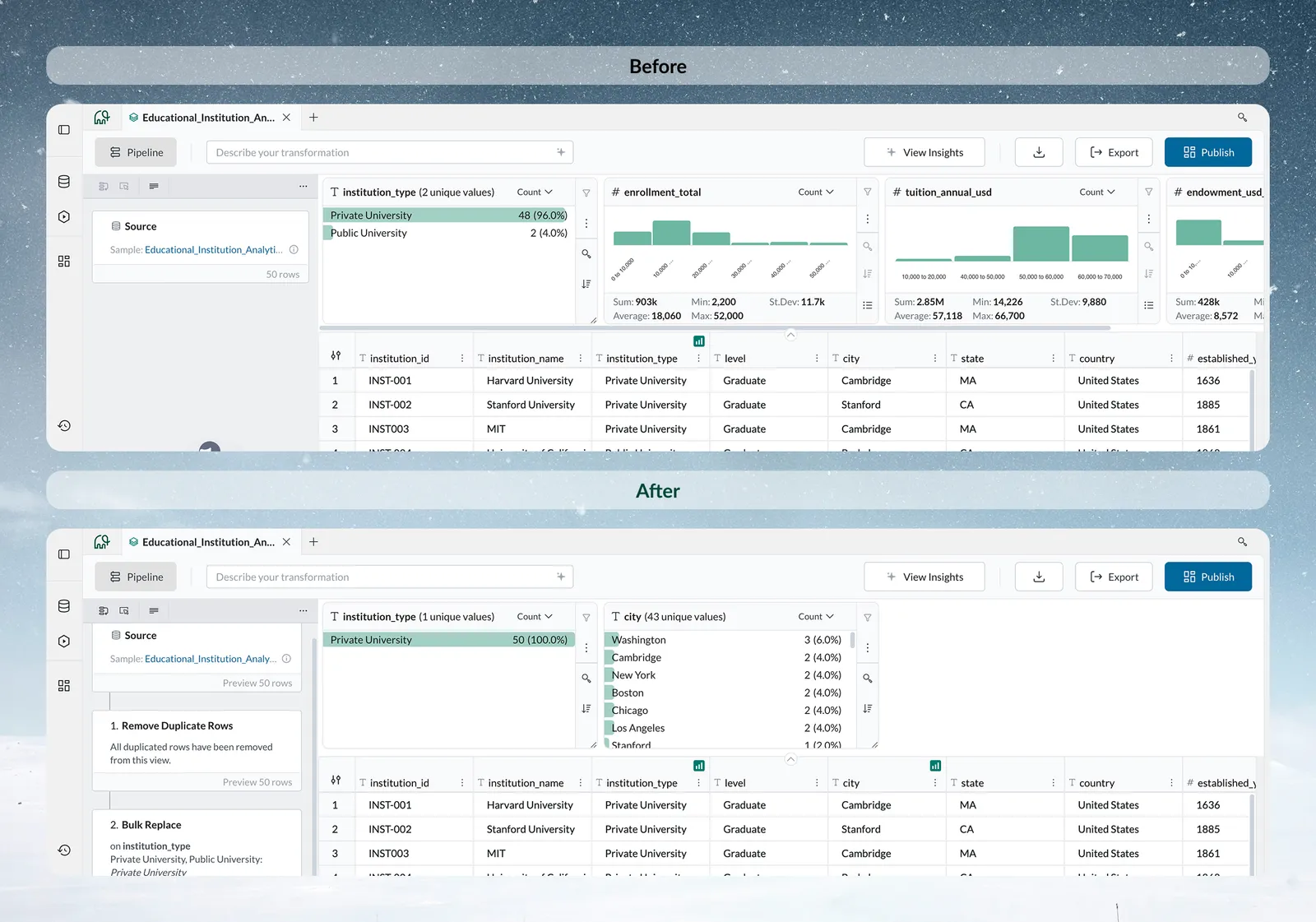
- Use Explore Cards to understand data distributions
- Check for missing values, outliers, inconsistencies
- Identify transformation opportunities before building pipelines
Try several transformation types
- Cleaning: Standardize company names, fix formatting issues
- Filtering: Remove test data, focus on specific regions or time periods
- Aggregating: Calculate totals, averages, growth rates
- Joining: Combine multiple datasets to create richer analysis
Build example pipelines
- Create monthly sales reports (Multi-Store Retail)
- Calculate customer lifetime value (SaaS Business Metrics)
- Analyze campaign ROI (Social Media Performance)
- Track quality improvements (Manufacturing Quality Control)
Move to your own data
When you are ready for real data:
- Document Your Learning: Note which transformations worked well with sample data
- Identify Patterns: Which data quality issues did you encounter and solve?
- Plan Your Implementation: How will your real data differ from the samples?
- Start Small: Begin with a subset of your production data
Example sample file use cases
New user onboarding
Timeline: about 15 minutes
Path:
- Select Multi-Store Retail Sales sample (2 minutes)
- Explore data using Explore Cards (5 minutes)
- Build simple filter pipeline (5 minutes)
- Generate first dashboard showing sales by region (3 minutes)
Outcome: The user has hands-on experience with the platform.
Consultant client demo
Timeline: 30 minutes preparation, 15 minutes presentation
Path:
- Choose industry-relevant sample dataset
- Build demo pipeline solving common client problem
- Create polished dashboard for presentation
- Use familiar data patterns to explain capabilities
Outcome: A demo that uses relevant, familiar data.
Team training standardization
Timeline: 1 hour training session
Path:
- All team members use identical sample dataset
- Follow structured exercises with predictable outcomes
- Compare results and discuss best practices
- Progress to individual exploration with other samples
Outcome: The team shares a common baseline.
Tip: Build your demo pipeline with sample data before the client meeting. You can then repeat the same transformations with their actual data.
Sample file limitations
What sample files are not:
- Your actual business data (they're learning tools)
- Production-ready datasets (they're designed for education)
- Comprehensive industry solutions (they're starting points)
What to expect:
- Datasets are smaller than production data (optimized for learning speed)
- Some edge cases may not be represented
- Data is clean enough to focus on learning Mammoth, not data cleaning
When to move beyond samples:
- You're comfortable with basic transformations
- You need to solve specific business problems
- You're ready to integrate with your actual systems
- You want to build production dashboards
Next steps
After exploring sample files:
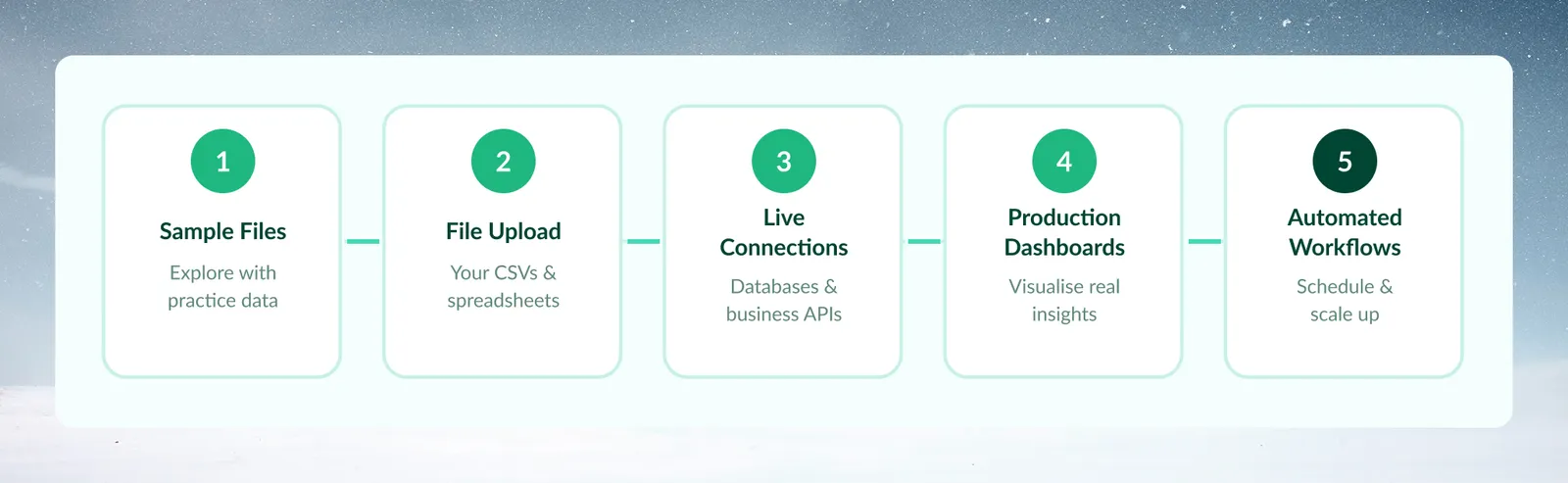
- Try File Upload: Import your own CSV or Excel files
- Build your first real pipeline: Apply learned techniques to your business data
- Explore connectors: Connect to your databases and business systems
- Create dashboards: Visualize insights from your transformed data
- Set up Automation: Schedule regular data processing workflows