Understanding the pipeline
The Pipeline panel is where you build, manage, and run your transformation logic. It lives on the left side of every View.
What a pipeline is
A pipeline is a sequential list of transformation tasks that run from top to bottom. See Transform and pipeline for how pipelines work and what operations are available. The first item in the panel is always Source.
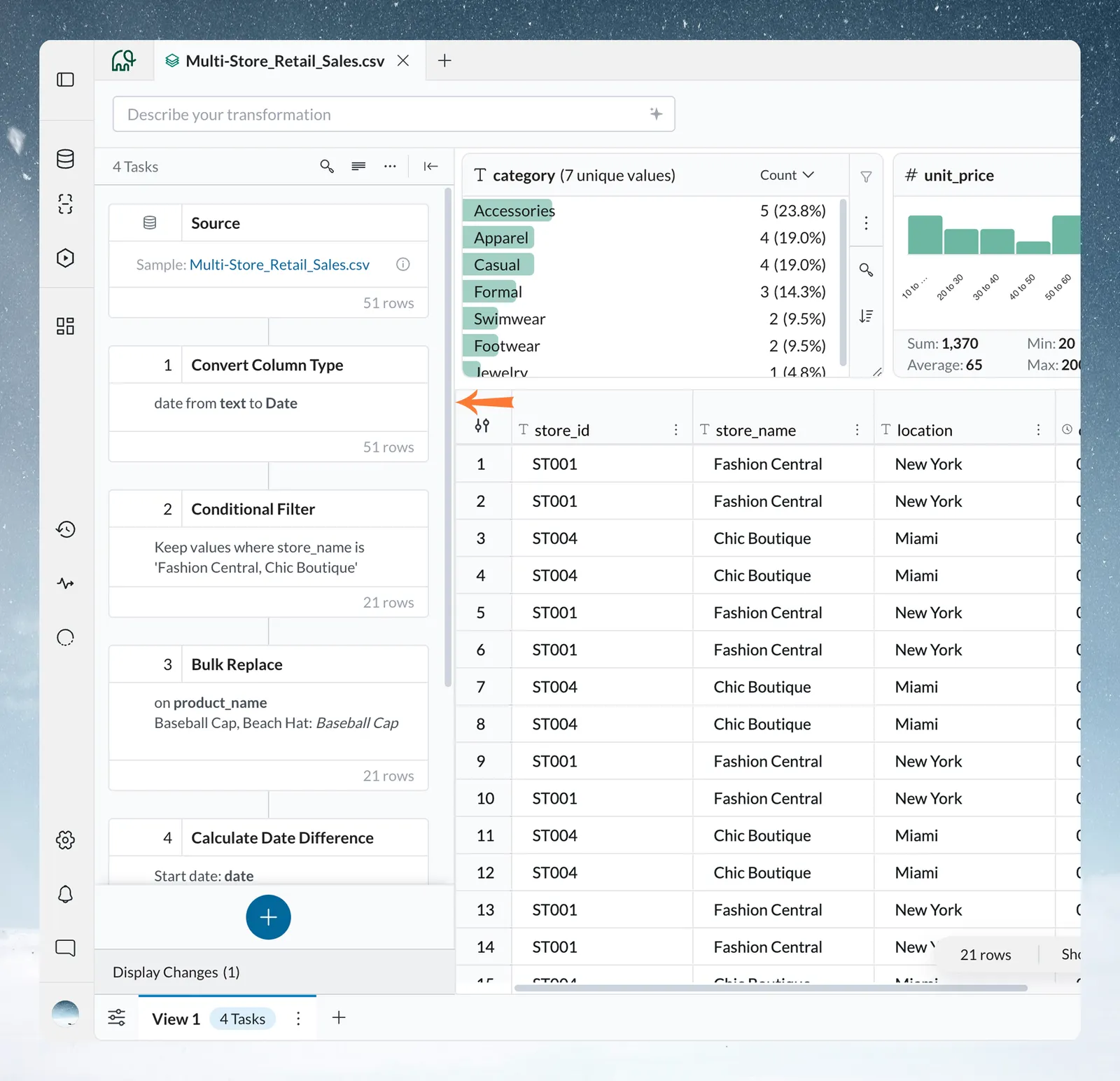
The pipeline panel header
At the top of the Pipeline panel you will see a header bar showing the current task count (or "No tasks") and four controls. While Draft mode is on, a Draft mode ON label also appears in the header.
- Search—find a specific task within the pipeline (appears once the pipeline has eight or more cards)
- Cards Density—toggle between Large and Compact view for task cards, and toggle Display notes on or off
- More Pipeline options (...)—access the Draft mode toggle, Auto-sync options (shown when Auto-sync is available to you), Pipeline Version history, Paste, and Clear clipboard
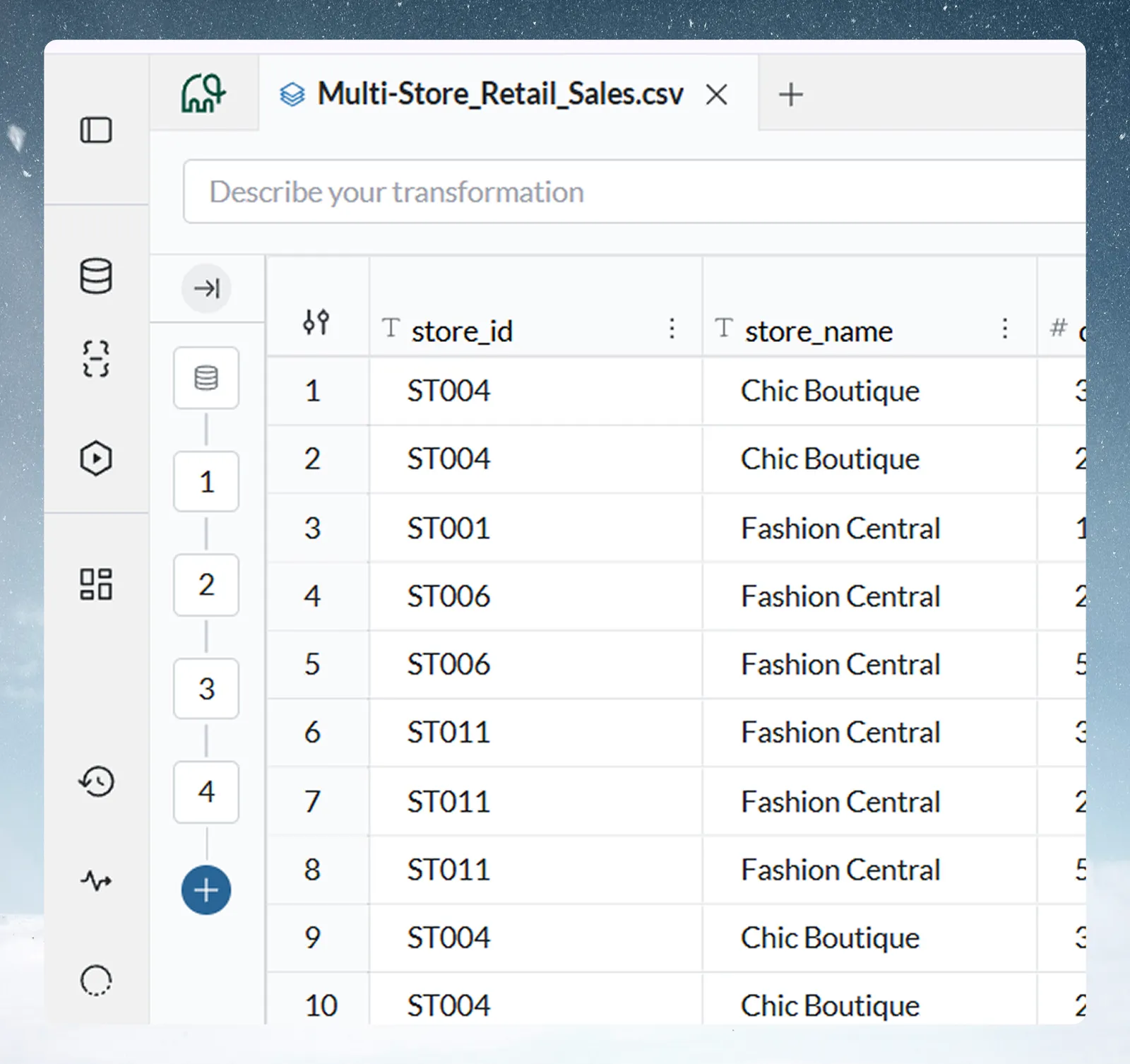
- Collapse (|← icon)—collapses the pipeline panel into a narrow strip of mini task cards, giving the data grid more horizontal space. Click the open icon at the top of the strip to expand the panel back to full width. Use this when you have finished building your pipeline and want to focus on reviewing the data.
How to apply a transformation
Every function in the Transform menu follows the same flow.
Step 1—Open the Transform menu
Click the Describe your transformation box in the action bar at the top of the View, or the blue + button (tooltip "Add a task") next to it. The Transform menu opens showing AI Powered shortcuts by default. Type in the Describe your transformation box and the menu filters the functions to those matching your keywords. The AI SQL Query result always appears and carries your typed text into its prompt.
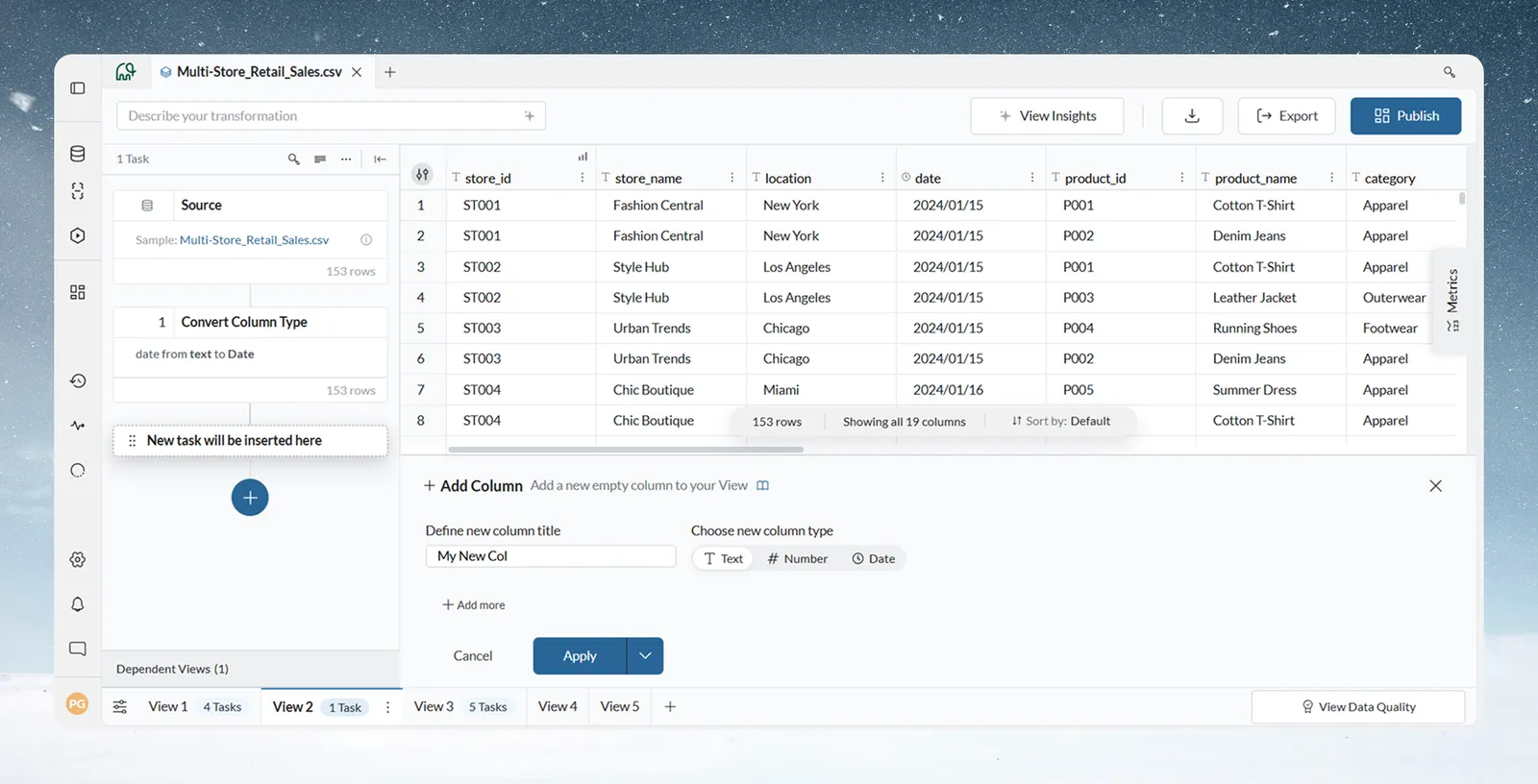
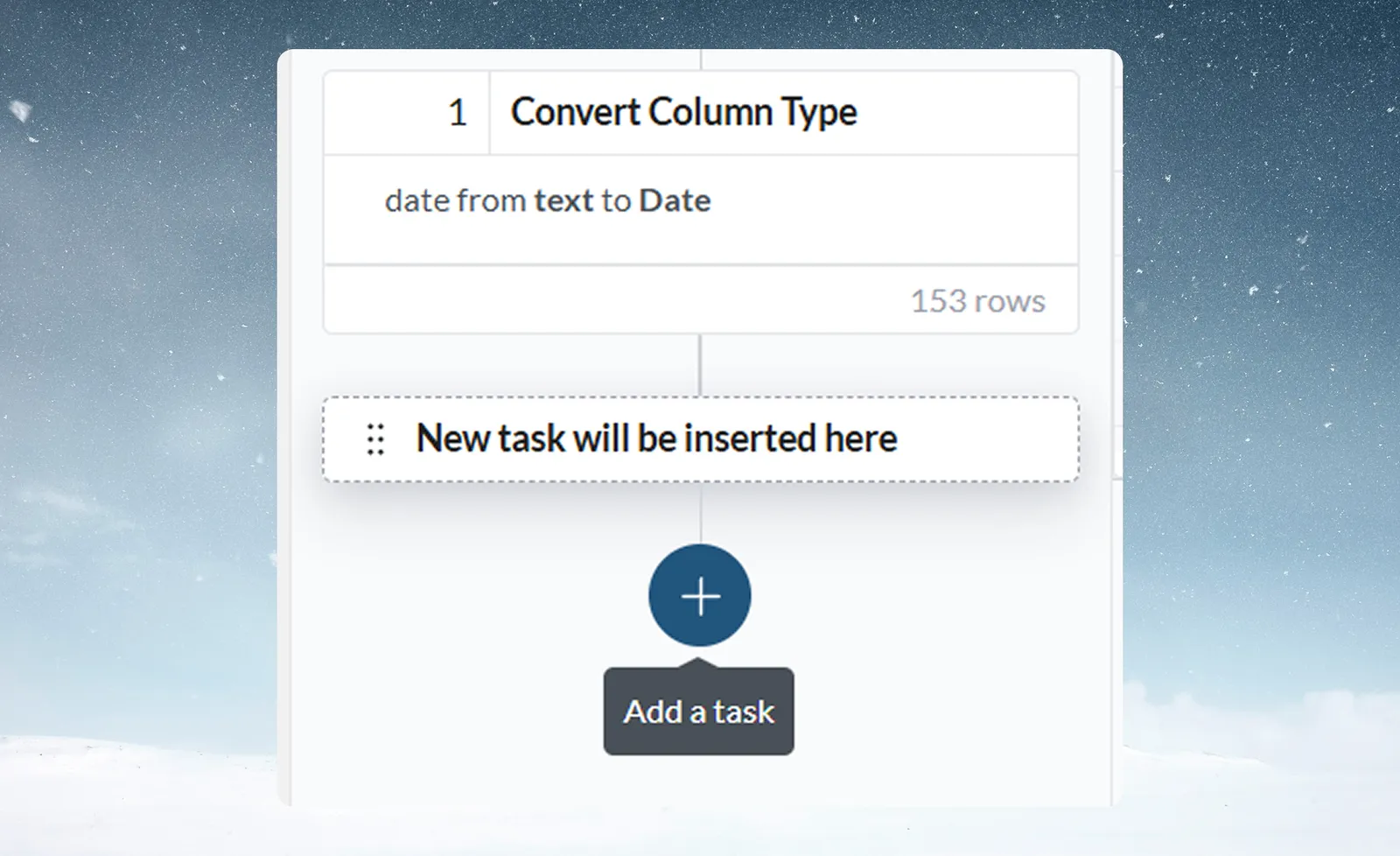
Once you already have tasks in the pipeline, you can also click a + button in the Pipeline panel—below the last task card, or between task cards to insert a task at that position. This opens the same Transform menu. Cards in an error state have no insert button.
Step 2—Select a function
Click a category in the left panel to browse its functions, or type in the search bar. Click the function you want.
Step 3—Configure the function
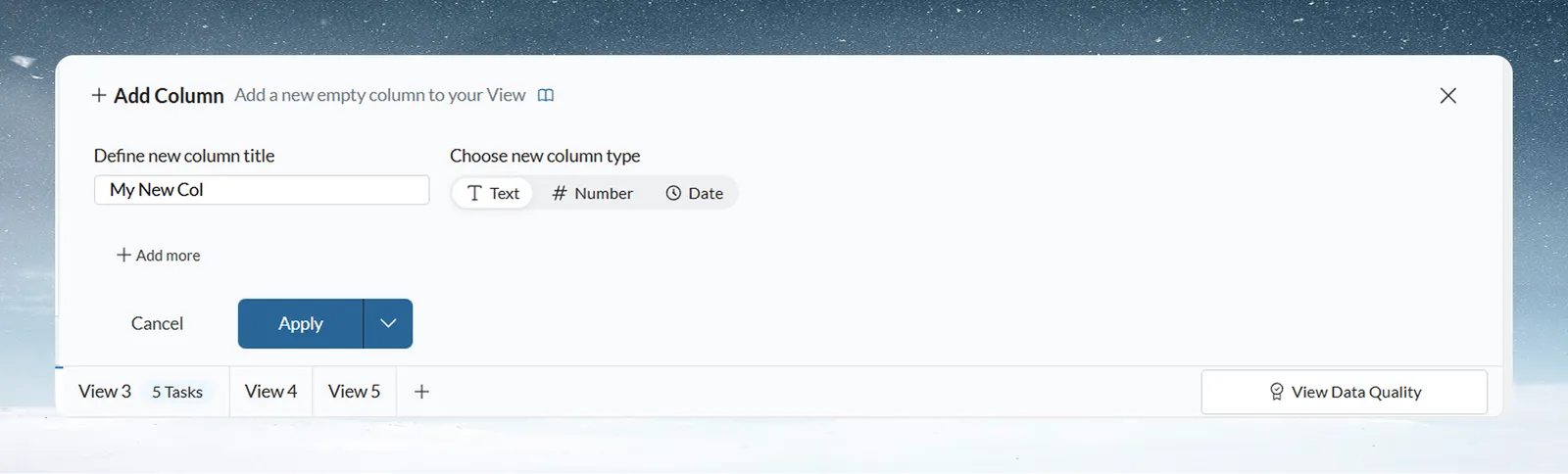
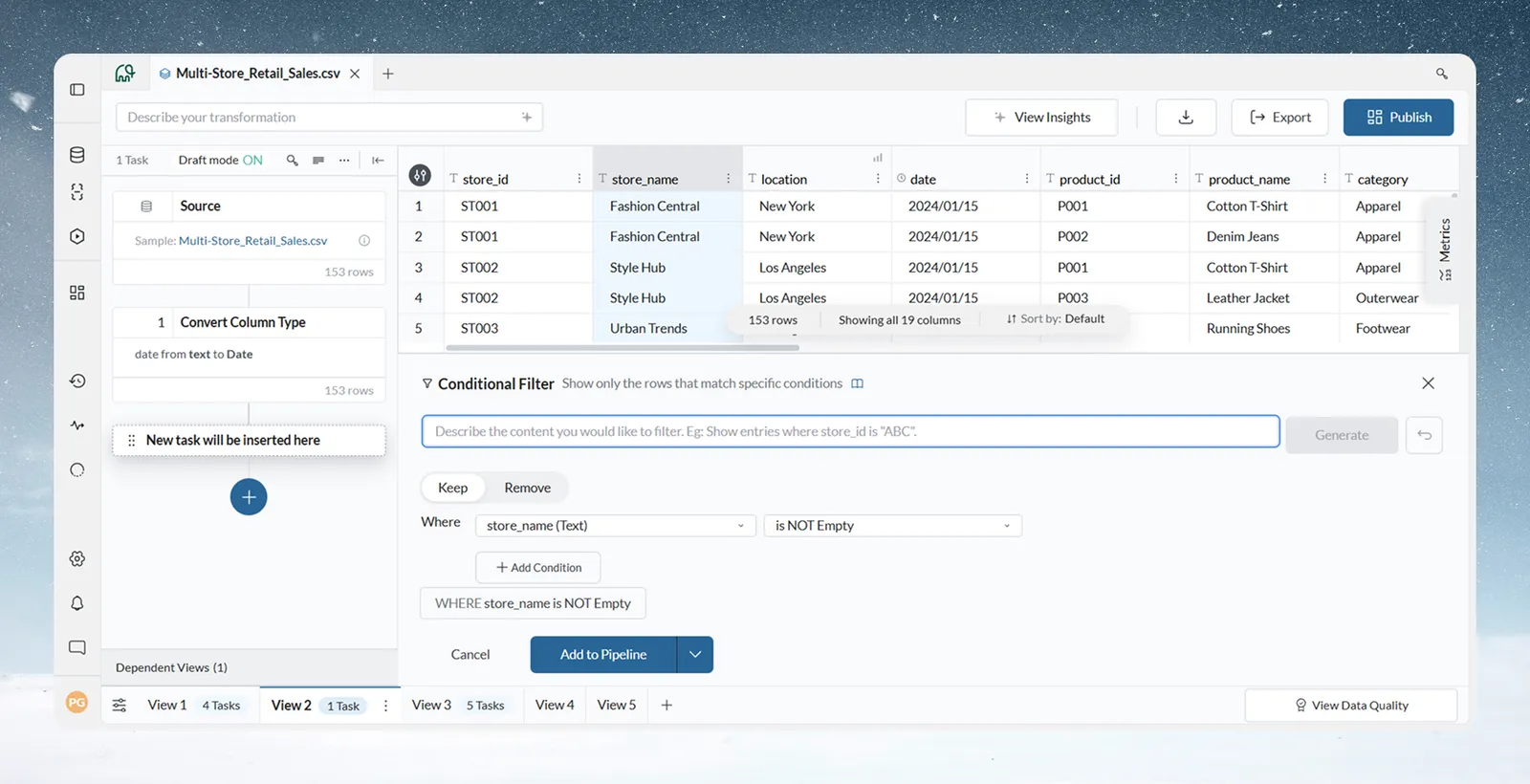
A configuration panel opens at the bottom of the View. Fill in the required fields—column selectors, operators, values, and where to write the result.
Step 4—Apply
Click Apply. If Draft mode is off, the task executes immediately and the data grid updates. If Draft mode is on, choose Add to Pipeline instead; the task is queued and runs when you click Apply now. The task card appears in the Pipeline panel showing the function name, its key configuration details, and the row count after it runs.
Managing tasks
Task card information
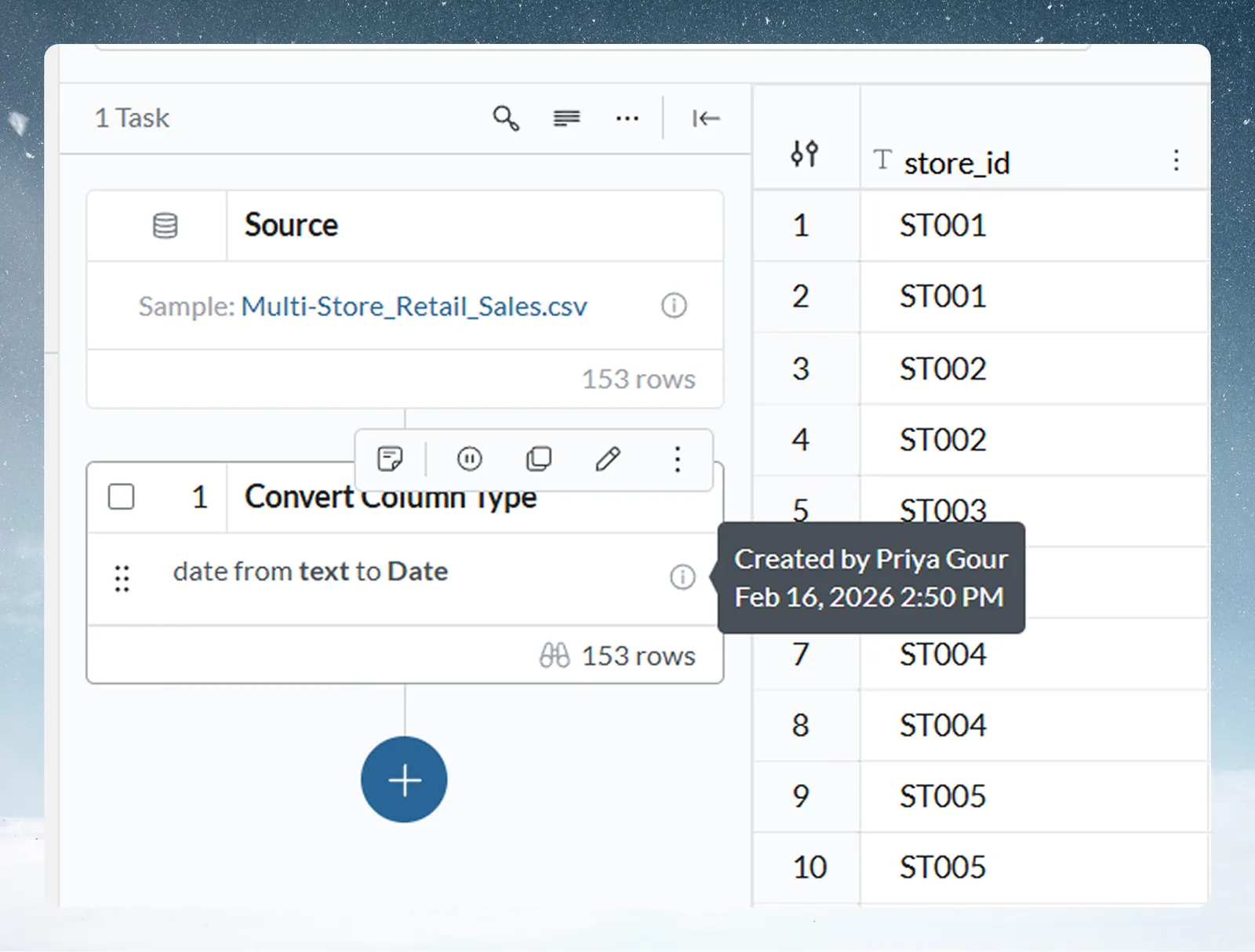
Each task card in the pipeline shows the function name, its key configuration summary, and the row count after it ran. Hovering over the info icon (ⓘ) on a task card shows an audit tooltip with: who last modified the task, the date and time of the last modification, and the execution time of the last run.
Task insertion position
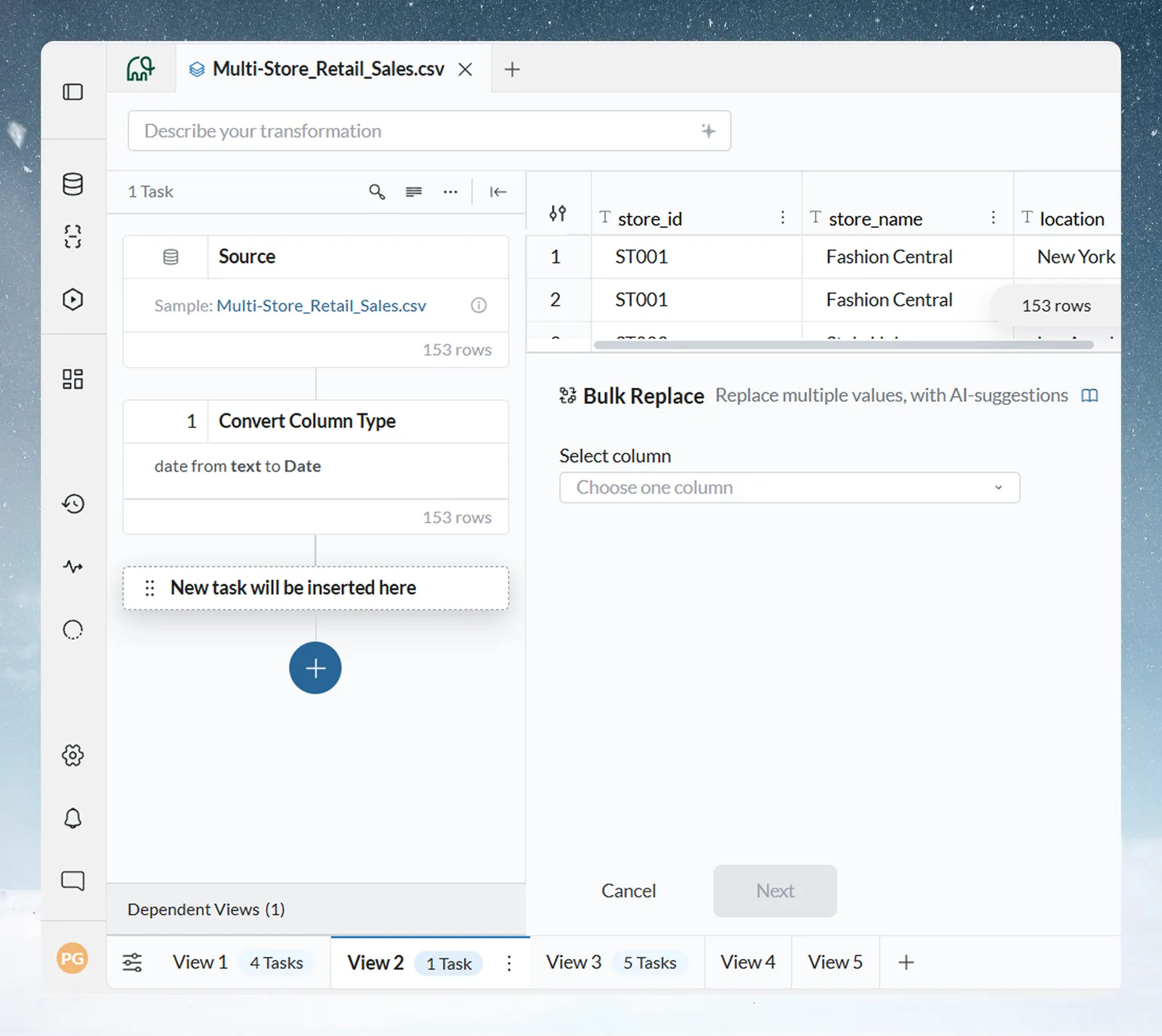
When a function configuration panel is open and you are about to add a task, the pipeline shows a "New task will be inserted here" placeholder card indicating exactly where the new task will appear once you click Apply. This helps orient you when working in a pipeline that already has multiple tasks.
Editing a task
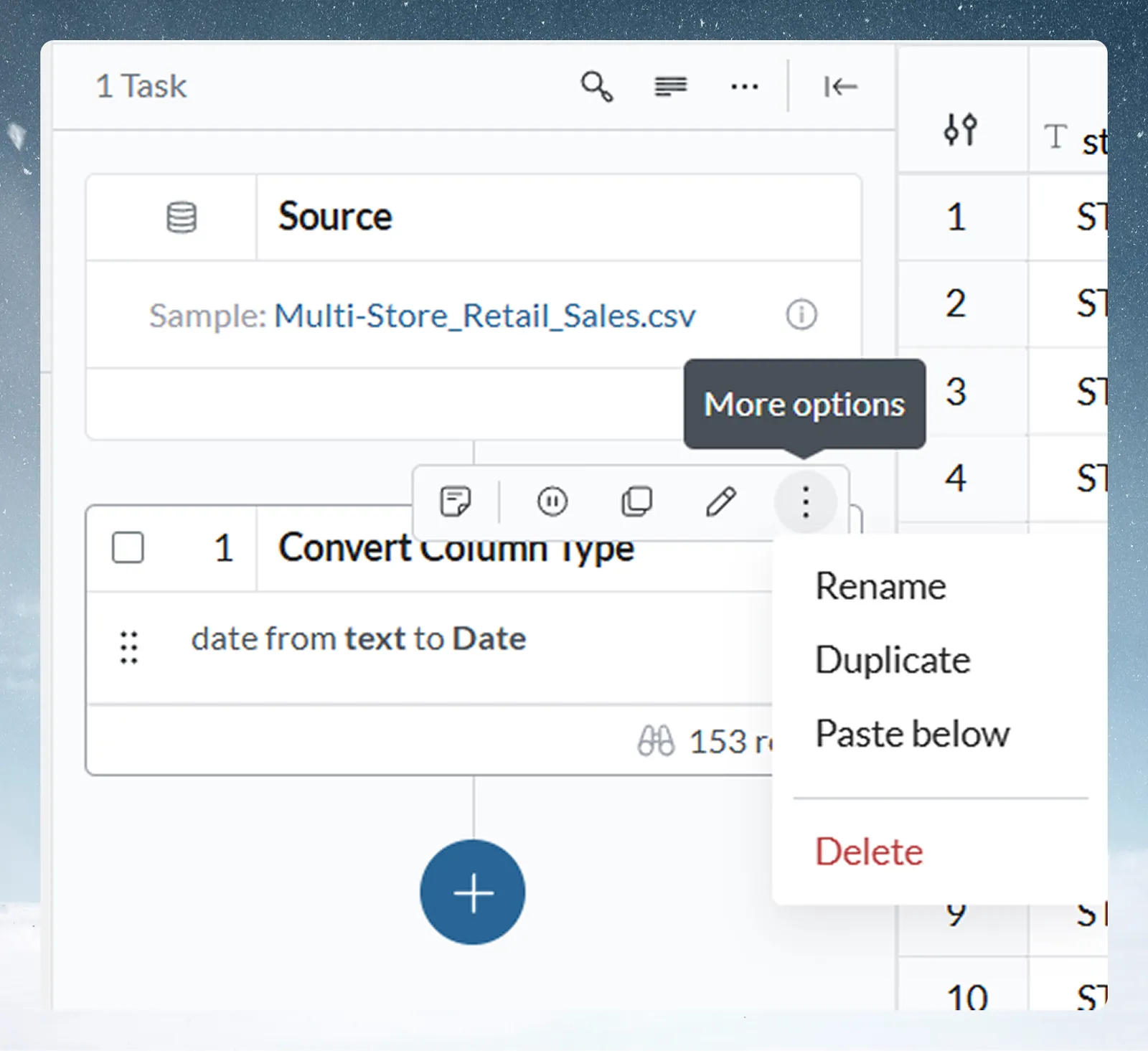
Hover over any task card to reveal its action bar. The actions available are:
- Add note—attaches a note to the task. Turn on Display notes in Cards Density to show notes on the cards.
- Suspend (pause icon)—temporarily disables the task without deleting it. The task card shows "Suspended" and is skipped during pipeline execution. Use this to test what the pipeline produces without a specific task, without losing its configuration.
- Copy—copies the task configuration to the clipboard so you can paste it into another position or another View. Copy is disabled for Edit Cells tasks and for tasks in an error state.
- Restore—replaces Suspend on a suspended task and turns it back on.
- Edit (pencil icon)—reopens the configuration panel so you can change the task's settings.
- More options (...)—opens a menu with Rename, Duplicate, Paste below, and Delete.
Renaming a task
From the More options menu, select Rename to give the task a descriptive name. This is useful in long pipelines where the default function name is not specific enough.
Duplicating a task
Select Duplicate from the More options menu to open the configuration panel pre-filled with the task's settings, then apply it to add the copy. Useful when you need the same transformation logic applied in a slightly different configuration. Duplicate is not offered for Edit Cells tasks.
Deleting a task
Select Delete from the More options menu. Mammoth checks whether any downstream tasks depend on columns or logic from the task being removed. If they do, it shows a warning before proceeding.
Reordering tasks
Drag any task card up or down in the pipeline panel to change its position. Mammoth validates dependencies before allowing a reorder—if moving a task would break a downstream task, a warning is shown.
Draft mode
Draft mode controls when tasks execute. Access it from the More Pipeline options (...) menu at the top of the Pipeline panel.
| Mode | Behavior | Best for |
|---|---|---|
| Immediate (Draft mode off) | The task applies and the data grid updates instantly | Single tasks, small datasets, quick exploration |
| Draft mode | Tasks are queued and applied as a batch when you click Apply now | Testing complex multi-task logic, large datasets |
Draft mode off (default)
The label "Tasks will be applied instantly" is shown. Each task executes immediately when you click Apply. The data grid updates in real time after each task. Use this when working with smaller datasets and when you want to see results step by step.
Draft mode on
The pipeline header shows Draft mode ON. Tasks you add or modify are queued—they do not execute immediately. When you apply any task, the function panel's split button defaults to Add to Pipeline.
The Draft mode toggle is disabled while the pipeline is in an error state, and Apply now stays disabled until the failing tasks are fixed. If another user already has unpublished changes on the pipeline, an "Adding to another user's draft" warning explains that your task joins their draft and does not go live until it is published; choose Add anyway to continue.
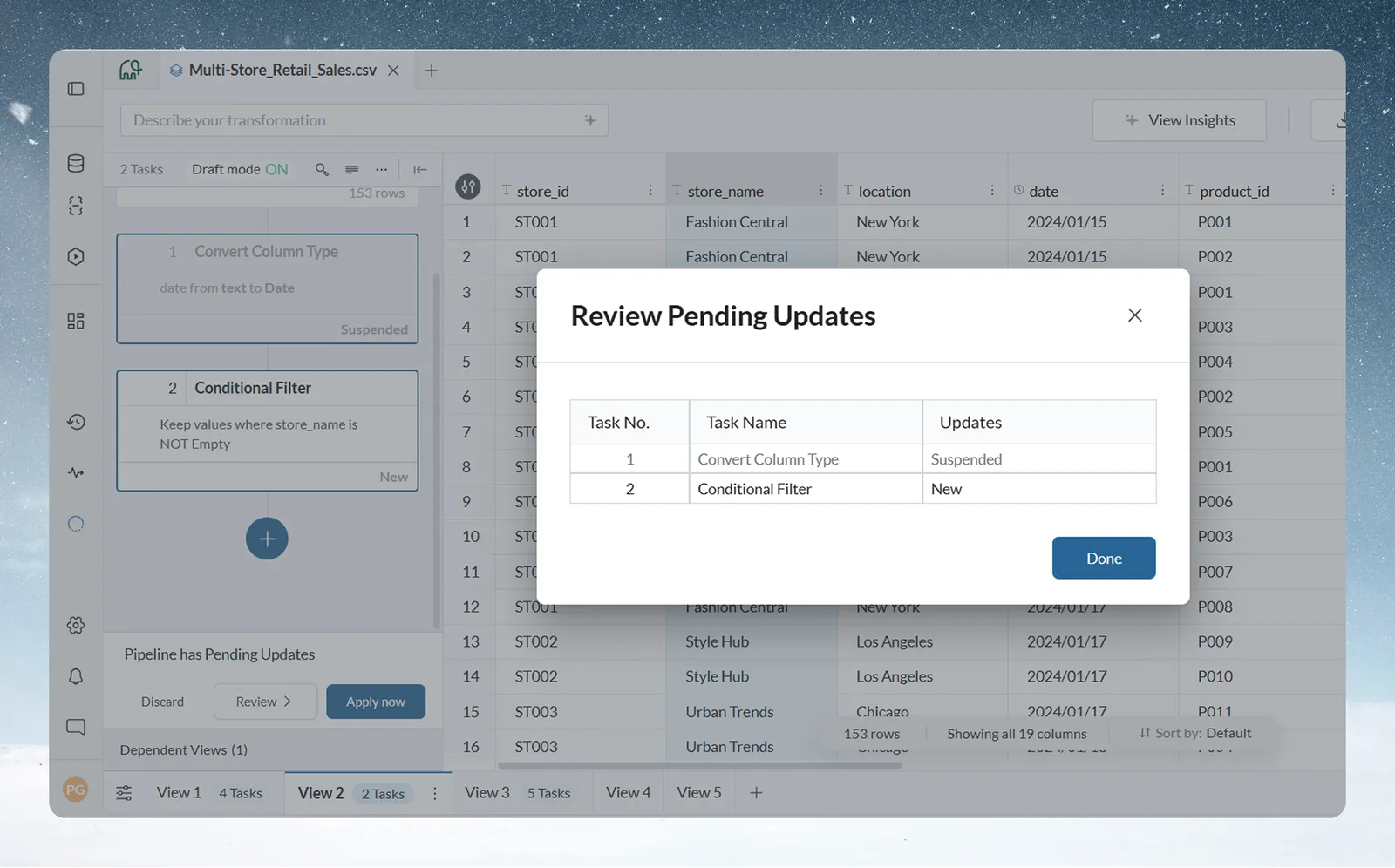
Pending changes are listed in the Review modal as New, Edited, Removed, Reordered, or Suspended. The data grid continues to show the state from the last time the pipeline actually ran.
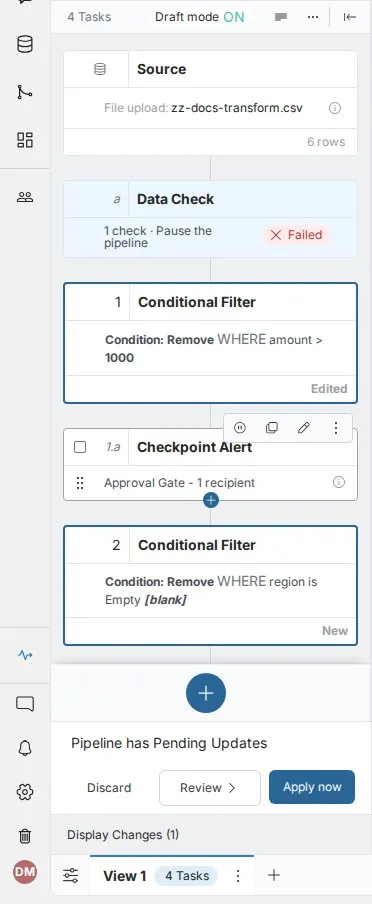
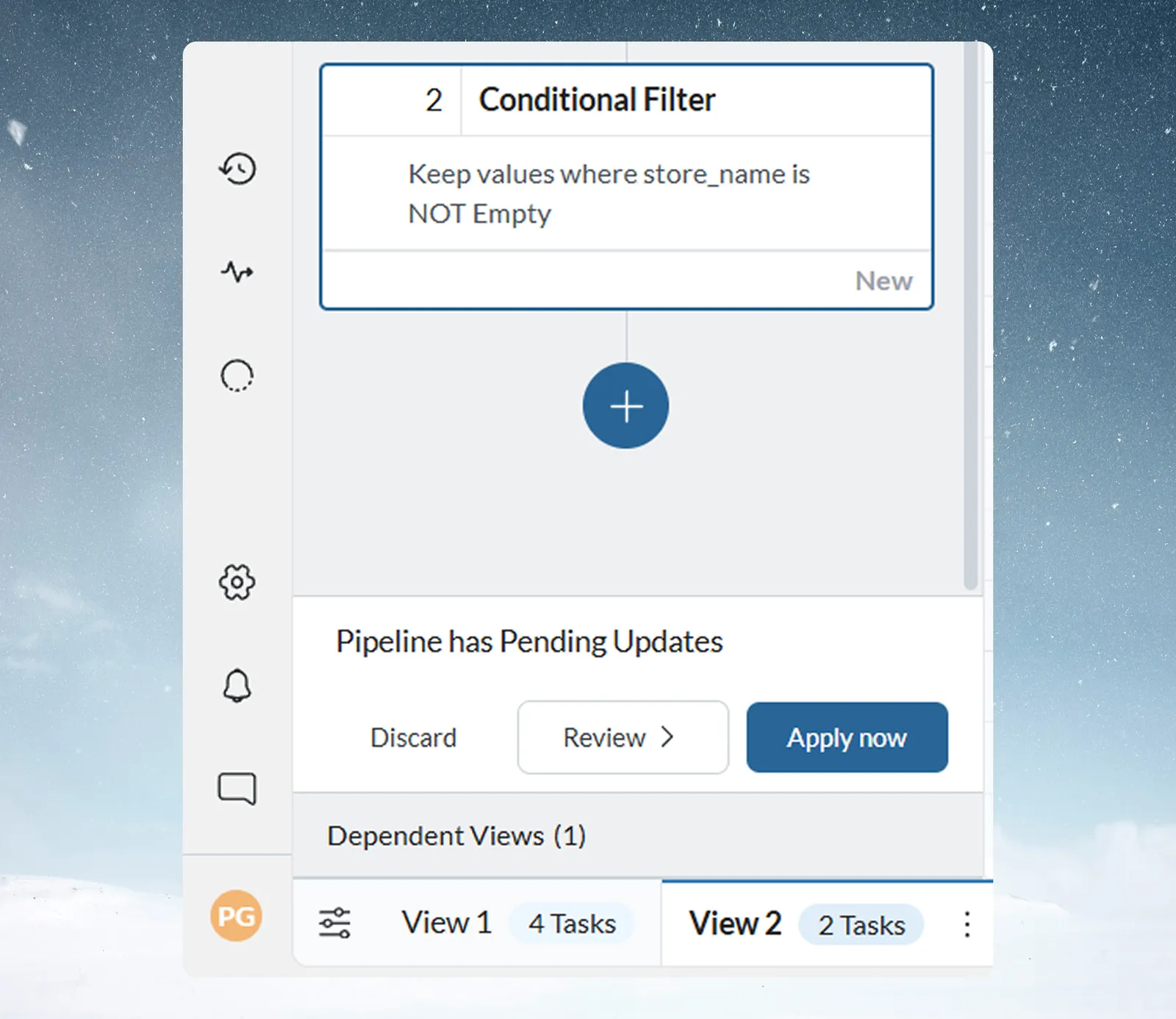
When you have queued changes, a bar appears at the bottom of the pipeline panel showing "Pipeline has Pending Updates" with three options:
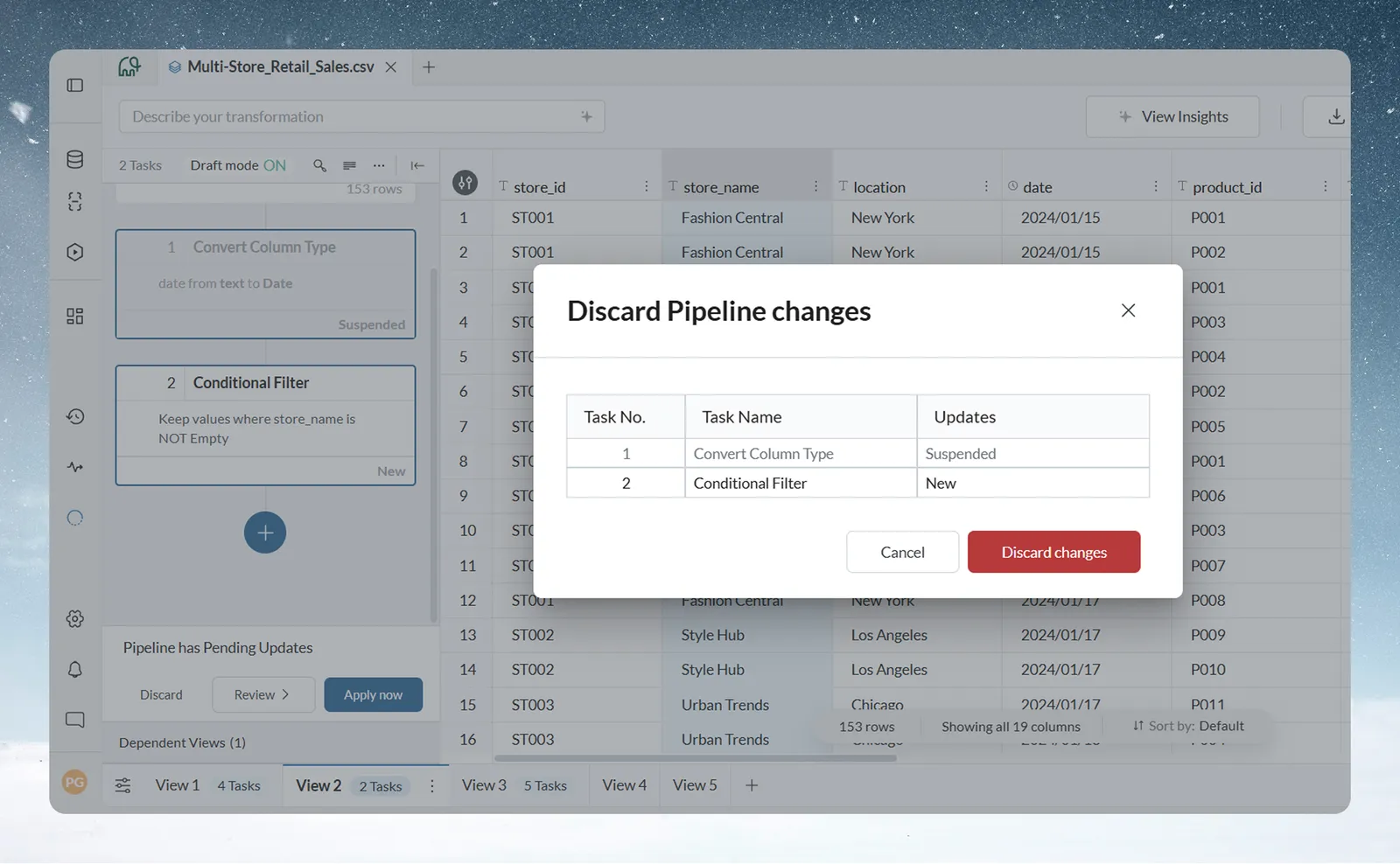
- Discard—removes all pending changes and reverts the pipeline to its last executed state
- Review—opens a modal listing every pending change by task number, task name, and the type of update (New, Edited, Removed, Reordered, or Suspended)
- Apply now—executes all pending tasks together in one run
To restore the pipeline's prior state, click Discard. A dialog lists the changes that will be discarded, with each task's details and status.
Use Draft mode when working with large datasets or when building a pipeline with many tasks where you want to configure the full sequence before running anything.
Pipeline version history
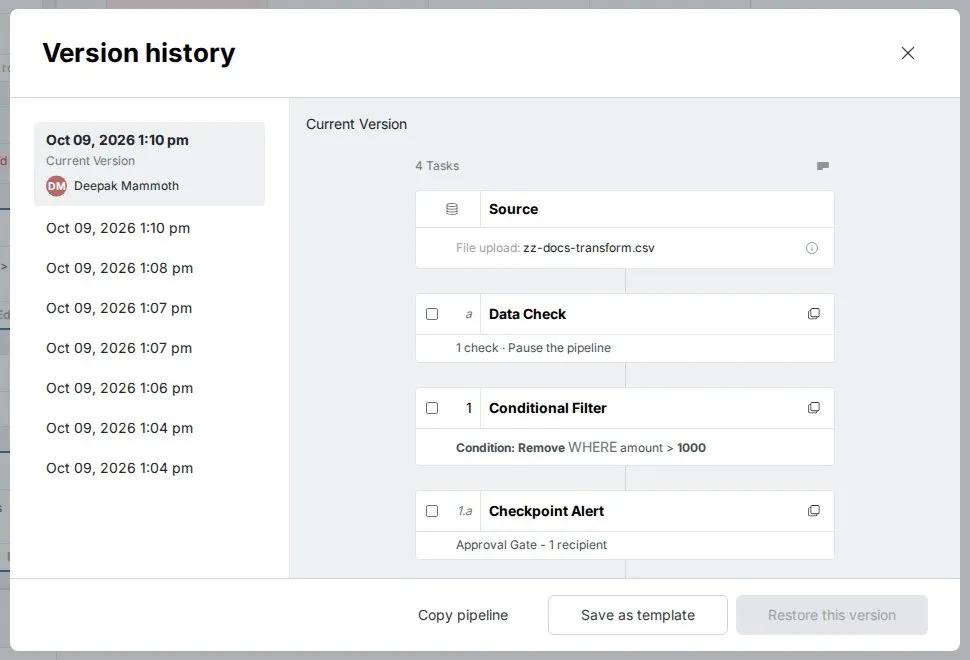
Open More Pipeline options (...) > Pipeline Version history to see earlier versions of the pipeline. Select a version to preview its tasks. From the dialog you can Copy pipeline, Save as template, or Restore this version; select individual tasks and click Copy tasks to paste them elsewhere. How many older versions you can see depends on your plan.
Copying and pasting tasks
Copy any task using the copy icon on hover, then use Paste below from the More options menu of any task, or Paste from the More Pipeline options menu to paste at the end of the pipeline. Copied tasks preserve all configuration including parameter bindings. Use this to reuse transformation logic across Views without reconfiguring from scratch.
Pipeline performance
For best performance, structure your pipeline in this order:
- Validate early—Data Check tasks near the top
- Filter early—Conditional Filter to reduce row volume
- Clean columns—Remove or Convert Column Type
- Standardize—Bulk Replace, Text Formatting
- Enrich—Join, Lookup, Add Column
- Calculate—Math Function, Window Function
- Format—Label & Insert Values, Combine Columns
- Govern—Checkpoint before export
To build one end to end, follow Your first pipeline.