Project settings
Project Settings control a project's name, color, date handling, and who in your workspace can access it. This page is for Project Admins, the only role that can open and save Project Settings. Start with Opening project settings.
Prerequisite: You are a Project Admin on the project.
Opening project settings
- Click the down arrow next to the current project name in the Data Library breadcrumb to open the project selector.
- Find the project you want to configure.
- Click the More options (three dots) button next to it.
- Click Project Settings.
The Project Settings modal opens.
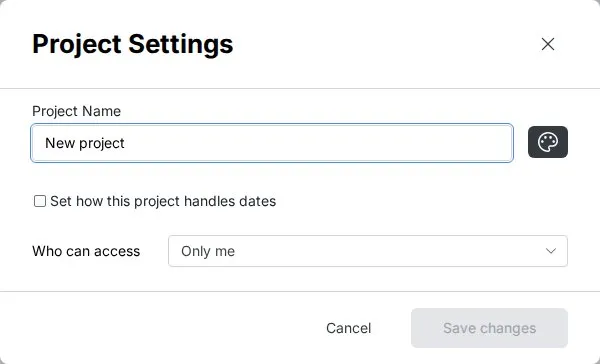
Note: Project Settings is also the same modal used when you create a new project. If you are creating a project for the first time, see Creating a project.
Settings reference
Project name
| Detail | Value |
|---|---|
| Required | Yes |
| Maximum length | 63 characters |
Enter a clear, descriptive name that helps your team identify the project at a glance. The name appears in the project selector dropdown across all of Mammoth.
Color
Click the color button next to the project name field to open the color picker. Choose from 8 preset colors:
#6C757C, #9CA1AB, #02786D, #50BBAF, #337FBD, #FDB020, #EB661E, #D57C7C
The color appears as a dot beside the project name in the selector and in the Share Project modal header. Use it to visually distinguish projects at a glance.
Date handling
Check Set how this project handles dates to configure two things. Select the edit icon next to the summary to change them, then click Done.
Reading dates in uploaded files: Choose how Mammoth reads ambiguous dates such as 06/12/2025:
- Day first:
06/12/2025is 6 December - Month first:
06/12/2025is 12 June
This applies to CSV, Excel, and PDF files uploaded to this project. Columns that arrive from database and API connectors are already typed, so this setting doesn't affect them. It doesn't change how dates look.
Showing dates: Choose the starting display format for new date columns in this project: DD-Mon-YYYY, YYYY-MM-DD, MM/DD/YYYY, DD/MM/YYYY, or Month DD, YYYY. Existing columns keep their current format, and you can change any column on its own from the column menu. It doesn't change how files are read.
These settings apply only to this project.
Access level
The Who can access dropdown controls which workspace members can see and work in this project.
| Option | Who has access |
|---|---|
| Everyone in this workspace | All current workspace members, and all future members added to the workspace |
| Some people in this workspace | Only the users you explicitly select, shown in the user list below the dropdown |
| Only me | Only you. Switching an existing project to Only me removes every other user from it. |
Select some people in this workspace
When you choose this option, a searchable user list appears below the dropdown. For each user you add:
- Search by name or email
- Assign a role: Project Admin or Project Editor
- Use the select-all checkbox at the top of the list to select or clear every user at once, or check individual users one at a time
Users added here are saved when you click Save changes. Changes to user membership are processed alongside the settings update in a single operation.
This bulk, checkbox-based user picker is specific to the Project Settings modal. The Share Project and Manage Users modals (see Sharing a project) only support adding or removing one user at a time.
Workspace Owners can see all project names and delete any project, regardless of access level.
Saving changes
Click Save changes to apply your changes.
Expected result: A success toast confirms: "Project successfully edited."
Changes take effect immediately:
- The new name and color appear in the project selector.
- Access level changes (adding or removing users) are applied in the same save operation.
Who can change project settings
Only users with the Project Admin role on the project can open and save Project Settings.
Workspace Owners can manage project membership from the workspace level (Workspace Settings, then User Management) but must join a project as an admin to edit its settings.
Frequently asked questions
Q: Can I change the project name at any time?
A: Yes, as long as you are a Project Admin. The new name takes effect immediately.
Q: Do the date settings change columns that already exist?
A: No. Showing dates only sets the starting format for new date columns, and existing columns keep their format. Reading dates in uploaded files applies to files uploaded to the project.
Q: Can I have more than 8 colors?
A: No. The color picker offers 8 fixed preset colors. Custom hex colors are not currently supported.
Q: I can't find "Project Settings" in the menu—why?
A: Project Settings is only visible to Project Admins. If you do not see it, you are a Project Editor on this project. Ask a Project Admin to change your role, or have a Workspace Owner join the project as an admin and update your role.
Q: What is the difference between "Everyone in this workspace" and "Some people in this workspace"?
A: "Everyone" automatically includes all current and future workspace members—no manual user management needed. "Some people" gives you explicit control, but you must manually add each person and will need to add new workspace members to the project yourself when they join the workspace.
Related articles
- Sharing a project: Add or remove individual users and change their roles
- Project roles and permissions: Full permission breakdown for each role
- Creating a project: Set these options at project creation time
- Projects overview: Understanding projects in Mammoth
Need help? Check the troubleshooting guide or contact Mammoth Support.