SFTP connector
The SFTP connector imports files from any SFTP-compatible file server into Mammoth as a dataset. Mammoth supports three authentication methods: username & password, SSH key generation (Mammoth-hosted), and private key authentication (user-provided). Supports a wide range of file formats including CSV, Excel, and compressed archives.
Before you start
You need:
- An SFTP server accessible from the internet
- A user account with read access to the files you want to import
- Your server's hostname or IP address and port (default: 22)
- Mammoth's IP address added to your server's firewall allowlist (shown in the connection form)
- One of three authentication methods:
- Username & password—Your SFTP user's password
- SSH Key—Mammoth generates a public key that you add to your server
- Private Key—Your existing SSH private key in PEM format
Step 1: Select the SFTP connector
- In Mammoth, go to Data Library and click + New Dataset
- Select Connectors
- Search for SFTP or find it in the Cloud Storage category
- Click the SFTP tile
Step 2: Create a connection
Click New Connection and select an authentication method. The SFTP connector supports three authentication approaches:
Method 1: Username & password
Select Username & Password for straightforward password-based authentication.
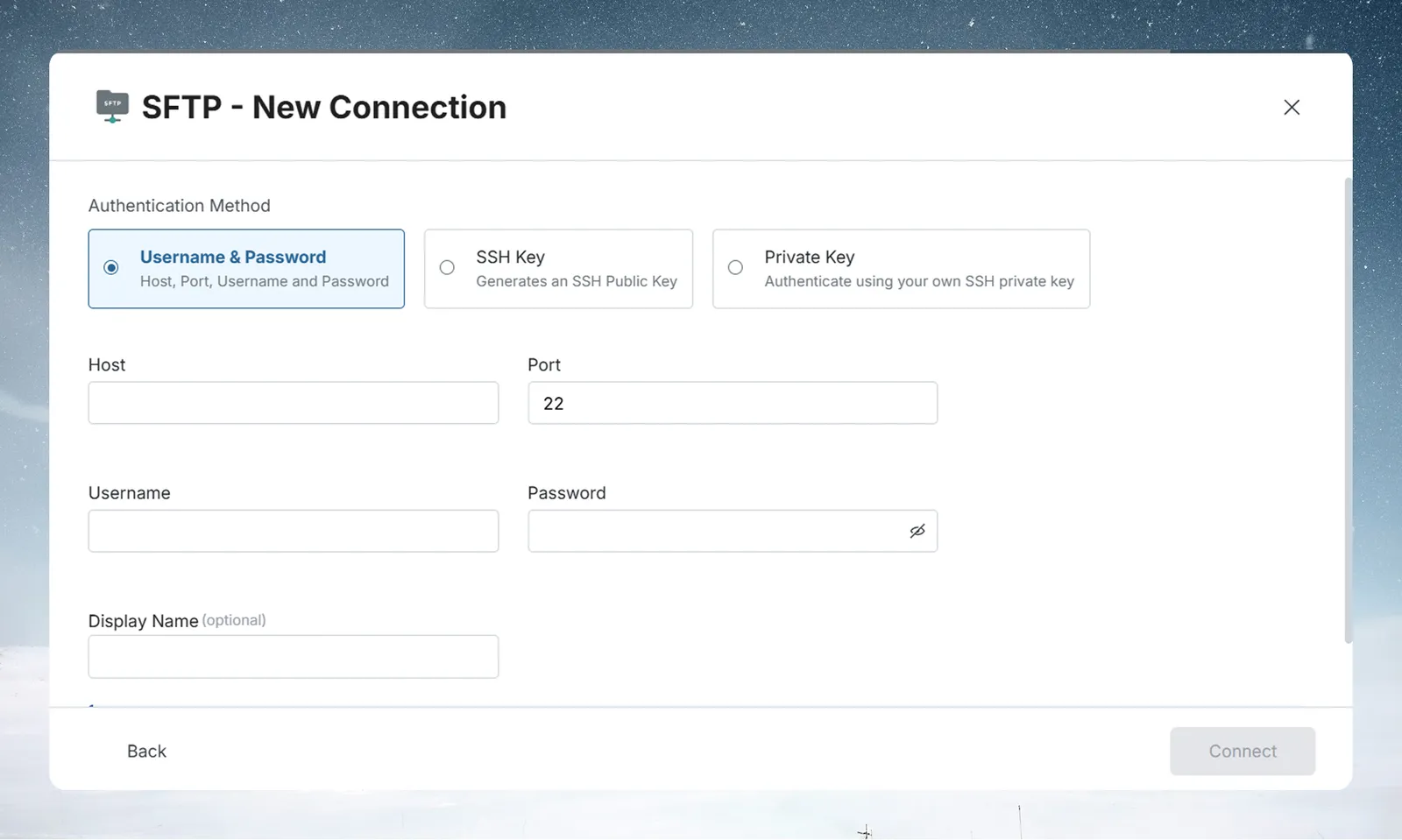
| Field | Description | Example |
|---|---|---|
| Host | Hostname or IP address of your SFTP server | sftp.example.com |
| Port | SFTP port | 22 (default) |
| Username | SFTP user with read access | mammoth_user |
| Password | Password for the SFTP user | — |
| Display Name | Optional label for this connection | SFTP Production |
Fill in the fields and click Connect.
Method 2: SSH key (Mammoth-generated)
Select SSH Key to have Mammoth generate a unique SSH public key that you'll add to your server. This method has no private key to manage—only the public key you install on the SFTP server.
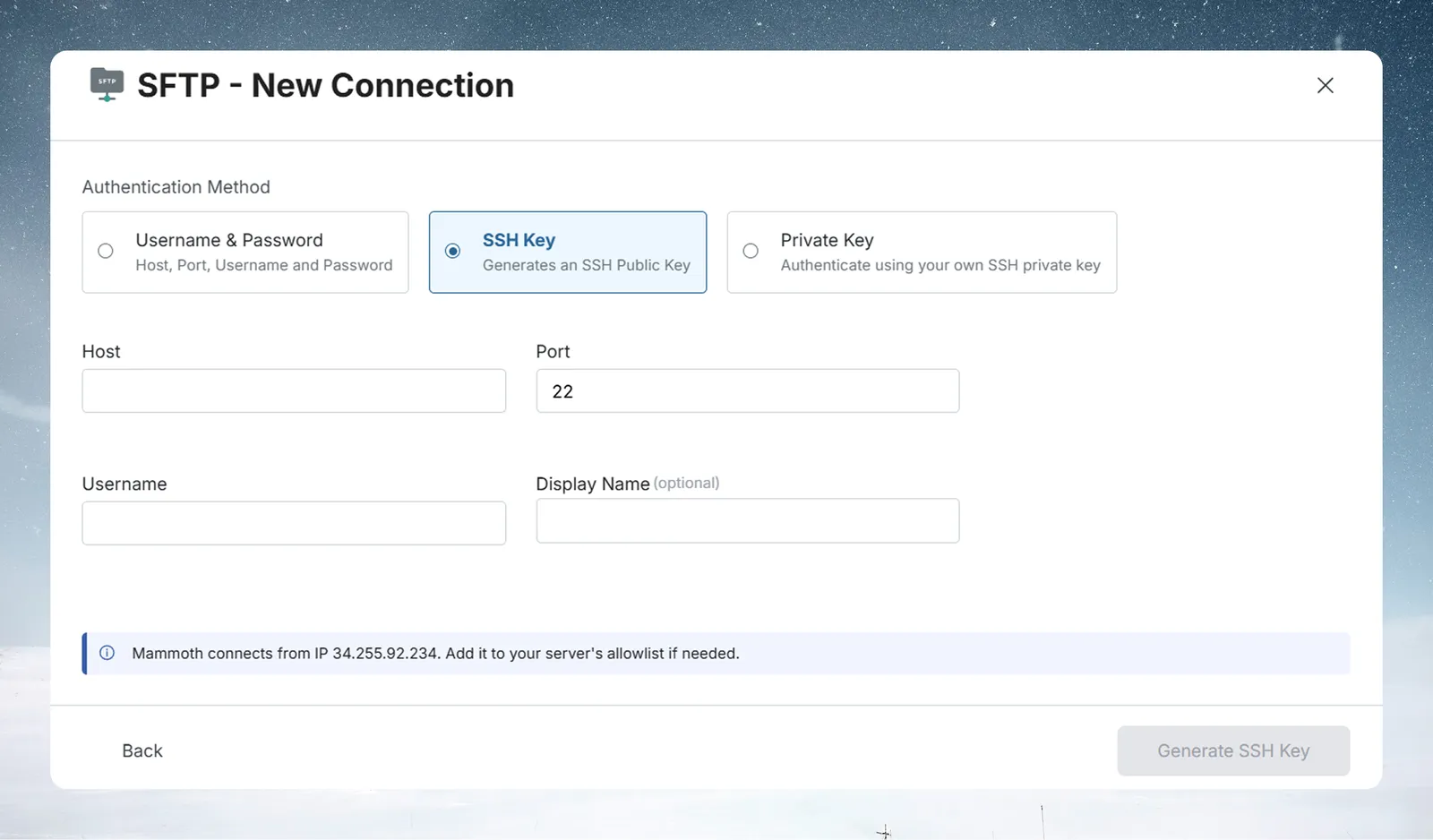
| Field | Description |
|---|---|
| Host | Hostname or IP of your SFTP server |
| Port | SFTP port (default: 22) |
| Username | SFTP user with read access |
| Display Name | Optional label for this connection |
After filling in the fields, click Generate SSH Key. Mammoth creates a unique public key and displays it. Click Copy SSH Key or Download key, then add it to your SFTP server's ~/.ssh/authorized_keys file (on the line for your SFTP user). Once the key is installed on the server, return to Mammoth and click Back to Existing Connections, then select the connection to continue.
Tip: Downloading the SSH public key. On the key screen, you can copy the key to your clipboard with Copy SSH Key or download it as a
.pubfile with Download key for easy transfer to your server.
Method 3: Private key (user-provided)
Select Private Key if you already have an SSH private key and want Mammoth to use it for authentication.
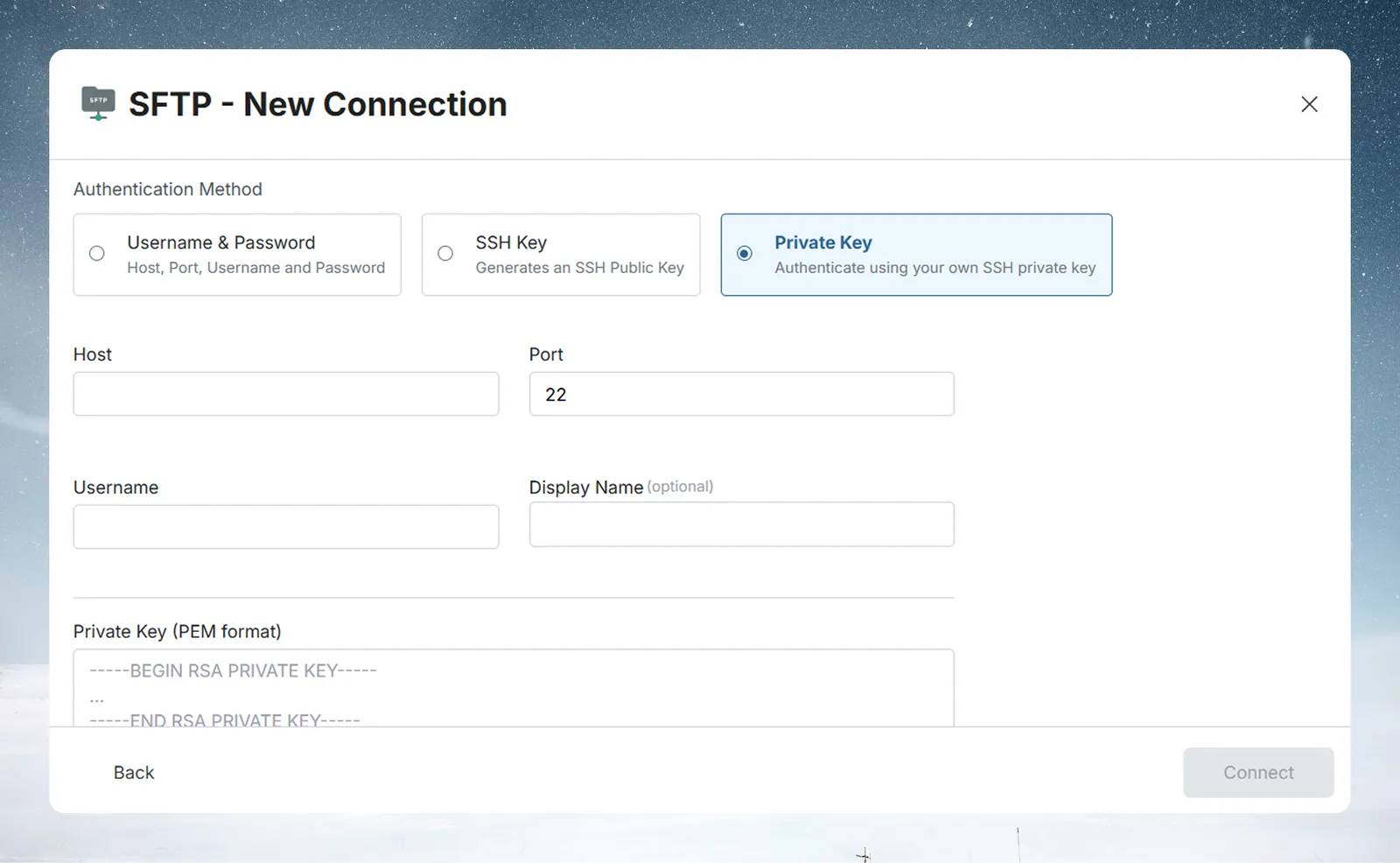
| Field | Description |
|---|---|
| Host | Hostname or IP of your SFTP server |
| Port | SFTP port (default: 22) |
| Username | SFTP user with read access |
| Private Key (PEM format) | Your SSH private key in PEM format (-----BEGIN RSA PRIVATE KEY----- ... -----END RSA PRIVATE KEY-----) |
| Passphrase | Optional passphrase for the private key (if your key is encrypted) |
| Display Name | Optional label for this connection |
Paste your private key directly in the Private Key (PEM format) text area, or click Upload key file to select a .pem or .key file from your computer. If your key is passphrase-protected, enter the passphrase. Click Connect to save the connection.
Warning: Private key security. Never share your private key or commit it to version control. If you believe your key is compromised, remove it from your SFTP server's authorized keys immediately.
SFTP firewall note
The connection form shows a message at the bottom: "Mammoth connects from IP [address]. Add it to your server's allowlist if needed." Allow that IP through your firewall for the connection to succeed.
Step 3: Select your SFTP file
After connecting, select the connection under Existing Connections, then browse to the file on the SFTP server using the file browser.
Supported SFTP file formats
.txt · .csv · .tsv · .psv · .xls · .xlsx · .zip · .bz2 · .gz · .tar · .7z
Choose a future pulls mode
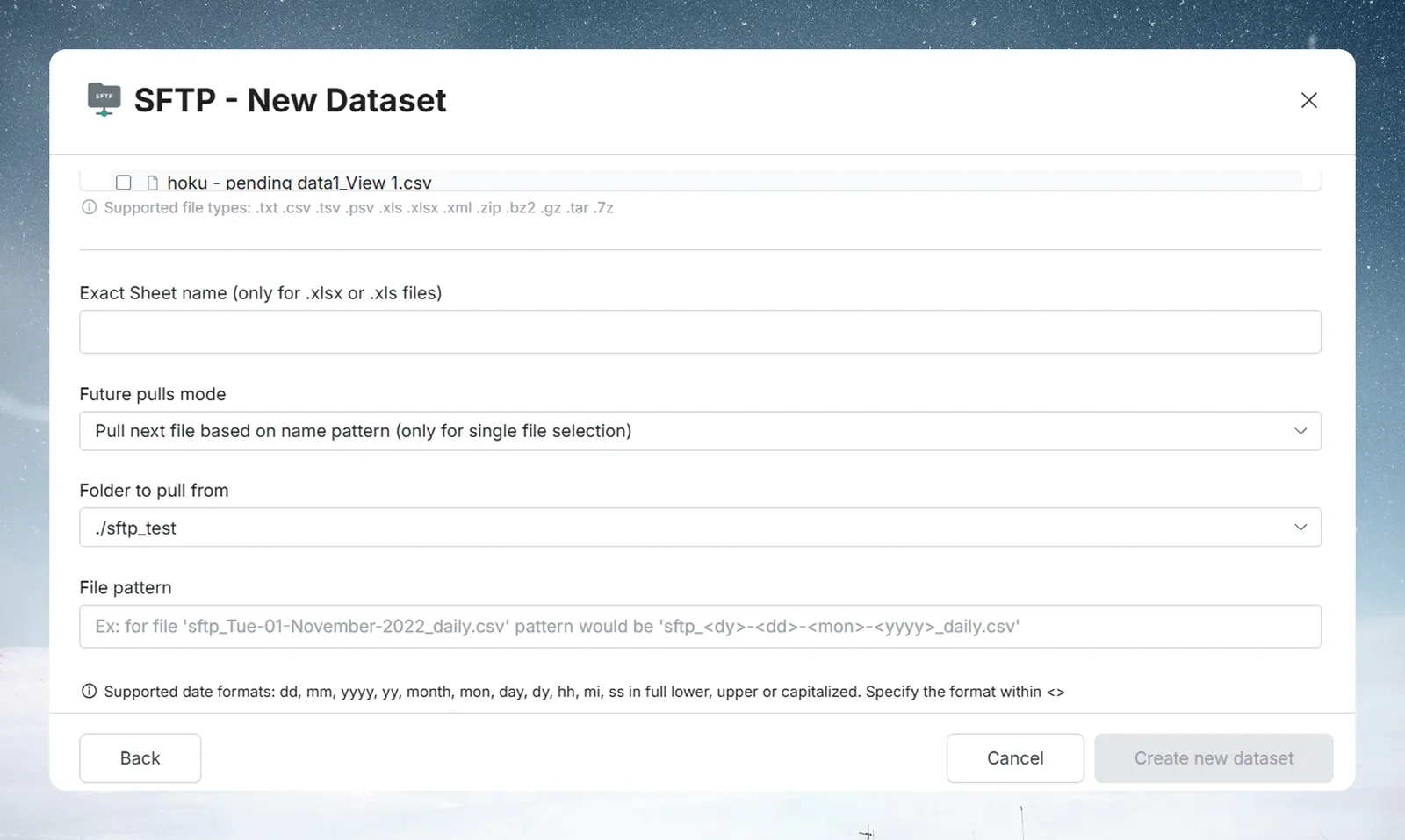
After you select a file, a Future pulls mode list appears:
- Pull same file—Every refresh re-reads the file you selected
- Pull next file based on name pattern—Available only when a single file is selected. Every refresh looks for the next file that matches a date pattern in the file name. Choose the Folder to pull from and enter a File pattern. For example, for the file
sftp_Tue-01-November-2022_daily.csvthe pattern issftp_<dy>-<dd>-<mon>-<yyyy>_daily.csv
In a file pattern, put a date format inside <>. The supported formats are dd, mm, yyyy, yy, month, mon, day, dy, hh, mi, and ss, in full lower case, upper case, or capitalized. The selected file name must contain at least one date format, and the pattern must match the selected file name.
If the file is an Excel workbook (.xls/.xlsx), also enter the Exact Sheet name to import.
Step 4: Create the SFTP dataset
Click Create new dataset. Mammoth does not ask you to choose an update method for this connector.
Keep SFTP data up to date
For files that update regularly on your SFTP server, set up a Dataset Refresh automation. When the automation runs, Mammoth re-reads the file from the SFTP server.
If your SFTP server delivers files with date-stamped names (for example, orders_20240115.csv), choose Pull next file based on name pattern when you create the dataset so each refresh picks up the next matching file.
Troubleshoot SFTP connections
Connection fails
- Confirm port 22 (or your custom port) is open inbound from Mammoth's IP address (shown on the connection form)
- Verify the host, port, and username are correct
- For Username & Password: confirm the password is correct
- For SSH Key: verify the public key is installed at
~/.ssh/authorized_keyson the server under the SFTP user's home directory - For Private Key: confirm the key is in valid PEM format and the passphrase (if set) is correct; verify the corresponding public key is in
~/.ssh/authorized_keyson the server
Permission denied on file
- The SFTP user must have read access to the target file and list access to the containing directory
- Check file permissions with
ls -laon the server, and adjust withchmodif needed
Invalid private key format
The error "Invalid private key format. Please provide a valid PEM-encoded key." means Mammoth could not read the key:
- Ensure the private key is a PEM-encoded key (it begins with a
-----BEGIN ... PRIVATE KEY-----line) - Check that the entire key, including the
-----BEGINand-----ENDlines, is pasted into the form - Uploaded key files can't exceed the maximum allowed size for an SSH private key (16 KB); Mammoth shows "File exceeds the maximum allowed size for an SSH private key."