MongoDB connector
The MongoDB connector imports data from your MongoDB database into Mammoth as a dataset. Select a collection from the browser or write a query to import documents as rows.
Before you start
You need:
- A MongoDB instance accessible from the internet
- A MongoDB user with
readaccess on the database you want to import from - Your server's hostname, port (default: 27017), database name, username, and password
- Mammoth's IP address added to your MongoDB network allowlist—see Network requirements
Step 1: Select the MongoDB connector
- In Mammoth, go to Data Library and click + New Dataset
- Select Connectors
- Search for MongoDB
- Click the MongoDB tile
Step 2: Create a connection
Click New Connection to open the credential form.
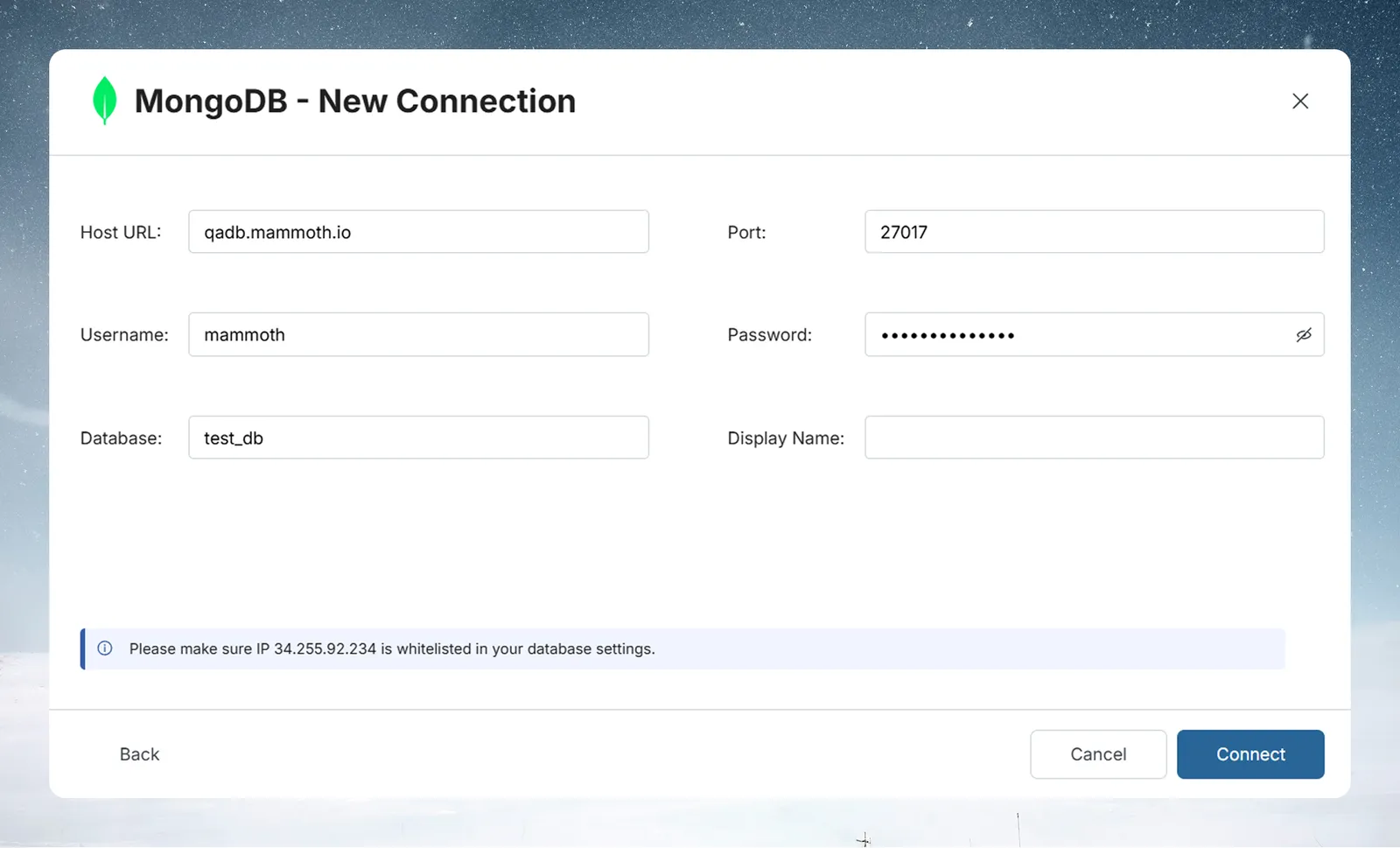
| Field | Description | Example |
|---|---|---|
| Host URL | Hostname or IP address of your MongoDB server | mongo.example.com |
| Port | TCP port MongoDB listens on | 27017 (default) |
| Username | MongoDB user with read access | mammoth_reader |
| Password | Password for the user | — |
| Database | Name of the MongoDB database | analytics |
| Display Name | Optional label for this connection | MongoDB Atlas |
Tip: MongoDB Atlas. If you're using MongoDB Atlas, find your connection hostname in Atlas → Database → Connect → Connect your application. It looks like
cluster0.abc123.mongodb.net. Use port27017and add Mammoth's IP address to your Atlas Network Access allowlist.
After filling in the fields, click Connect. Mammoth validates the credentials and saves the connection; if validation fails, the error message appears at the bottom of the form.
Step 3: Select a MongoDB collection and query your data
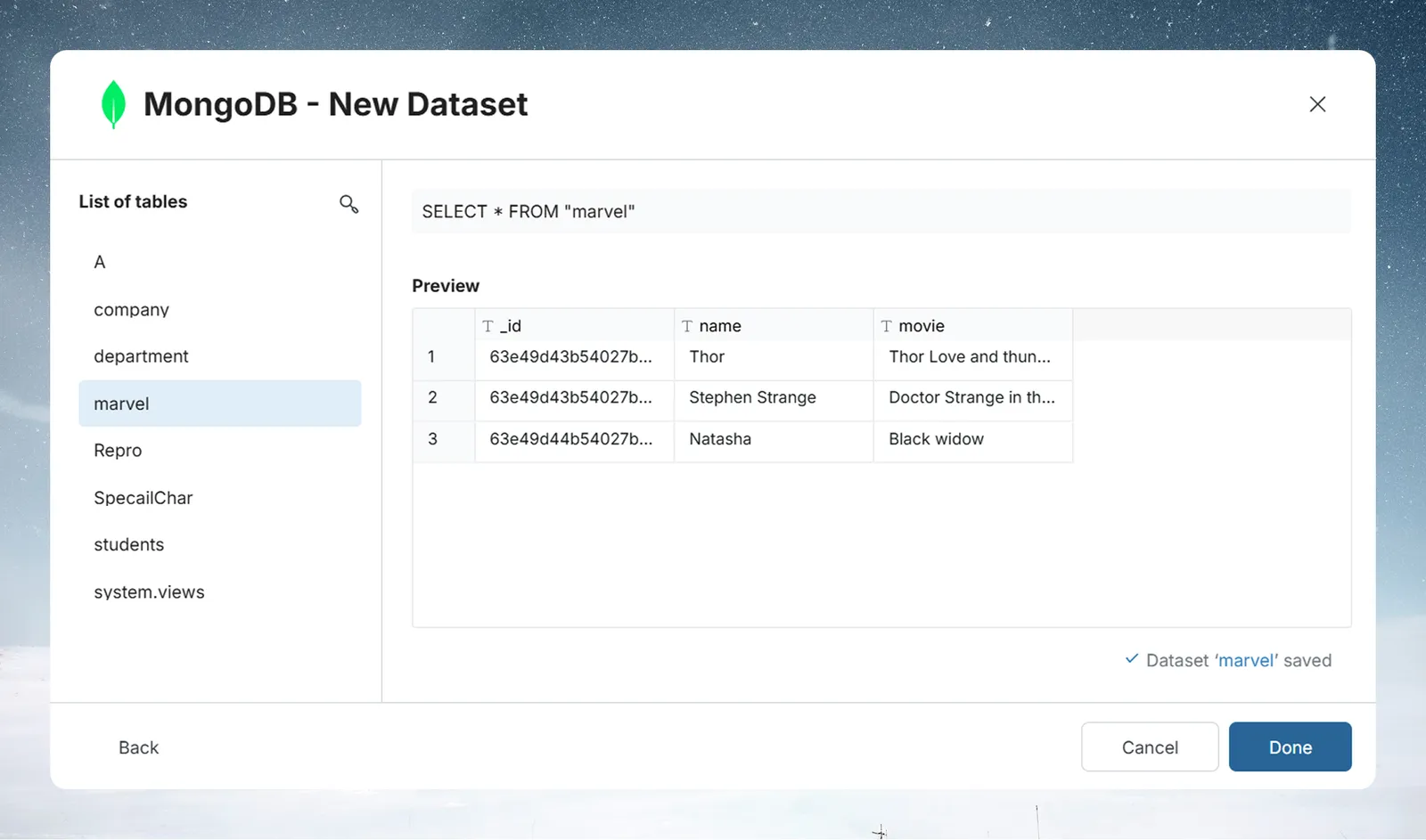
After you connect, select the connection under Existing Connections to open the query builder. The List of tables panel shows the collections in your database. Click a collection name to load a SELECT * query for it and its preview.
Write a custom MongoDB query
Use the Enter SQL query editor to filter documents or select specific fields. You query your MongoDB collections with SQL:
SELECT _id, name, email, createdAt
FROM customers
WHERE status = 'active'
See Understanding data preview & query for a full guide.
Step 4: Save the MongoDB dataset
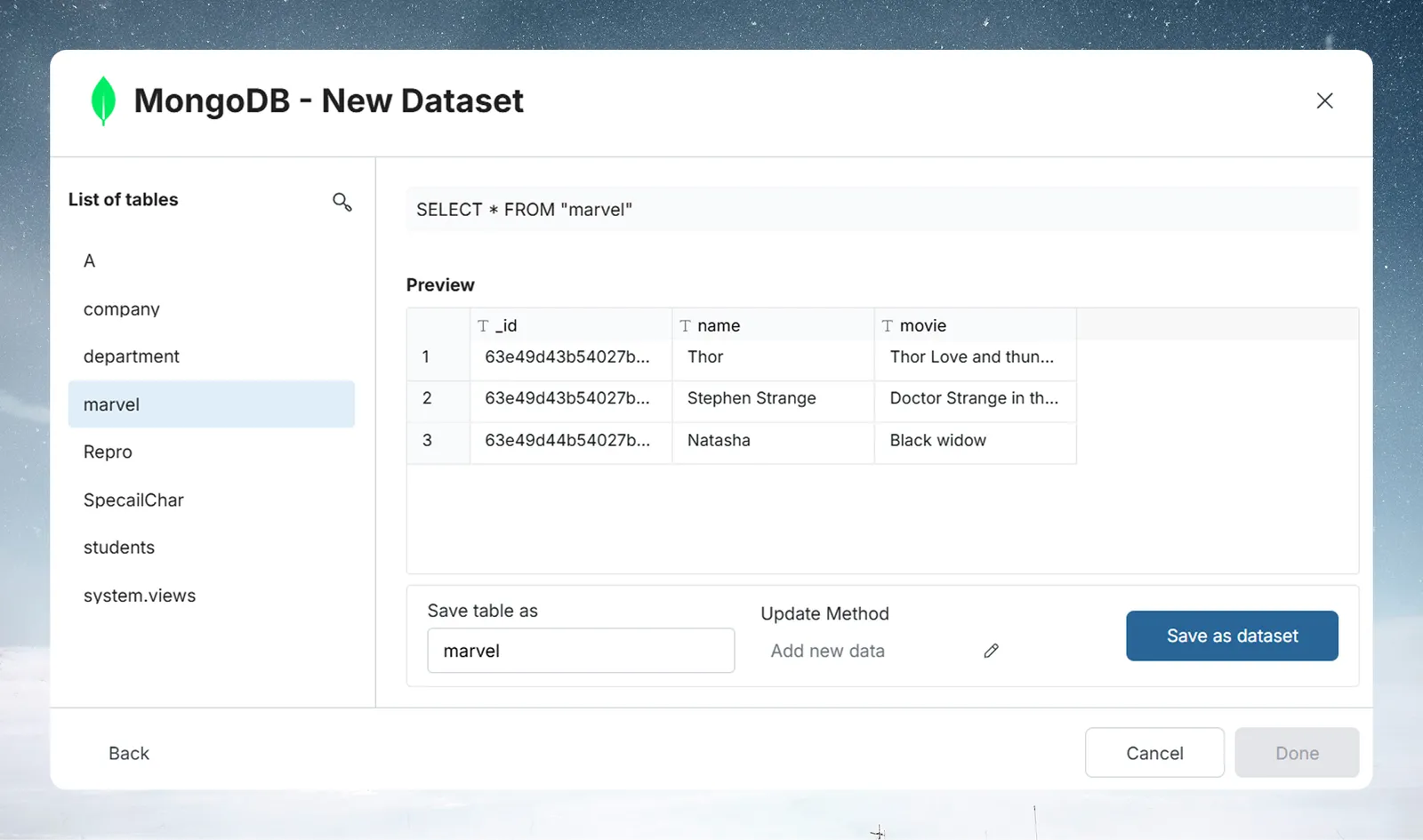
- Enter a dataset name in the Save table as field
- Check the Update Method (the default is Replace all data). To change it, click the edit icon, pick an option, and click Save changes:
- Replace all data—Replaces all existing data
- Add new data—Adds new data based on a unique sequential column
- Replace with new data—Replaces existing data with new data based on a unique sequential column For Add new data and Replace with new data, also choose a Key column—a numeric or date column with incrementing values, such as an ID or a date.
- Click Save as dataset. When the dataset is saved, click Done
Troubleshoot MongoDB connections
Connection fails
- Confirm port 27017 is open inbound from Mammoth's IP address
- For MongoDB Atlas, check your Network Access list in the Atlas console
- Verify the user has
readrole on the database:db.grantRolesToUser("mammoth_reader", [{ role: "read", db: "analytics" }])