Google Sheets connector
The Google Sheets connector imports data from a Google Sheets spreadsheet into Mammoth as a dataset. Authenticate with your Google account using OAuth, then choose the spreadsheet and the tab to import.
Before you start
You need:
- A Google account with access to the spreadsheet
- The spreadsheet you want to import (you can pick it from a list or paste its link)
Step 1: Select the Google Sheets connector
- In Mammoth, go to Data Library and click + New Dataset
- Select Connectors
- Search for Google Sheets
- Click the Google Sheets tile
Step 2: Connect a Google account
Mammoth shows an Existing Connections screen listing any Google accounts you've already authenticated.
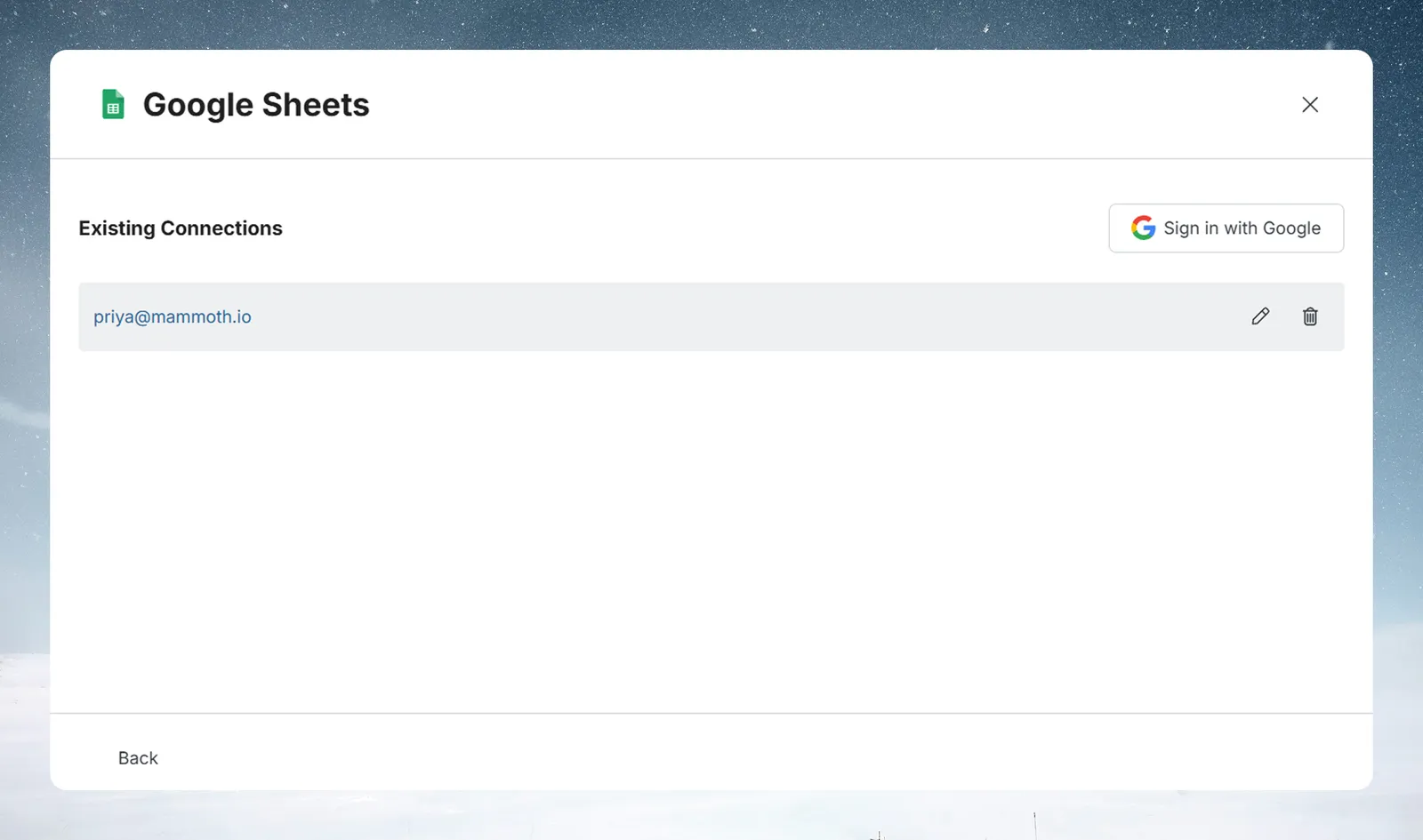
- To reuse a previously connected account, select it from the list.
- To connect a new account, click Sign in with Google.
Clicking Sign in with Google starts the OAuth flow:
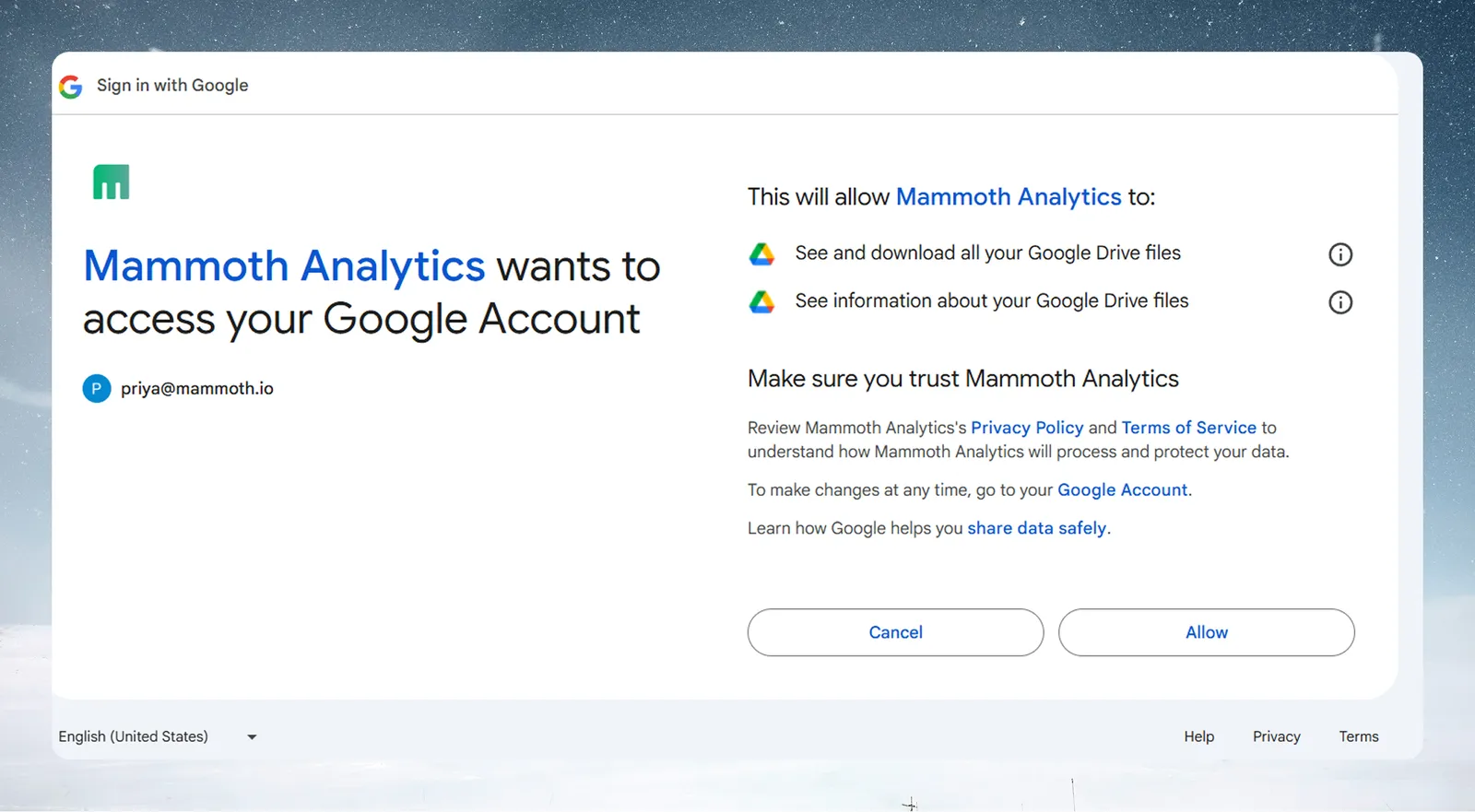
Mammoth sends you to Google's authorization page in the same browser tab. Sign in with the Google account that has access to the spreadsheet, then click Allow. Mammoth asks for read-only access to view and download your Google Drive files and see your email address. You're redirected back to Mammoth automatically. Click Back to return to the connector selection screen at any point.
Step 3: Select your spreadsheet and tab
Mammoth shows Connect a Google Sheet with your Google account and a Connected badge.
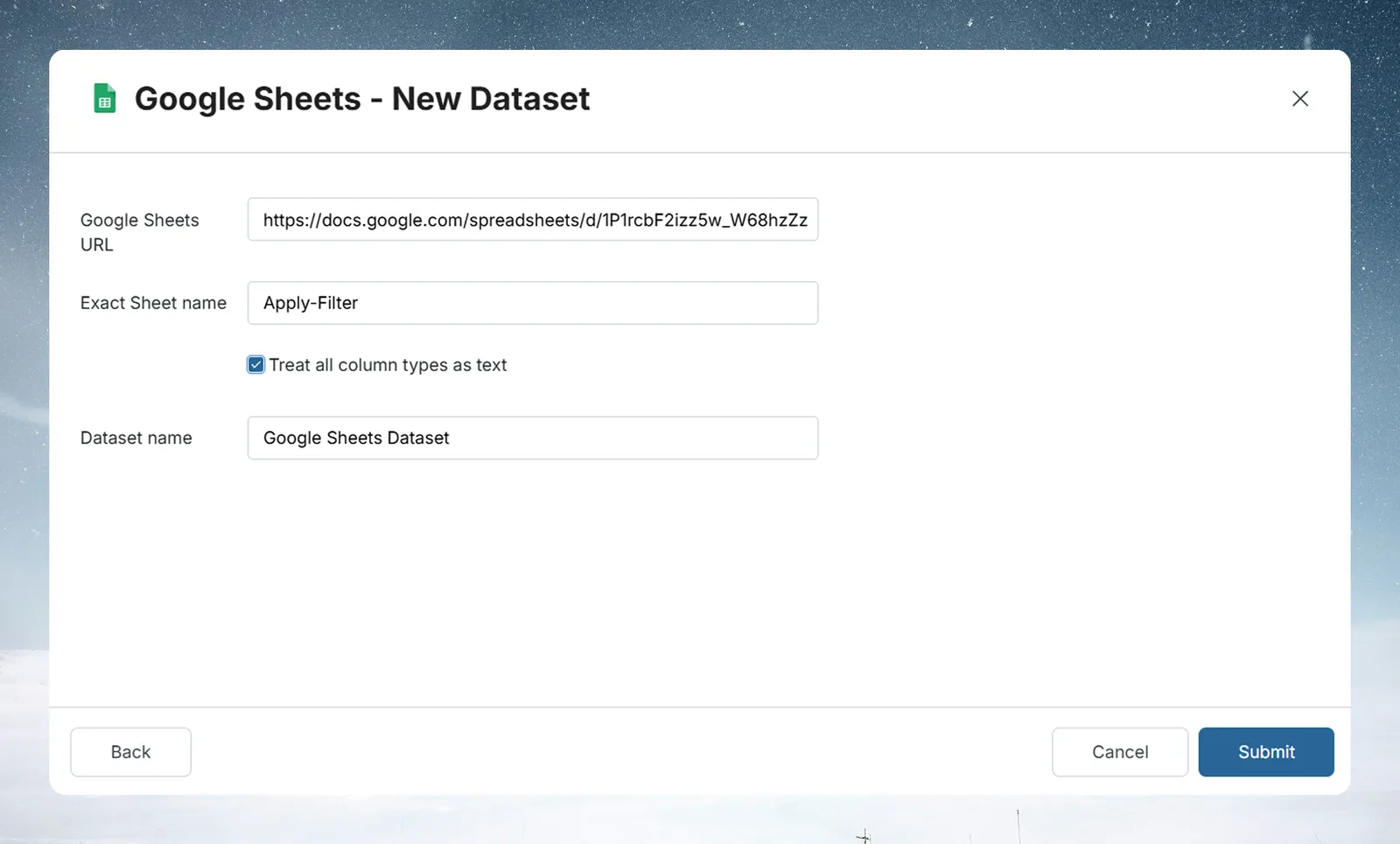
- In Spreadsheet, open Select a spreadsheet…, search with Search spreadsheets, and pick your spreadsheet. To use a link instead, click Paste a link instead and paste a Google Sheets link. Click Use picker instead to go back to the list.
- In Tab, choose the tab to import. Mammoth selects the first tab by default.
- Click Continue.
Step 4: Review how Mammoth reads the tab
Mammoth checks the structure of the tab and shows a Mammoth interpretation step.
- Tab is a clean table: Mammoth reports that the first row is the header and how many columns and rows it detected. Click Looks right.
- Tab needs reshaping: Mammoth shows Source Data and Result. Describe how the header should be read in the box (for example, name the columns, or use a row as the header), run it, and check the result. Click Looks right when it is correct, or click Import as is to import the tab exactly as it is, without reshaping.
If Mammoth can't read the structure of a tab, it shows "Could not read the structure of this tab. Please try again."
Step 5: Save the Google Sheets dataset
- Enter a Dataset name (the tab name is filled in for you).
- Choose how the dataset refreshes: Manual (refresh from the sheet whenever you choose) or On a schedule. Scheduled refresh depends on your plan; if it isn't available, Mammoth shows "Upgrade your plan to set up automatic dataset refresh."
- Choose an Update method: Replace swaps in the latest data each refresh, and Combine adds new data alongside what's already there.
- Click Create Dataset.
If a later refresh brings back something different from what you saved, Mammoth pauses the update and asks you; your data is never changed silently.
Import multiple Google Sheets tabs
To import multiple tabs from the same spreadsheet, create a separate dataset for each tab. Use the same connection and choose a different Tab each time.
Keep Google Sheets data up to date
Choose On a schedule when you save the dataset, or set up a Dataset Refresh automation later. When a refresh runs, Mammoth reads the current content of the sheet—any changes made in Google Sheets since the last refresh will appear in your Mammoth dataset.
Troubleshoot Google Sheets imports
Columns are not what you expected
- Check the header on the Mammoth interpretation step. Describe how the header should be read, or use Import as is
- If Mammoth shows "No tabs found in this spreadsheet", the spreadsheet has no readable tabs; check the spreadsheet in Google Sheets
Access denied
- The Google account you authorized must have at least Viewer access on the spreadsheet
- If Mammoth shows "That doesn't look like a valid Google Sheets link", check the link you pasted