Multi-page navigation
When your dashboard covers multiple topics or audiences, you can organize it into pages. Each page has its own set of charts—letting viewers focus on one topic at a time.
How pages look
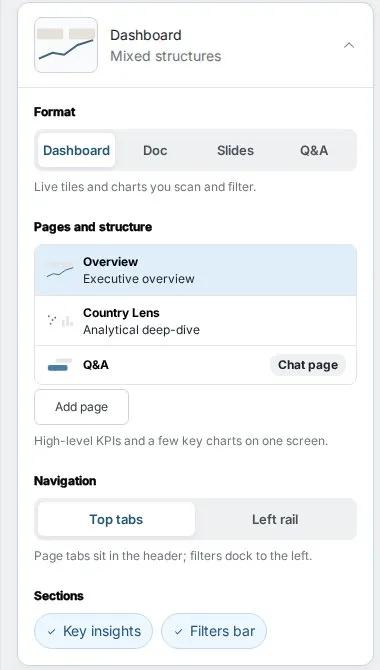
In the editor, open the Design tab. Under Format, set Navigation to one of:
- Top tabs—A tab bar across the top of the dashboard
- Left rail—A sidebar down the left
AI-generated pages
When you describe content across several distinct topics, the AI can propose a multi-page structure. For example:
"Create an executive dashboard with sales performance, marketing metrics, and operations KPIs"
You can also ask for pages explicitly:
"Split the dashboard into two pages: one for quarterly results and one for team performance"
Adding and managing pages
Add a page: click Add in the editor header, then Page. Describe what the page is about and the AI composes it, or start from a page layout such as Executive overview, Operational monitor, or Analytical deep-dive. Nothing is added empty.
Manage pages: open the Manage pages panel to add, rename, duplicate, and delete pages. Drag a page to reorder it.
Page structure: in the Design tab, Page structure sets the layout variant of a page: the same content, arranged differently. Use Apply to a copy to keep the saved page and put the new structure on a duplicate.
You can also use the AI chat:
"Add a new page called 'Customer Insights'"
"Move the Marketing page to be the first tab"
Filters across pages
You choose a filter's scope: Every page or This page. A filter set to every page applies across the whole dashboard. See Dashboard filters.
Preview on different screens
Use the viewport switch in the editor header to preview Desktop, Tablet, and Mobile layouts and check how your pages look on each.