Batch Operations in Detail
This document covers advanced batch workflows, multi-batch analysis patterns, automation integration, performance considerations, and troubleshooting. For foundational concepts, including Combine vs Replace, the Batches interface, and exposing batch metadata, refer to Batch Management.
Batch architecture
Dataset–batch relationship
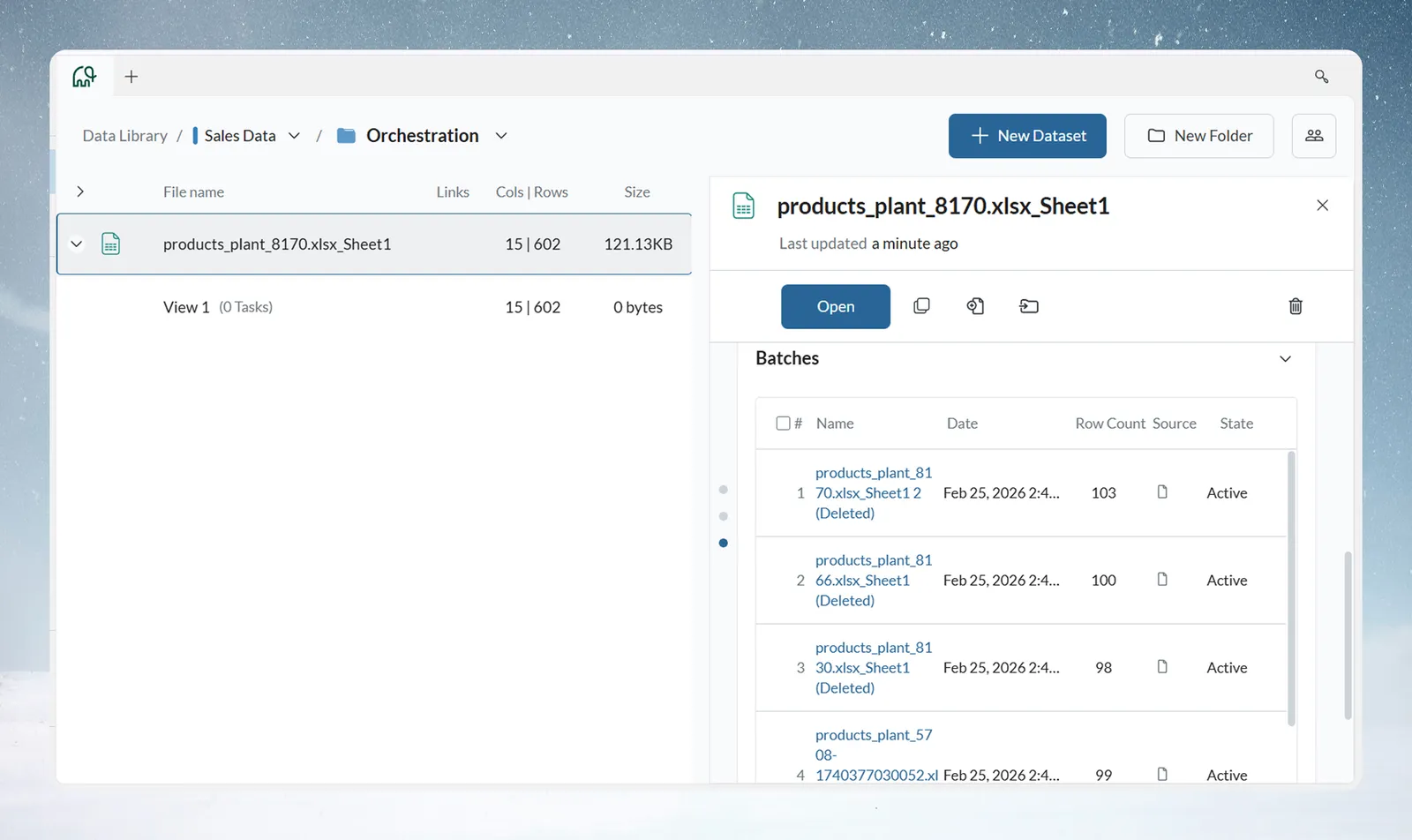
A Batch is a container holding actual source data within a Dataset. One Dataset can contain multiple Batches, each representing a distinct data source or time period. All Batches within a Dataset share the same Schema, and Views show all Batches combined by default.
This architecture enables version control, historical analysis, multi-source integration, compliance audit trails, and rollback capability—all within a single unified Dataset.
View sync after batch changes
Auto-sync is a per-link setting. When it is off on a View's incoming link, the View is not rerun when its dataset receives a new batch, and the new data stays pending. A warning triangle (⚠) with the text "Data may be inconsistent" appears in the dataset's Views list, and Monitor's Needs Attention tab shows the item as "new batch received, auto-sync off" with Preview and Process buttons. See View management for the Auto-sync settings, and Monitor for releasing held data.
Multi-batch analysis workflows
Batch-level filtering patterns
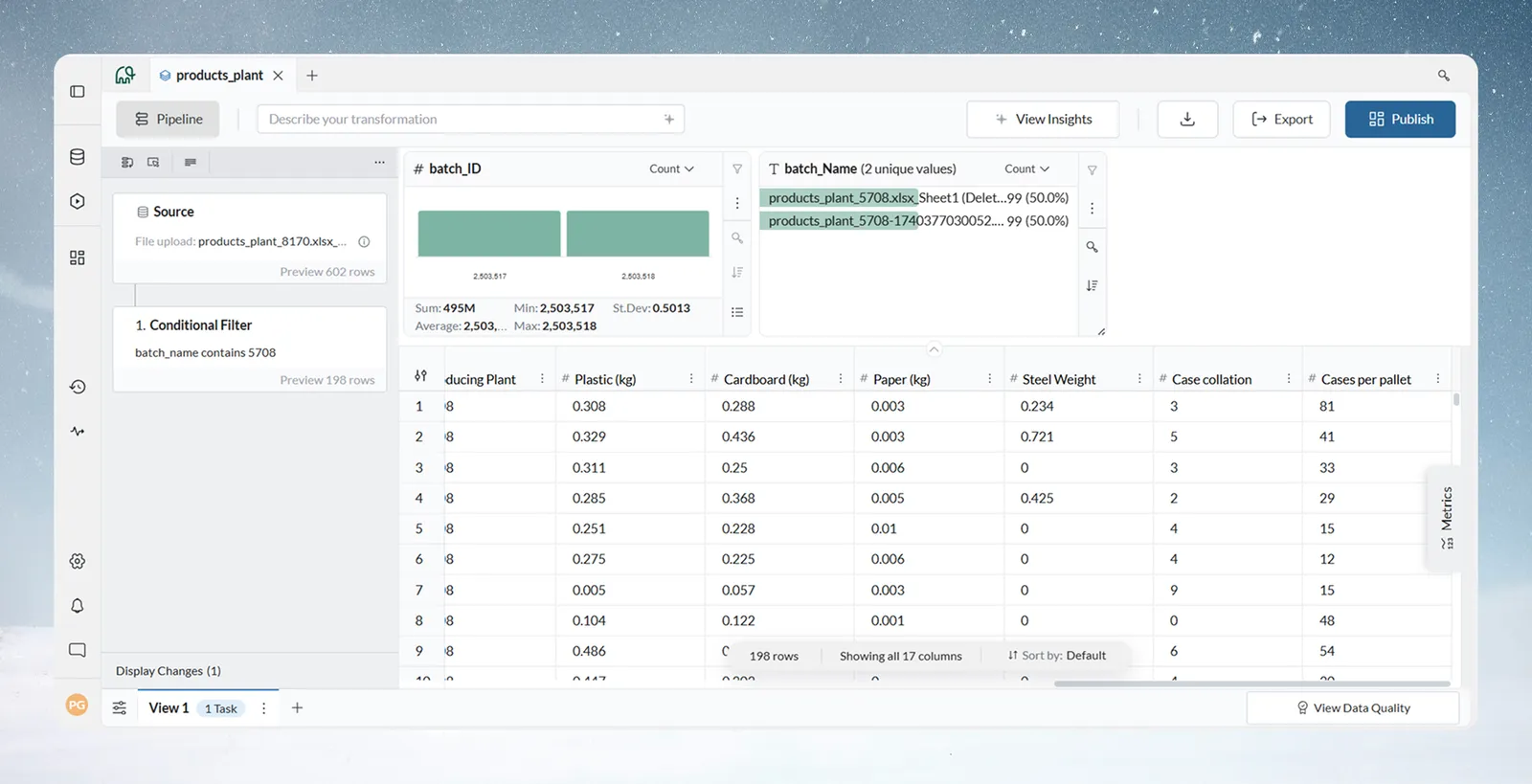
Once batch metadata has been exposed as columns (see Batch Management—Exposing Batch Information as Columns), use Conditional Filter in the pipeline to isolate or compare data by batch.
Time period analysis
Filter: batch_name CONTAINS "2024_Q1"
Result: Shows only Q1 2024 data from combined dataset
Source comparison
Filter: batch_name IN ("Store_001", "Store_002", "Store_003")
Result: Analysis limited to specific store locations
Exclude test data
Filter: batch_name NOT LIKE "test%"
Result: Removes all batches with names starting with "test"
Recent data only
Filter: batch_date >= DATEADD(month, -3, TODAY())
Result: Last 3 months of batches only
Batch tagging strategy
Where batch names contain meaningful identifiers (region, period, vendor), create a derived column for cleaner grouping:
- Expose batch_name column
- Create a new "Period" or "Region" column using Label & Insert Values
- Tag batches with business labels such as "Q1", "Q2", or "North"
- Filter and analyze by business periods
- Generate period-over-period or region-over-region reports
Common multi-source workflow patterns
Store performance comparison
Dataset contains one batch per store. Pipeline adds batch_name column, then uses Group & Aggregate by batch to compare performance store by store. Dashboard provides regional drill-down to individual stores.
Vendor quality scoring
Dataset contains vendor-specific batches. Pipeline calculates error rate and completeness score per batch. Low-quality vendor batches are suspended for cleanup and reactivated after remediation.
Time-series trend analysis
Dataset contains monthly batches over multiple years. Window Functions calculate rolling averages and period-over-period changes. Export to BI tools for forecasting and seasonal analysis.
A/B testing and experimentation
Control and treatment batches coexist in one dataset. Suspend control batches to isolate treatment impact, analyze metrics, then reactivate or remove based on results. Activity Log captures the full experiment history.
Integration with automation
Batch operations integrate with Mammoth's Automation system for automated workflows. For full documentation, refer to Automations.
Dataset Refresh
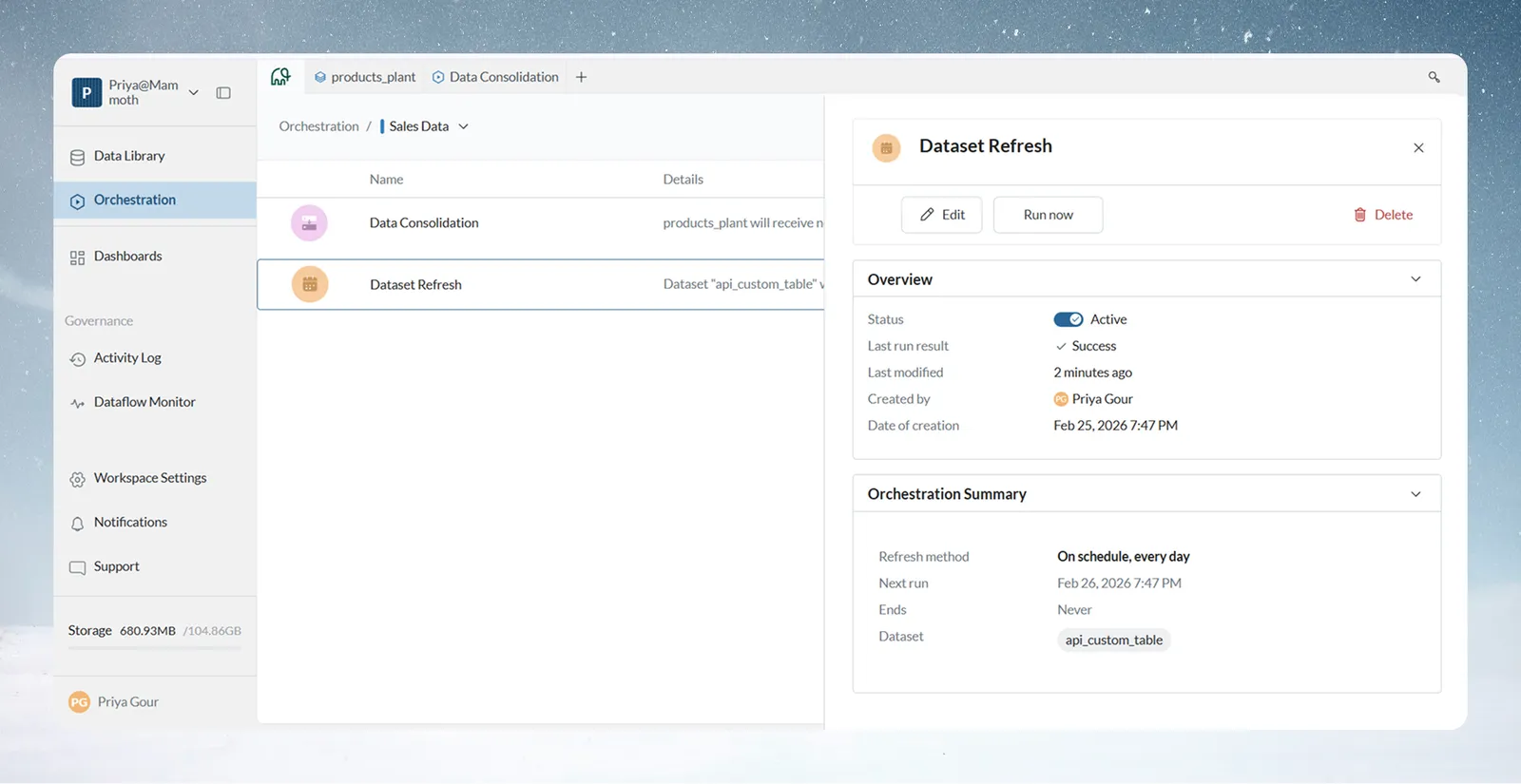
For Live Connection data sources, the Dataset Refresh automation pulls the latest data on a defined schedule—daily, weekly, or monthly. Each execution follows the destination dataset's configured mode—Replace (deletes the previous batches; only their metadata remains in the Activity Log) or Combine (appends as a new batch)—and logs all activity for audit.
Dataset Refresh setup
- Go to Automations → Dataset Refresh
- Select the Dataset(s) with a Live Connection
- Configure the schedule (frequency, weekday, start/end date)
- For multiple datasets, choose Sequential or Parallel execution mode—Sequential mode also lets you drag to set the execution order
Data Consolidation
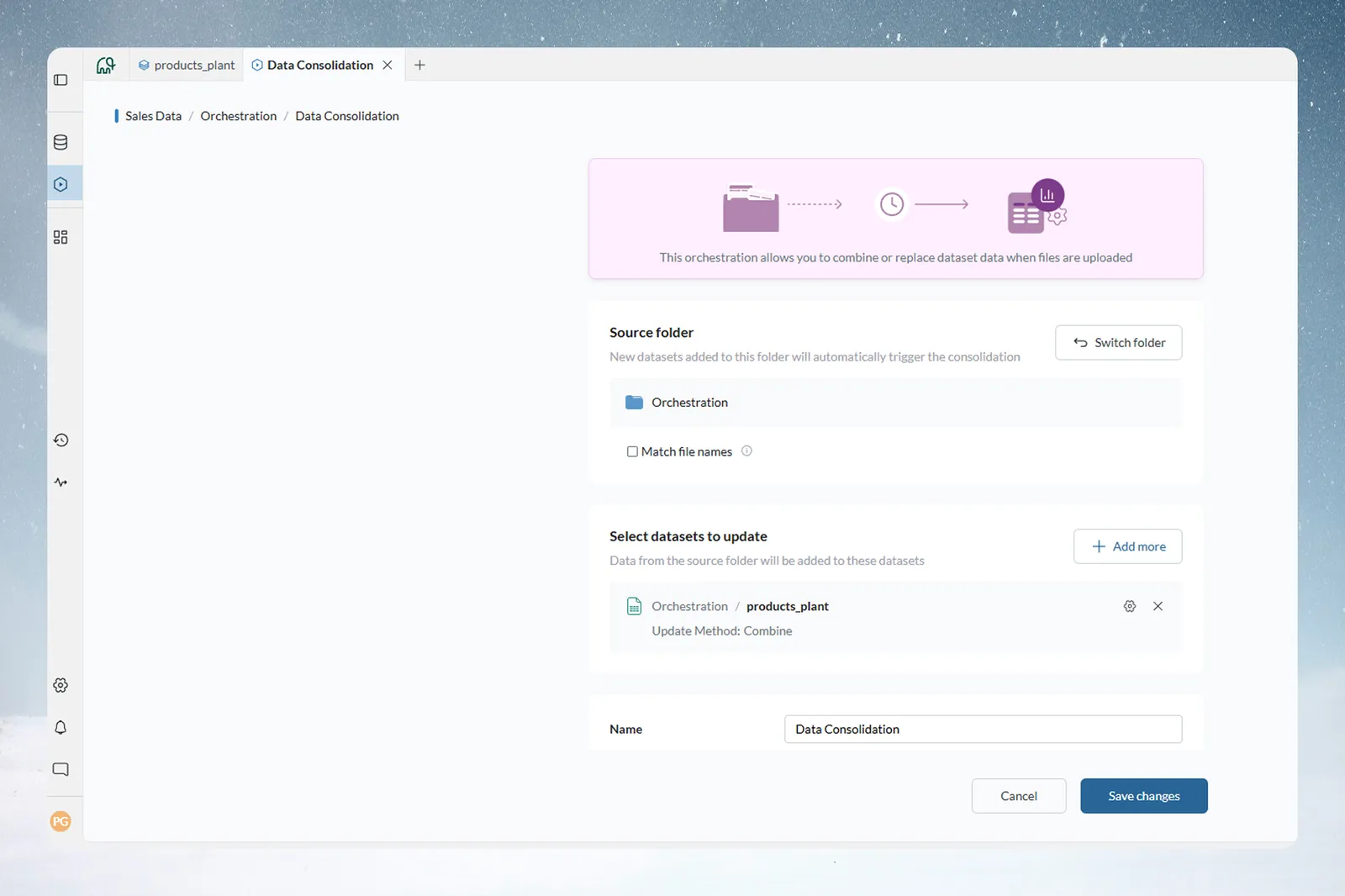
For file-based workflows, the Data Consolidation automation merges new files into an existing dataset as they arrive, following the destination dataset's configured Combine or Replace mode. Each file becomes a distinct batch, named from the filename, with schema validation applied before merging.
Data Consolidation setup
- Go to Automations → Data Consolidation
- Select a source folder to monitor—this is a folder in your Mammoth Data Library, not an external/cloud folder. Files added to this folder trigger the automation.
- Select the destination dataset (optionally filter by filename pattern)
- Review and save
Note: Combine vs. Replace mode is not chosen during this setup—it's a per-dataset setting configured separately on the destination dataset's Update Method (see Batch Management—Combine vs Replace), and can be changed at any time, independently of the automation.
Automated process
- A file is added to the monitored source folder
- System validates schema compatibility against the destination dataset
- The file is automatically merged into the destination Dataset as a new batch, per the dataset's Combine/Replace setting
- Pipeline executes on the updated data
- Exports deliver to configured destinations
Example: A hospitality chain can use Data Consolidation to process daily sales files from each property. Batch names identify individual properties. The pipeline calculates chain-wide KPIs and the revenue dashboard updates automatically.
Activity Log integration
All batch operations—whether manual or automated—are captured in the Activity Log with batch-level detail, including operation types such as batch addition, suspension/unsuspension, deletion, and data retention runs. This provides a complete audit trail for compliance and troubleshooting.
Batch performance and scale
Individual batch size
Up to 50 MB per file upload (see limits and quotas).
Best practices for large datasets
- Use Replace for latest-only requirements to avoid unnecessary batch accumulation
- Set up a retention policy to delete or suspend old batches by age, count, or condition
- Apply Conditional Filter early in pipelines to reduce processing volume
- Use Draft mode while building pipelines on large datasets
Troubleshoot batch operations
Schema mismatch on combine operations
Problem: Error message indicating column names do not match when combining files.
Root Causes: Column names differ between files (case-sensitive), data types are incompatible, or columns are missing in the new batch.
Solutions:
- Verify column names exactly, including case and spacing
- Standardize export templates to ensure consistent column structure across sources
- Use the Data Consolidation automation with schema validation enabled for automated workflows
Automation not combining files
Problem: Data Consolidation automation is configured but files are not combining automatically.
Diagnosis Steps:
- Check the Activity Log for automation execution records
- Verify files were uploaded to the correct Dataset
- Review schema validation errors for format compatibility issues
- Test a manual Combine operation with the same files
- If the file is not of a similar schema, then it will be uploaded as a separate file
Common Fixes:
- Standardize file formats across all sources
- Check automation schedule and trigger conditions
Suspended batch still appearing in analysis
Problem: Suspended batch data remains visible in the View or pipeline results.
Troubleshooting Steps:
- Verify the Batches tab shows the batch as Suspended
- Close and reopen the Dataset to refresh batch status
- Clear any cached pipeline results
If the batch continues to appear after confirming suspension status, contact support.
Example batch scenarios
Financial services: 24-month rolling reports
A finance team needed 24 months of transaction history, adding a new month each cycle while maintaining a two-year rolling window. Monthly batch addition in Combine Mode with a count-based retention policy removing the oldest batches replaced manual consolidation work.
Manufacturing: Multi-shift quality data
Three production shifts daily generate quality control files that must be combined for daily reporting while remaining analyzable at the shift level. Three batches per day with exposed batch names tagged by shift, combined with separate Views for daily and shift-specific analysis, supports quality tracking and shift-level troubleshooting.
Hospitality: Multi-property revenue
A hotel chain uploads daily revenue files that must be consolidated for portfolio analysis while retaining property-level visibility. The Data Consolidation automation creates a batch per property per day, with batch name exposure enabling property identification and pipeline logic calculating portfolio-wide KPIs.