Google Drive connector
The Google Drive connector imports files stored in your Google Drive into Mammoth as datasets. Connect with your Google account using OAuth—no credentials to manage. Supported file types: .txt, .csv, .tsv, .psv, .xls, .xlsx, .xml, .zip, .bz2, .gz, .tar, .7z.
Before you start
You need:
- A Google account with access to the Google Drive files you want to import
- The file stored in Google Drive (for a Google Sheets spreadsheet, use the Google Sheets connector, which lets you choose the tab)
Step 1: Select the Google Drive connector
- In Mammoth, go to Data Library and click + New Dataset
- Select Connectors
- Search for Google Drive
- Click the Google Drive tile
Step 2: Select files and folders from Google Drive
Clicking the Google Drive tile opens the Google Drive dialog. With no saved connection it shows No connections and a Sign in with Google button.
-
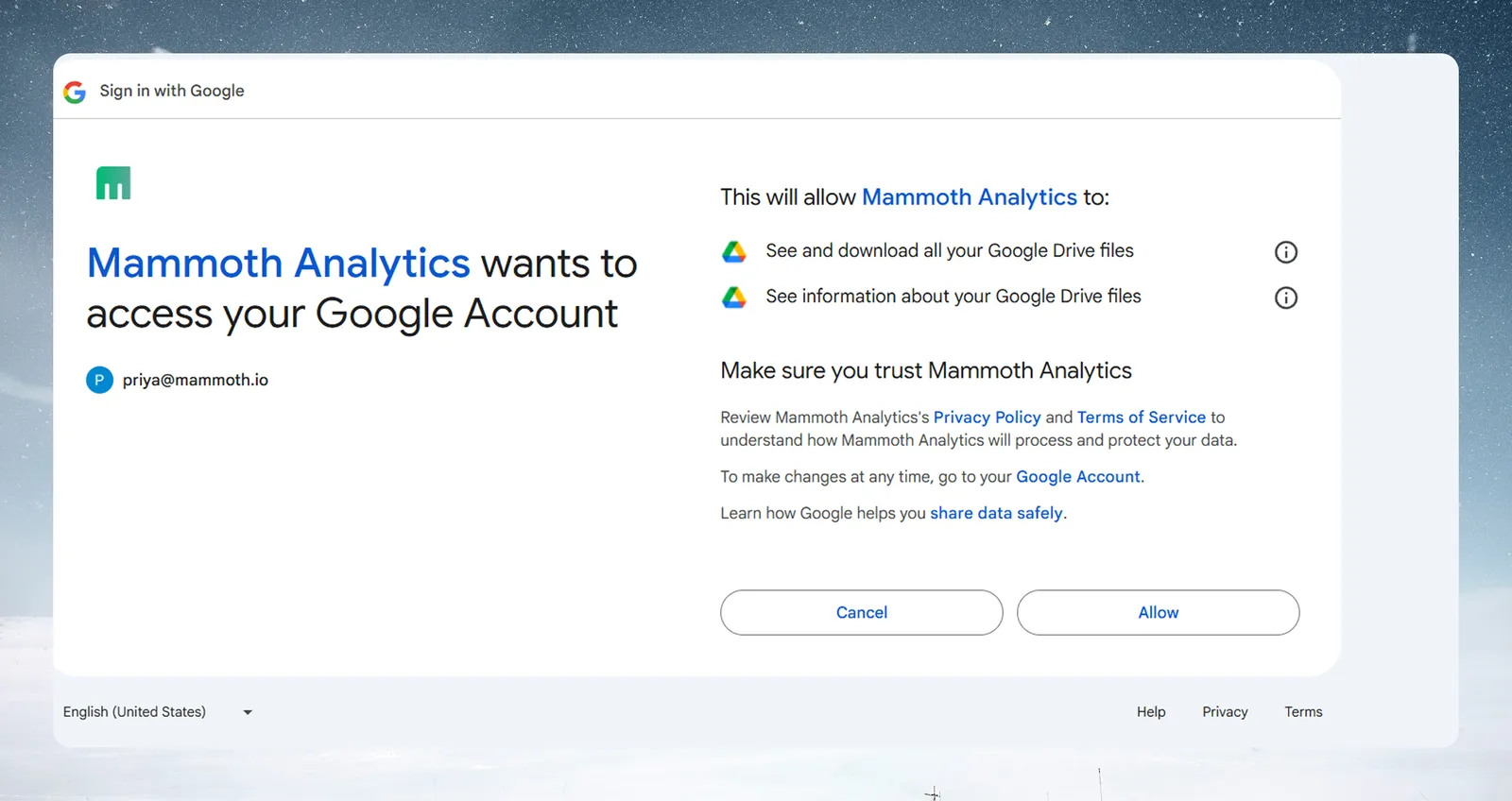
Click Sign in with Google. Mammoth sends you to Google's authorization page in the same browser tab:
-
Pick your Google account, then click Allow. Mammoth asks for read-only access: it can view and download your Google Drive files and see your email address, and it can't change anything in your Drive.
-
Google returns you to Mammoth, which opens the Connect Google Drive dialog. Click Select Google Drive Files & Folders.
-
Google's file picker opens. Browse or search your Drive and select the files and/or folders you want to connect.
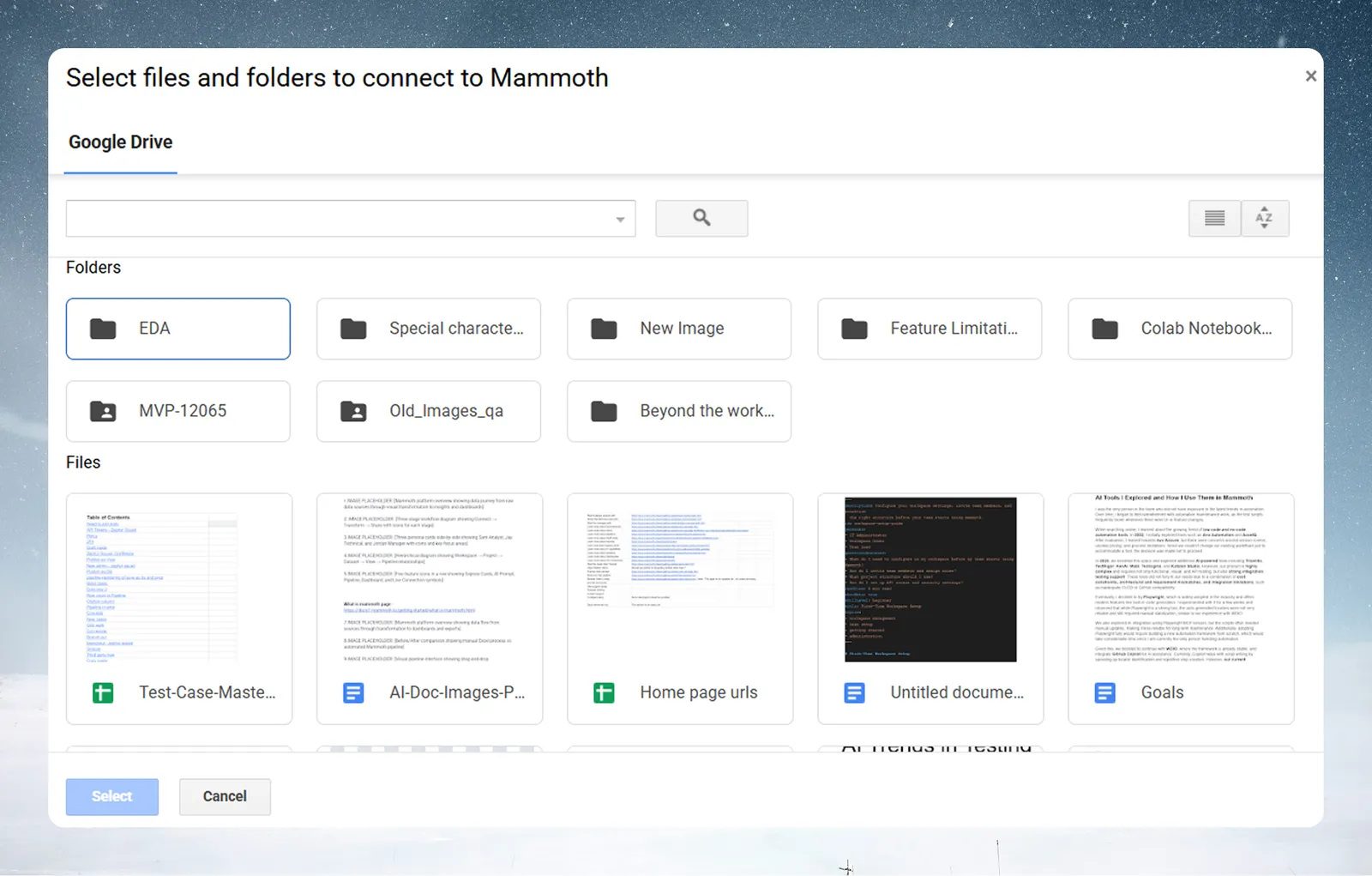
- Click Select
You're returned to the Connect Google Drive dialog, which now lists everything you selected. Click + Add more to include additional files or folders—a folder you select includes all files and subfolders within it.
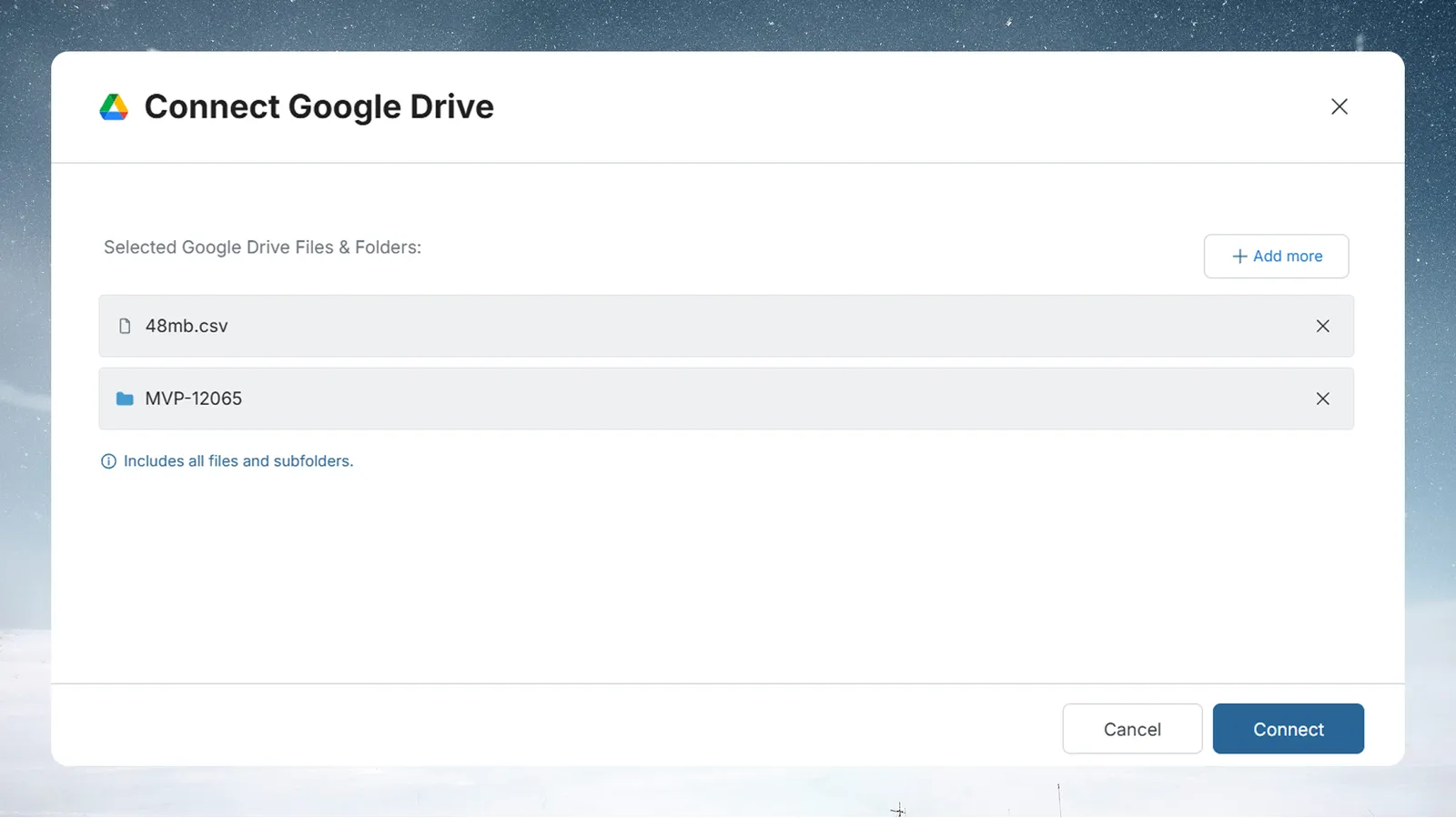
Click Connect once your selection is complete.
Step 3: Create the Google Drive dataset
The Google Drive - New Dataset dialog opens next.
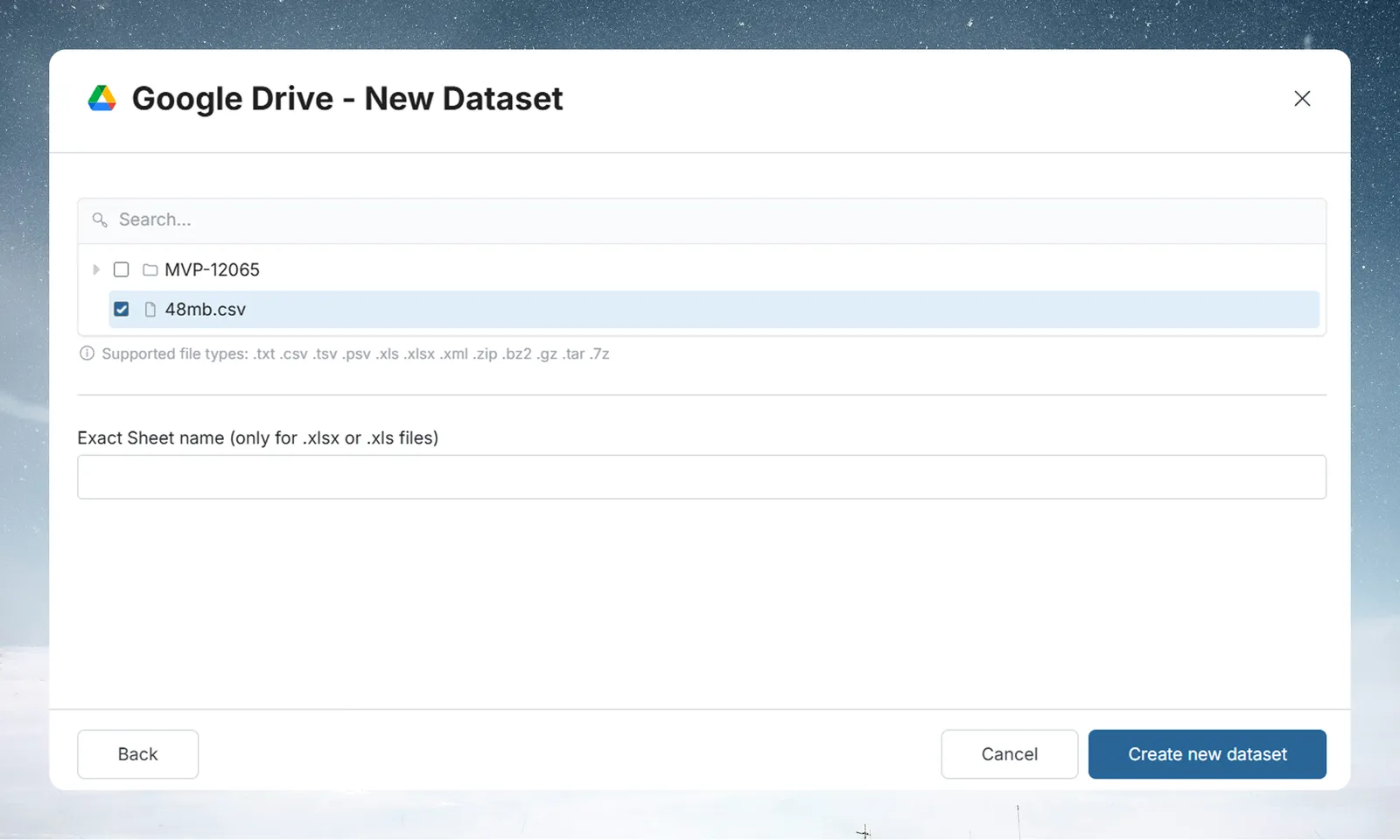
- From the checklist, select the file you want to import (use Search to filter if you connected several items)
- If the file is an Excel workbook (
.xls/.xlsx), enter the Exact Sheet name to import - Click Create new dataset
Keep Google Drive data up to date
To refresh your dataset when the source file in Google Drive changes, set up a Dataset Refresh automation. When the automation runs, Mammoth re-reads the file from Google Drive and updates the dataset.
Troubleshoot Google Drive connections
Authorization fails
- Mammoth sends you to Google's authorization page in the same browser tab and returns you to the Data Library after you click Allow. If you deny access or close the tab, start the connection again
- If the dialog shows a message that the Google Drive picker failed to load, refresh the page and try again
- If Mammoth shows "Session expired. Please reconnect Google Drive.", sign in with Google again
No files found
- Mammoth shows "No files found." when the selected items contain no supported file types. Select a different file or folder, and check that your files use one of the supported types listed at the top of this page