Function Reference
A complete list of all transformation functions available in Mammoth, organized by category. Click any category name to go to its full documentation page.
Copy Columns, Generative AI, Data Check and Checkpoint Alert appear only when the feature is enabled for your workspace.
AI Powered
The AI Powered section of the Transform menu shows five shortcuts to commonly used AI-assisted functions. Three of them—Extract Text, Bulk Replace, and Conditional Filter—live in their primary categories and are fully documented there. The two functions below are AI-native and available only from this section.
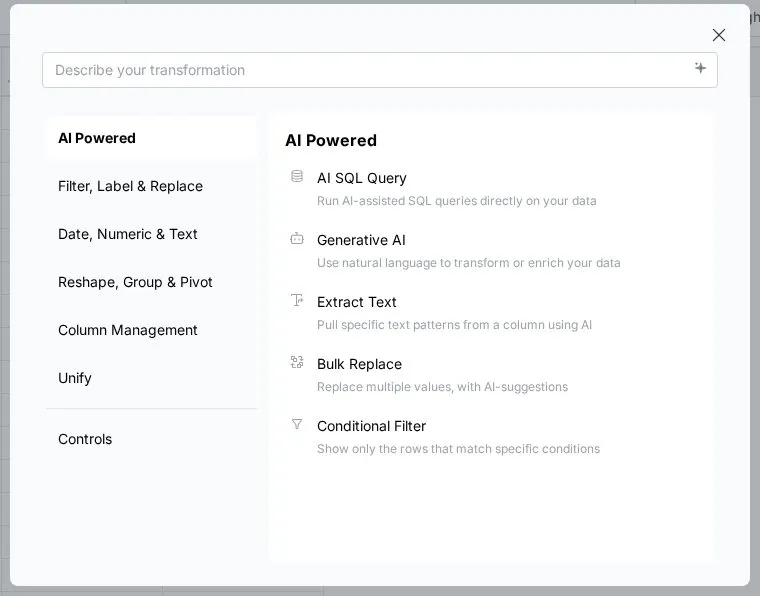
AI SQL Query
AI SQL Query converts a natural language description into a SQL query and runs it directly on your data. Type what you want—for example, "total revenue by region for orders placed this year"—and Mammoth generates and executes the appropriate query, returning the result as a new View state.
Use this for complex analysis that would normally require writing SQL: multi-column aggregations, conditional logic across many fields, or any calculation that is easier to describe in plain language than to build step by step using individual function tasks.
Generative AI
Generative AI uses a large language model to generate new column values based on context you provide. You describe what you want to create—for example, classify a product description as one of three categories, or generate a plain-language summary of a transaction record—and Mammoth creates a new column populated with AI-generated values for every row.
Use this for enrichment tasks that require reasoning: sentiment classification, category assignment from free text, language translation, or any case where the output depends on understanding meaning rather than applying a fixed rule.
Extract Text, Bulk Replace, Conditional Filter
These three functions appear here as shortcuts and are fully documented on their respective category pages:
- Extract Text—Date, Numeric & Text → Text Tools
- Bulk Replace—Filter, Label & Replace → Replace
- Conditional Filter—Filter, Label & Replace → Filter
Filter, Label & Replace
The Filter, Label & Replace category has eight functions for filtering rows, editing and labeling cells, and replacing values.
Filter
| Function | What it does |
|---|---|
| Conditional Filter | Show only the rows that match specific conditions |
| Remove Duplicate Rows | Delete rows with duplicate values (customizable by column) |
| Show Top/Bottom Rows | Display a fixed number of top or bottom rows in your data |
Label & Edit
| Function | What it does |
|---|---|
| Edit Cells | Modify cells directly in the table |
| Label & Insert Values | Assign new labels to cells based on a custom condition |
| Fill Missing Values | Fill empty cells using nearby or computed values |
Replace
| Function | What it does |
|---|---|
| Bulk Replace | Replace multiple values with AI-suggestions |
| Find & Replace | Search and replace specific values in selected columns |
Date, Numeric & Text
The Date, Numeric & Text category has nine functions grouped as date tools, numeric tools, and text tools.
Date Tools
| Function | What it does |
|---|---|
| Add / Subtract Date Values | Shift date values by a specific number of days, weeks, etc. |
| Extract Date Part | Pull out day, month, or year from a date column |
| Calculate Date Difference | Find the time difference between two date columns |
Numeric Tools
| Function | What it does |
|---|---|
| Math Function | Apply basic math formulas (like sum, multiply) to your data |
| Window Function | Run numerical functions across groups of data |
| Obtain Large or Small Values | Find the Nth highest or lowest value by comparing numbers across columns |
Text Tools
| Function | What it does |
|---|---|
| Extract Text | Pull specific text patterns from a column using AI |
| Text Formatting | Tidy up text by changing case or removing extra spaces |
| Extract JSON | Extract data in JSON format into separate columns |
Reshape, Group & Pivot
The Reshape, Group & Pivot category has two functions for summarizing data by group and converting wide data to long format.
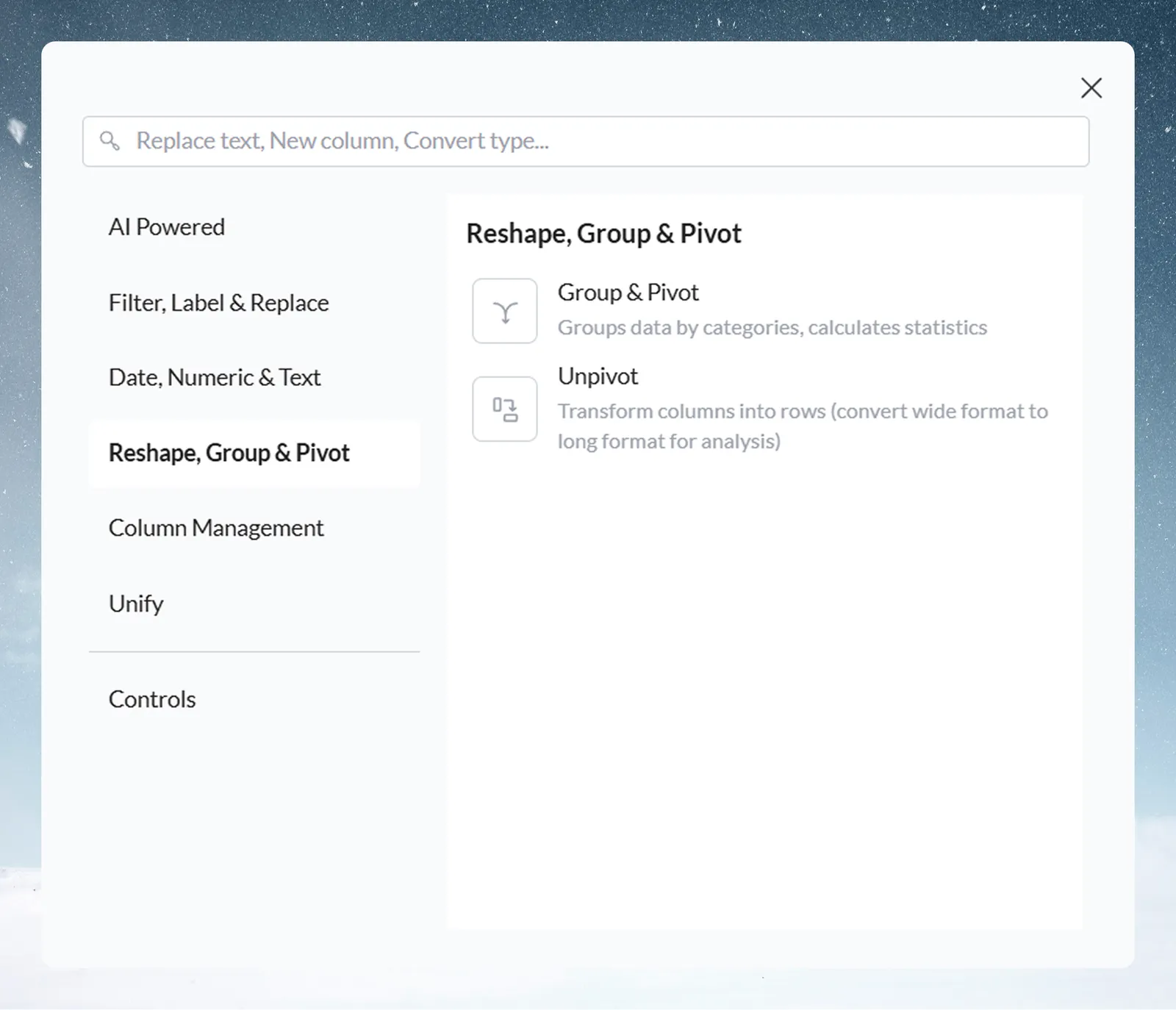
| Function | What it does |
|---|---|
| Group & Pivot | Group data by categories and calculate statistics |
| Unpivot | Transform columns into rows (convert wide format to long format for analysis) |
Column Management
The Column Management category has six functions for adding, copying, combining, converting, removing, and splitting columns.
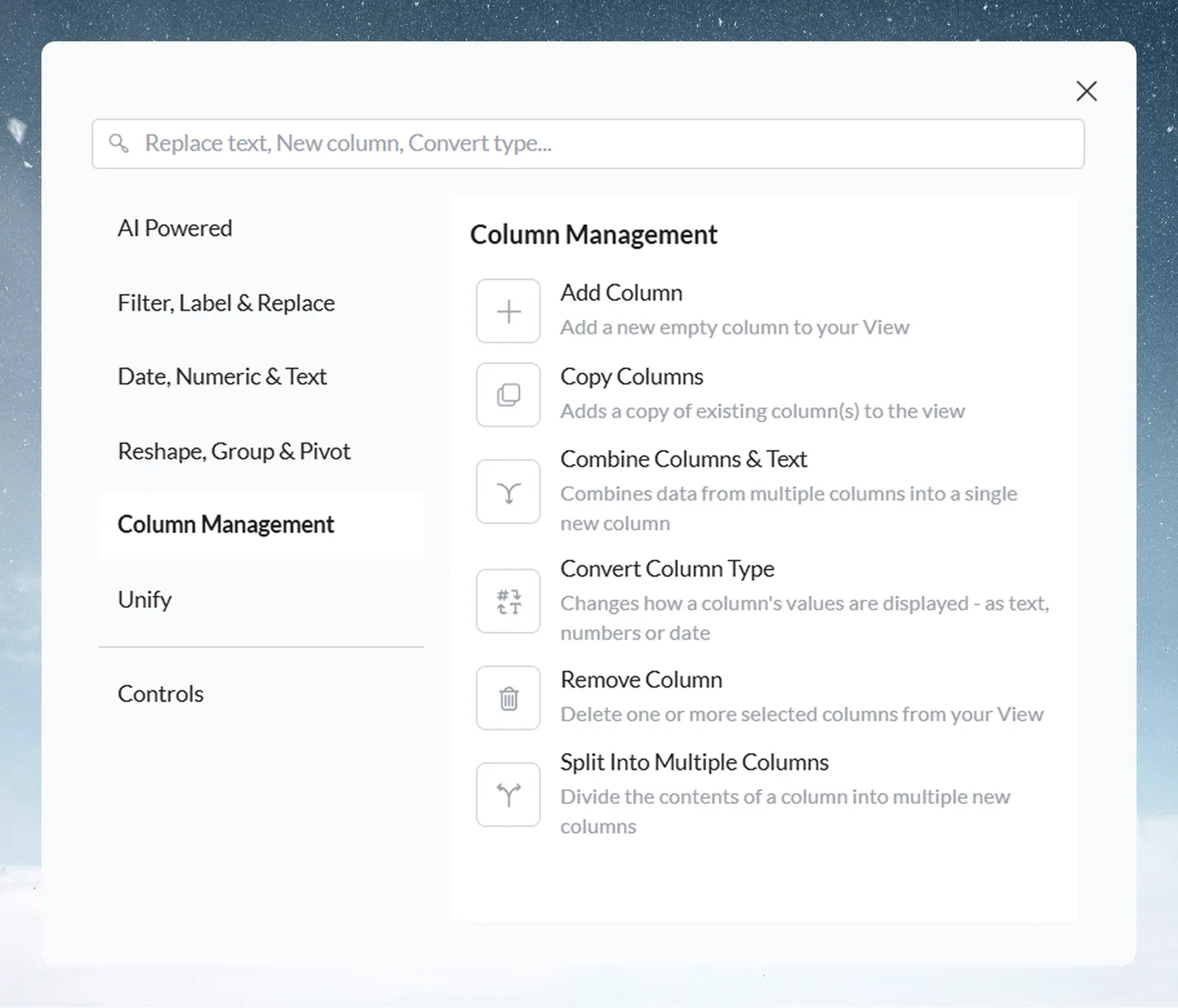
| Function | What it does |
|---|---|
| Add Column | Add a new empty column to your View |
| Copy Columns | Add a copy of existing column(s) to the View |
| Combine Columns & Text | Combine data from multiple columns into a single new column |
| Convert Column Type | Change how a column's values are displayed—as text, numbers, or date |
| Remove Column | Delete one or more selected columns from your View |
| Split Into Multiple Columns | Divide the contents of a column into multiple new columns |
Unify
The Unify category has three functions for combining data from other Views and sending results to a dataset.
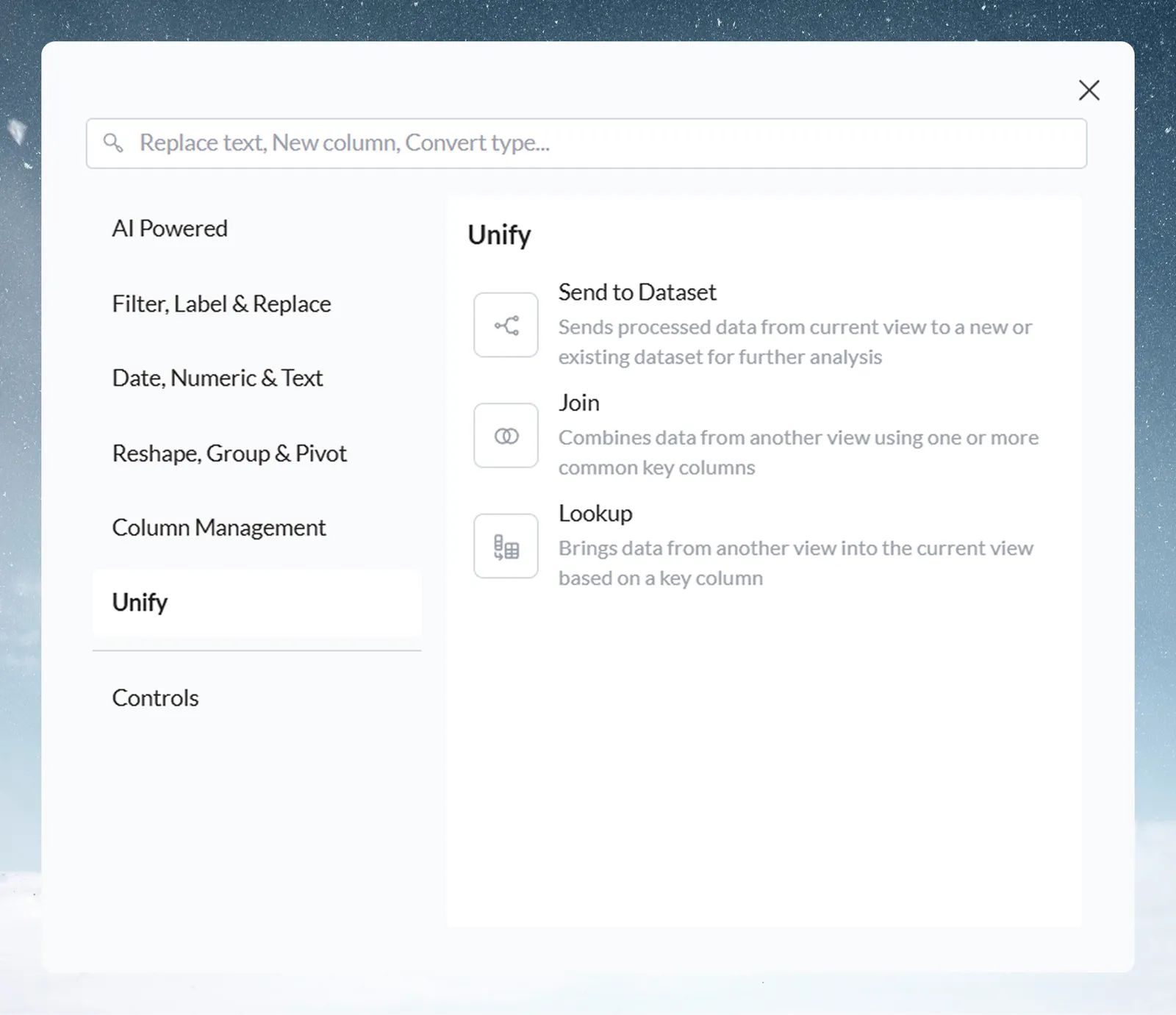
| Function | What it does |
|---|---|
| Send to Dataset | Send processed data from the current View to a new or existing dataset |
| Join | Combine data from another View using one or more common key columns |
| Lookup | Bring data from another View into the current View based on a key column |
Controls
The Controls category has two functions that check pipeline output and gate it on approval.
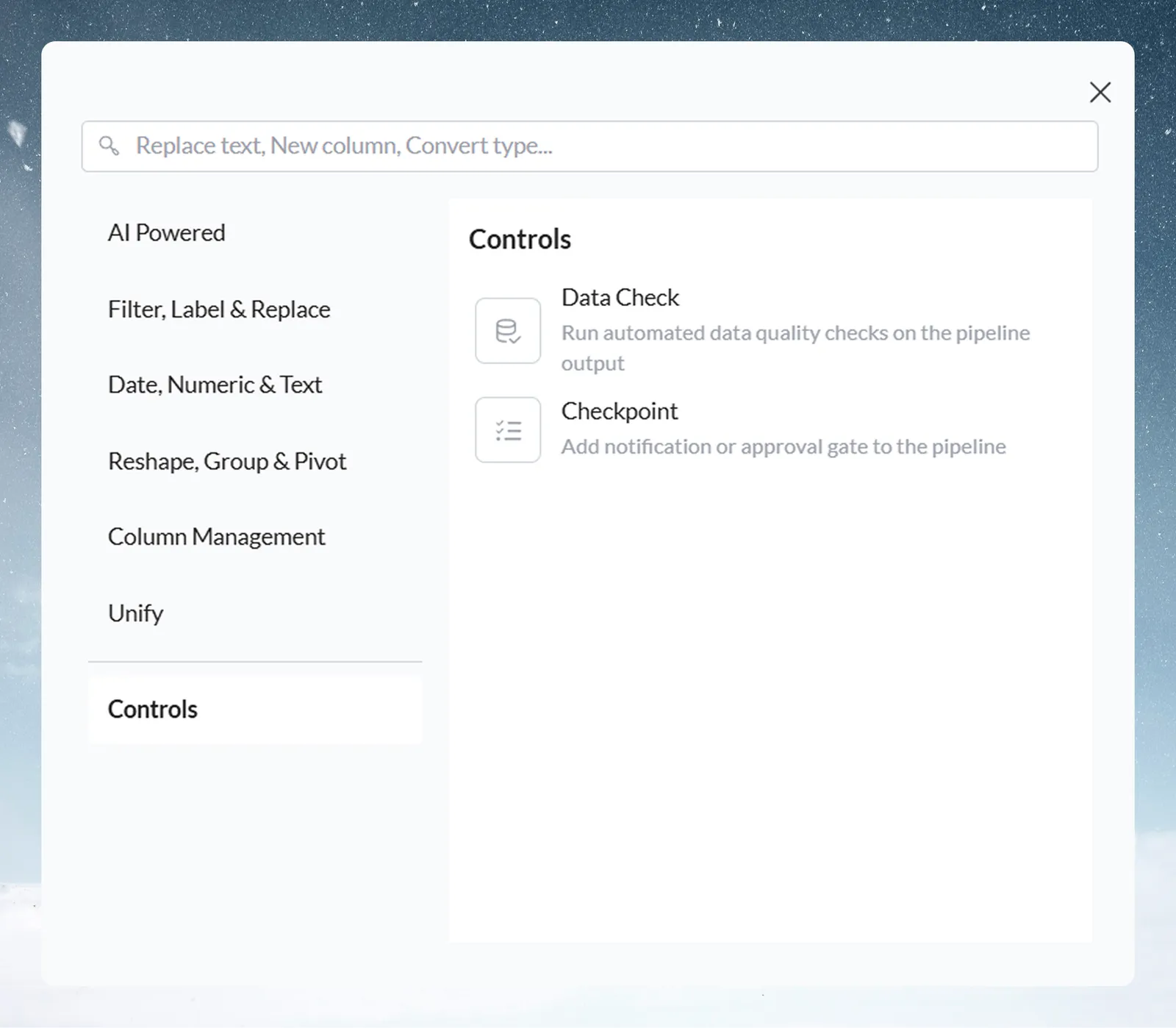
| Function | What it does |
|---|---|
| Data Check | Run automated data quality checks on the pipeline output |
| Checkpoint Alert | Notify people or systems, with the option to require approval to continue |
Find a function by keyword
Use the search bar at the top of the Transform menu. Its placeholder reads "Describe your transformation". Type a keyword, and matching functions from all categories are listed.