Sign-in and authentication
This page is for users, IT administrators, and developers. It covers the four ways to authenticate: sign-in methods, 2FA, session security, and API tokens.
Mammoth supports four authentication methods: email/password, enterprise SSO (SAML/OIDC), two-factor authentication (TOTP), and API tokens. Authentication is managed through Keycloak, an enterprise-grade identity provider.
Authentication methods
| Method | Use case |
|---|---|
| Email / password | Individual users and small teams |
| Enterprise SSO (SAML/OIDC) | Organizations with an existing identity provider (plan feature) |
| Two-factor authentication (TOTP) | Enhanced security on top of any primary method |
| API token | Automated workflows, integrations, and service accounts |
Email / password
Password requirements
Passwords must meet minimum security requirements:
- At least 12 characters
- At least one letter
- At least one digit
- At least one symbol (except
"and\)
Password reset
- Click the forgot-password link on the sign-in page
- Enter your email address
- Open the temporary reset link in your email
- Set a new password that meets the requirements above
Expected result: You can sign in with the new password.
Enterprise SSO (SAML/OIDC)
Single sign-on with SAML or OIDC lets your organization use its existing identity provider to sign in to Mammoth. SSO is a plan feature; it is included on the Pro plan. Contact support@mammoth.io or your account manager to set it up for your organization.
Two-factor authentication (2FA)
Mammoth supports TOTP (time-based one-time passwords) as a second factor. You need an authenticator app to sign in.
Important: Enabling 2FA is permanent and cannot be undone. Once enabled, two-factor authentication cannot be disabled on your account.
Setting up 2FA
- Open your account menu in the left sidebar and select Profile Settings
- Under Security, find Two-Factor Authentication
- Click Enable 2FA
- On the Enable Two-Factor Authentication screen, click Enable 2FA again to confirm
- Follow the prompts to register your authenticator app
After setup, every sign-in requires both your password and a current one-time code.
Workspace-wide 2FA enforcement
Enforced MFA is a plan feature; it is included on the Pro plan. New users have a 2-day grace period from account creation before enforcement applies to them.
API authentication
Mammoth provides two token types for programmatic access: JWT tokens and API tokens.
JWT tokens
JWT tokens are issued on sign-in and used for user-scoped API access. They inherit the user's permissions and are validated on every request.
- Expiration: 48 hours; renewed automatically while the session is active
- Use for: user-driven API calls, scripts that authenticate as a user
- Anti-CSRF: all state-changing requests require a matching anti-CSRF token
Using JWT tokens in requests:
Authorization: Bearer <your-jwt-token>
API tokens
API tokens are long-lived credentials scoped to a workspace. They are designed for service accounts and integrations. A token can also be limited to a single project.
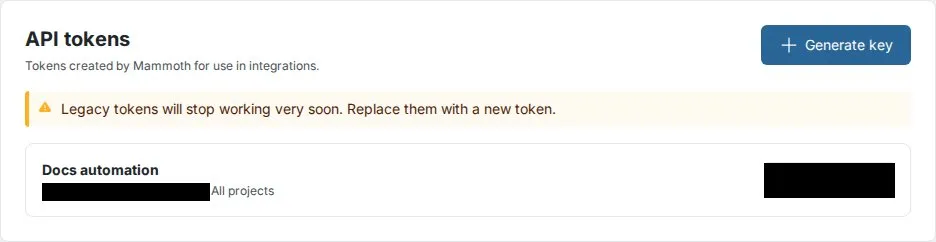
Creating an API token:
- Go to Workspace Settings, open API Keys, and find the API tokens card
- Click Generate key
- In the Create API key dialog, enter a name (for example, ETL pipeline - production). Turn on Project scoped and pick a project to limit the key to that project.
- Click Create key
- Click Copy secret, store it somewhere safe, then click Done. The token starts with
mm_and is shown only once.
Expected result: The new token is ready to use in the Authorization header.
Using an API token in requests:
Authorization: Bearer mm_<your-token>
The token belongs to one workspace, so no workspace header is needed. The older X-API-KEY / X-API-SECRET headers are deprecated; new tokens have no secret. For the base URL, request examples, and the SDK and CLI login, see API authentication in the Build section.
Security best practices:
- Store tokens in a secrets manager (such as AWS Secrets Manager or HashiCorp Vault), never in source code
- Use separate tokens for each environment (development, staging, production)
- Rotate tokens quarterly or immediately if a compromise is suspected
- Delete tokens that are no longer in use
Session management
- Sessions use cryptographically secure tokens generated with
secrets.token_urlsafe() - Each session includes an anti-CSRF token validated on all state-changing operations
- HTTP-only, Secure, and SameSite=None cookie flags prevent JavaScript access and enforce HTTPS
- Sessions expire after 48 hours of inactivity and are renewed on each authenticated request
- Sessions end when you sign out
- The user's last sign-in date and last activity timestamp are tracked for security auditing