Scheduling
Scheduling determines when your automations execute automatically—the timing, frequency, and duration that control your automated workflows. Set it up once and Mammoth handles the execution reliably without manual intervention.
Can I schedule every hour? No self-serve plan offers a 1-hour interval. The shortest interval on the Pro plan is every 3 hours. Team runs daily or less often, Starter runs weekly or less often, and Free has no scheduled runs. See Shortest interval by plan.
Scheduling vs triggers
Scheduling controls the timing of automated execution:
- Every 3 hours
- Weekly on Mondays at 9:00 AM
- Monthly on the 1st
Triggers control what initiates execution: a schedule, a manual Run now, or a file upload. See Triggers for every trigger type and which automation types use each one.
Where to configure scheduling
Scheduling is configured in the New automation window, which walks you through the automation's steps, and in the Schedule row when you edit an existing automation (click Edit schedule):
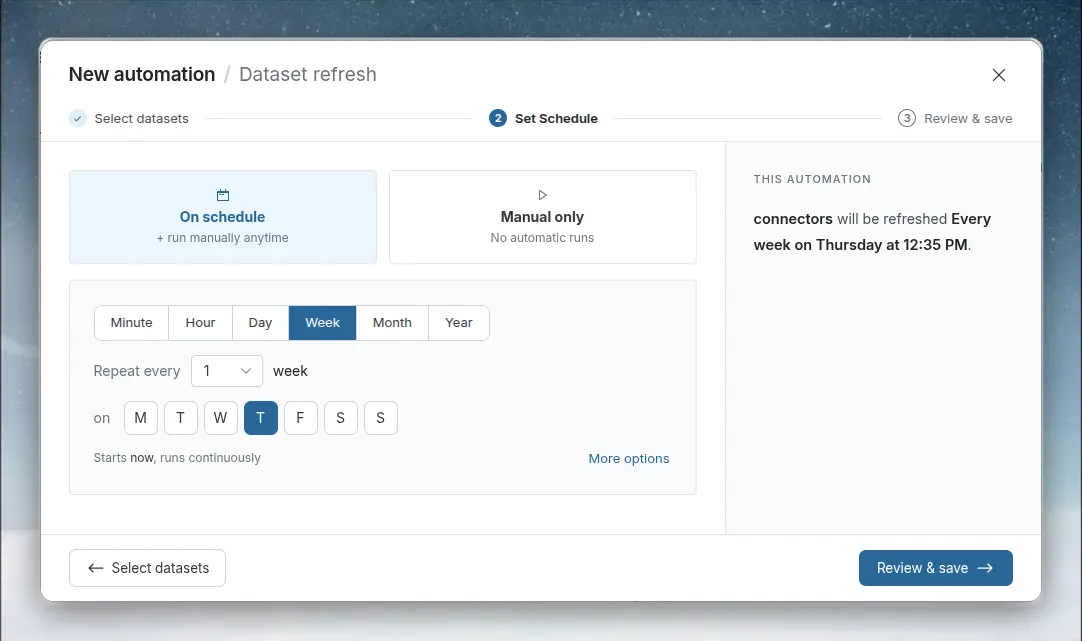
- Dataset Refresh—In the Set Schedule step, choose On schedule (you can still run it manually at any time) or Manual only (no automatic runs; it runs only when you trigger it manually or via the API). Click More options to expand the start and end settings. Saving a new automation also runs it once right away if it has no recurring schedule (Manual only) or if its start is now.
- File Collection—In the Set Schedule step, choose On schedule or Manual only, with the same frequency options as Dataset Refresh.
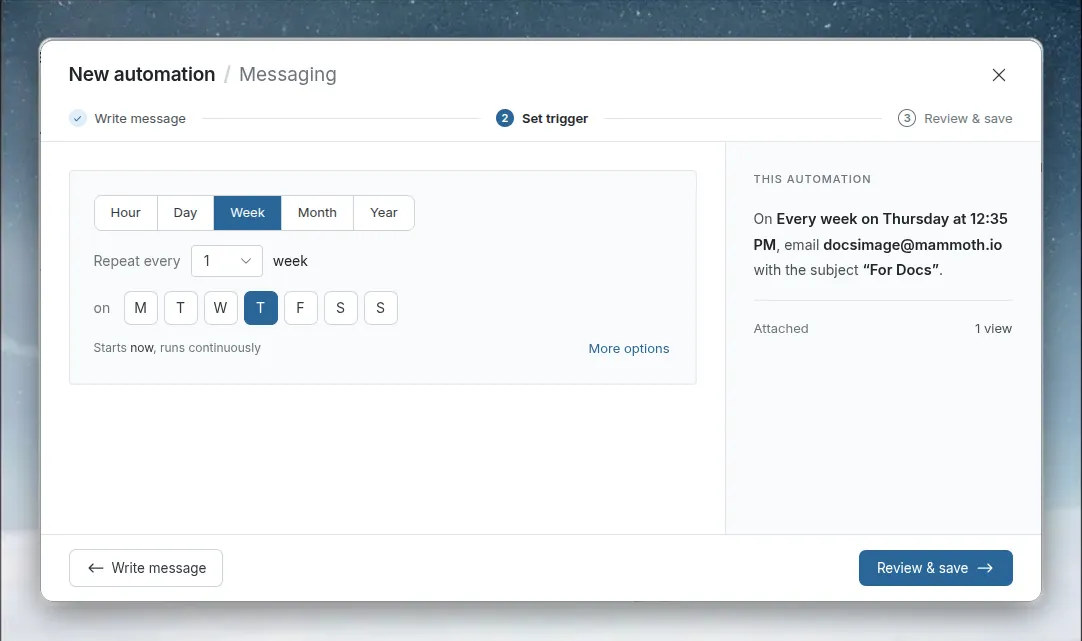
- Messaging—In the Set trigger step, set the schedule. Messaging always runs on a schedule, so there is no Manual only option.
- Data Consolidation—Has no schedule step. It runs when new files are added to its source folder. See Triggers.
Frequency options
Set how often the automation runs by choosing a frequency unit (Year, Month, Week, Day, Hour, or Minute), then the number to Repeat every.
Available intervals
| Unit | Available values |
|---|---|
| Minute | 5, 10, 15, 20, 25, 30, 35, 40, 45, 50, 55 (not available for Messaging) |
| Hour | 1 through 23 (3 through 23 on plans whose shortest interval is hourly) |
| Day | 1 through 6 |
| Week | 1 through 3 |
| Month | The day of the month, 1st through 31st |
| Year | 1 through 5 |
Shortest interval by plan
Your plan sets the finest unit available. The scheduler hides finer units. When the finest unit is Hour, the interval must be 3 hours or more.
| Plan | Finest unit | Shortest interval |
|---|---|---|
| Free | None | Scheduled runs are not available. Run automations manually. |
| Starter | Week | Every 1 week |
| Team | Day | Every 1 day |
| Pro | Hour | Every 3 hours |
Enterprise and older plans are set by contract, so ask your account team for the finest unit. Minute is available only on a plan whose finest unit is Minute, and only for Dataset Refresh and File Collection, not Messaging. Limits for every plan are on Limits and quotas.
Weekly schedules
When Week is selected as the unit, a row of weekday buttons appears (one letter per day; hover for the full name). Select one or more days of the week on which the automation should run. At least one day is required, and the current weekday is selected by default.
Example: Weekly on Monday, Wednesday, and Friday at 9:00 AM.
Schedule options (start and end)
Click More options to configure when the schedule begins and ends (the link changes to Fewer options while the settings are open). A one-line summary beside the link shows the result, such as "Starts now, runs continuously".
Start
| Option | Behavior |
|---|---|
| now | The automation starts immediately after creation, then runs on its configured interval |
| on a date | Choose a specific date and time for the first run |
End
| Option | Behavior |
|---|---|
| never | The automation runs indefinitely |
| on a date | Choose an end date after which no further runs occur |
If left at defaults (now / never), the automation starts immediately and runs without an end date. An end date cannot be earlier than the start.
Dates and times you pick are in your browser's local time zone. Mammoth stores them in UTC and shows next and last run times back in your local time.
Common scheduling patterns
Daily operations dashboard
Need: Operations team needs production metrics every morning.
Config: Dataset Refresh, Daily every 1 day at 6:00 AM. Pipeline runs automatically after data lands.
Weekly executive reporting
Need: Leadership receives portfolio performance every Monday morning.
Config: Messaging, Weekly on Monday. Attach the executive summary Dataset View. Delivers to inbox before the Monday meeting.
Month-end financial close
Need: Finance team needs fresh data on the 1st of each month.
Config: Dataset Refresh, Monthly on the 1st. Set the start time early enough that data is ready before the finance team begins work.
Scheduling best practices
Stagger concurrent automations:
- Avoid: all refreshes at 6:00 AM (system contention)
- Prefer: stagger at 5:30, 6:00, and 6:30 AM
Sequence dependent processes:
If Pipeline B depends on Dataset Refresh A, schedule B at least 15 minutes after A's typical completion time:
5:00 AM — Dataset Refresh
5:15 AM — Pipeline execution
6:00 AM — Messaging delivery
Run non-urgent automations off-hours to avoid impacting interactive users during business hours.
Name automations with timing context:
- Prefer:
Daily Sales Report - 6amorWeekly Executive Summary - Mon 8am - Avoid:
Dataset Refresh 1
Monitoring scheduled executions
Select an automation to open its detail panel. The Summary shows its schedule and recent activity:
- Next run—when the next execution is scheduled
- Last run—when the most recent execution happened
- Ends—end date, or "Never"
The Overview shows the Status (Active or Suspended) with a toggle to suspend or resume the automation, plus the Last run result: Success, or the reason the last run failed. Open an automation to edit it and its title bar shows an ACTIVE, SUSPENDED or ERROR badge. While it is active, Run now and Suspend are available there. While it is suspended, Resume is available instead. A suspended automation does not run on its schedule and cannot be run manually until you resume it. The Activity Log records changes made to automations, such as edits.
Multi-dataset priority
When a Dataset Refresh automation includes multiple datasets, choose how they run: In parallel refreshes all datasets at once, and In a sequence refreshes them one after another in the numbered order. Drag datasets to reorder them.
Example—financial reporting sequence:
- Transaction data—refreshes first
- Customer master—depends on transactions
- Product hierarchy—reference data
- GL mappings—accounting integration
Running in a sequence keeps dependent datasets in the right order.
Troubleshooting
Automation doesn't run at the expected time
Cause: The automation is suspended, or the data source's Live Connection is no longer authenticated.
Fix:
- Confirm the automation status is Active (not Suspended)
- Confirm your plan still allows the schedule's frequency. Mammoth checks the plan each time a schedule fires, so a schedule that is finer than your plan allows (for example after a downgrade) stops running until the plan allows it again
- Check the automation's status and its Last run time
- Verify the data source's Live Connection is authenticated
Automation run times vary
Cause: Multiple heavy automations are competing for resources.
Fix: Stagger their schedules.
Automation fails after a schedule change
Cause: Schedule changes take effect from the next scheduled run, so the next run uses the new configuration.
Fix: Use Run now to test the new configuration immediately.