Activity Log
The Activity Log is Mammoth's audit trail. It records the actions people take in your workspace, from creating datasets and editing pipelines to changing Automations and managing users. This page is for people with the View Activity Log workspace permission, and administrators, who review, investigate, or export that record.
Unlike the rest of Monitor (which focuses on current pipeline status and Automation status), the Activity Log is a chronological stream of the actions taken in your workspace. Each entry shows when it happened and who did it.
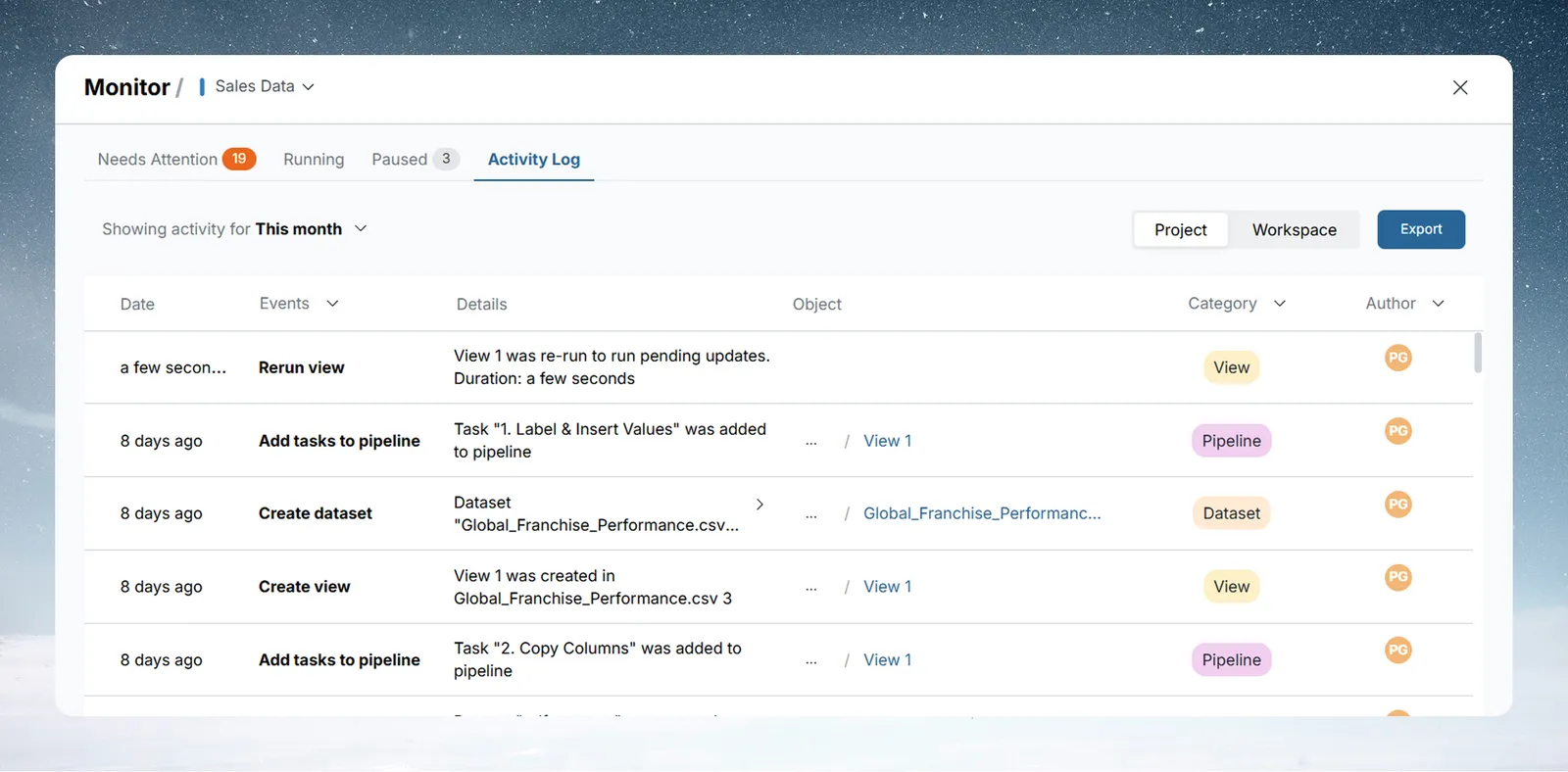
What the Activity Log captures
| Category | Events logged |
|---|---|
| Dataset | Create, rename, duplicate, delete, add data, combine, replace, delete batches, suspend and resume batches |
| View | Create, rename, delete, rerun |
| Pipeline | Add, edit, rename, delete, suspend, and restore tasks and actions |
| Automation | Create, edit, rename, delete, update |
| Connector | Create, edit, and delete connections |
| Project | Create, rename, delete, property updates |
| Folder | Create, rename, delete |
| Workspace | Rename workspace, invite users, remove users, delete invites |
| Data Retention | Create, edit, delete, and run retention policies; retention approval requests |
Open the Activity Log
The Activity Log is available as the Activity Log tab within the Monitor page. Click Monitor in the left sidebar, then select the Activity Log tab. You need the View Activity Log workspace permission to see this tab.
Project and Workspace scope
The Activity Log has two scope modes, toggled with the Project and Workspace buttons at the top right of the tab, next to Export.
| Mode | What it shows |
|---|---|
| Project | Events that belong to the current project—datasets, views, pipelines, Automations, and any other actions taken within this project |
| Workspace | All project events plus workspace-level events such as connector create, edit, and delete events, user management, and actions across other projects |
The active scope button appears highlighted. Switch between modes at any time; the log reloads immediately.
Tip: Use Project scope when investigating a specific dataset or pipeline. Use Workspace scope when auditing connector changes or tracking activity across all projects.
Reading the Activity Log
The log is displayed as a scrollable table with these columns:
| Column | Description |
|---|---|
| Date | Timestamp of the action (relative, for example "22 minutes ago") |
| Events | The action type, such as Create dataset, Edit automation, or Add tasks to pipeline |
| Details | Human-readable description including resource names and outcomes |
| Object | Project path and resource name affected (linked for direct navigation) |
| Category | Resource type: Dataset, Pipeline, View, Automation, Connector, Project, Folder, Workspace |
| Author | The workspace member who performed the action |
The Object column links are clickable. Click a dataset, view, or Automation name to navigate directly to that resource. This is useful when investigating what changed after an alert or failed run.
Filtering the log
Use the filter controls in the column headers to narrow the log to exactly what you need.
| Filter | How to use |
|---|---|
| Events | Filter by action type (for example, show only Create dataset or Edit automation events) |
| Category | Filter by resource type: Dataset, Pipeline, View, Automation, Connector, Project, Folder, Workspace |
| Author | Filter to a specific team member's actions |
| Date range | Change the time window—defaults to This month (the trailing month) |
Click any filter control in the column header to open its dropdown and select one or more values. The Search by object name box above the table narrows the log to events whose object name matches.
Date range options: Today, Yesterday, Last 7 days, This week, Last week, This month, Last 3 months, Last 6 months, This quarter, Last quarter, Year to date (YTD), or Custom.
View activity for one object
Each row has a View activity for this object button. It limits the log to that object's history and shows an Object pill above the table. Remove the pill to see the full log again. Export isn't available while an object is selected.
Example: find who changed an Automation
Scenario: Find who changed an Automation last month.
- Click the Category filter → select Automation
- Use the Events filter → select Edit automation
- Set the date range to Last 3 months
- Read the Author and Details columns for the Automation
Expected result: The table lists each edit with its author and timestamp.
Exporting the Activity Log
Prerequisite: You can see the Activity Log tab, and your plan includes Activity Log history (the activityLogDays plan feature). If it doesn't, Export prompts you to upgrade or contact support.
Click Export at the top right, choose a format, and click Confirm.
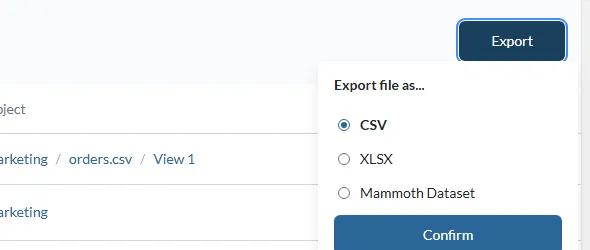
| Option | Output |
|---|---|
| CSV | Downloads the log as a .csv file |
| XLSX | Downloads the log as an Excel .xlsx file |
| Mammoth Dataset | Creates a new dataset in the project you choose from the current log records. Enter a file name and select the project. |
Note: The export applies your active filters, search text, and scope. Remove filters before exporting if you need the complete log for the selected date range.
Compliance reviews
Every record includes the user who performed the action and a timestamp. Filter to the audit period and the relevant categories, then export to CSV or XLSX for your audit team. The Mammoth Dataset export option lets you keep a historical record you can query with pipelines.
How far back the log reaches depends on your plan. Activity older than your plan allows isn't available, and a banner above the table says so. Without a plan allowance, the tab shows only the latest 50 items. See Audit logs for the retention table.
Troubleshooting
I don't see recent activity:
- Check the date range filter. It defaults to "This month" (the trailing month). Widen the range if the activity is older, and check your plan's history limit.
- Confirm you're viewing the correct workspace if you belong to multiple.
An action I expected is not logged:
- The Activity Log records the actions listed in the table above. Other events, such as individual pipeline run results, are not part of it.
The export is missing records:
- Check whether any filters are active. The export uses your current filter state. Reset all filters before exporting to get the full log.