Data Sources
Mammoth has several ways to create a dataset: upload a file, paste from a spreadsheet, connect to a source, generate sample data with AI, import from a URL, load a built-in sample, or receive data through a webhook. All methods produce a dataset you can explore, transform, and visualize.
This section is for anyone adding data to Mammoth, from analysts loading a file to administrators setting up recurring feeds. If you are not sure which method to use, start with Dataset creation options. To load a file from your computer, start with File upload.
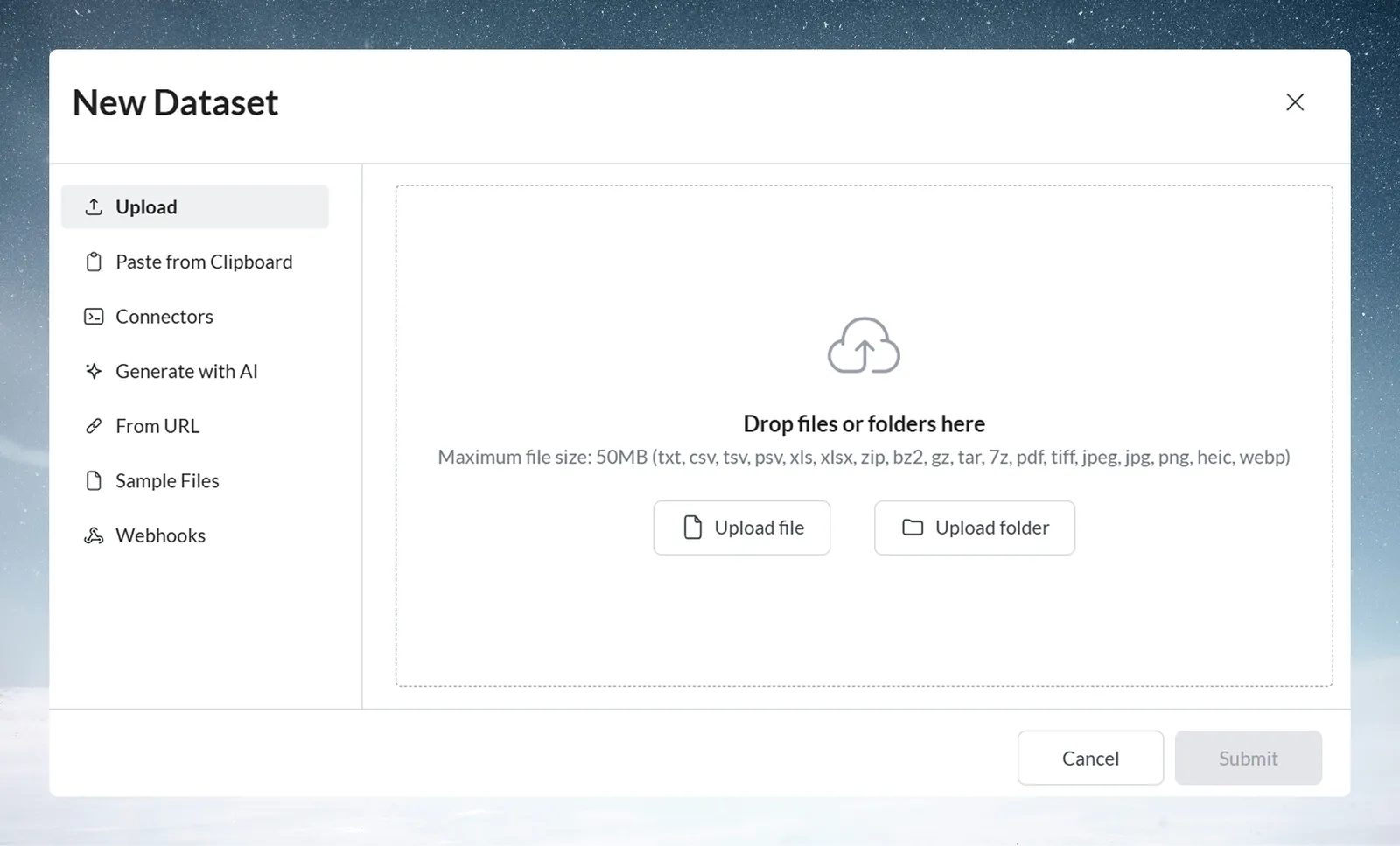
Ways to create datasets
| Method | Best for | Size limit | Auto-refresh |
|---|---|---|---|
| Upload | Files from your computer | 50 MB per upload | No |
| Paste from Clipboard | Quick tests, small datasets | Browser memory | No |
| Connectors | Recurring, large, or live data | Depends on the source | Yes (Dataset Refresh) |
| Generate with AI | Testing and prototyping | User-defined (max 500 rows) | No |
| From URL | File links | None stated; larger files take longer | No |
| Sample Files | Exploring Mammoth, training, demos | Fixed sample datasets | No |
| Webhooks | Event-driven external pushes | Payloads held until processed | Push-based; processed daily or on Refresh |
Upload
Drag-and-drop or browse for files from your computer. Best for one-time analysis, ad-hoc exploration, and working with files you already have.
- Handles: CSV, Excel (.xlsx, .xls), TSV, XML, and other formats (PDF and images when enabled for your workspace) listed in Supported formats
- Size limit: 50 MB per upload; a folder counts as one upload (see limits and quotas)
- Best for: Exploring new data, one-time projects, partner-provided files
See File upload and Supported formats.
Paste from clipboard
Copy data directly from Excel, Google Sheets, or any spreadsheet—then paste into Mammoth. A quick way to get started with small datasets.
- Handles: Tab-separated or comma-separated text, such as cells copied from a spreadsheet
- Practical limit: Browser memory
- Best for: Quick tests, small datasets, ad-hoc requests
See Paste from clipboard.
Connectors (Live Connections)
Connections to databases, APIs, and business applications. Mammoth pulls data from the source into a dataset, and the Dataset Refresh automation can refresh it on a schedule.
- Best for: Recurring analysis, large datasets, production workflows
See Connectors for the catalog of supported sources, how to add a connector, and per-connector guides. If a connection fails, see Connection troubleshooting.
Generate with AI
Describe the dataset you need in natural language, and AI creates realistic sample data for you. No source data is required.
- Generates: Any data structure you describe
- Size: User-defined or AI-determined
- Best for: Testing pipelines, prototyping dashboards, training scenarios
See Generate with AI.
From URL
Provide a file URL (a public link or a signed URL), and Mammoth fetches the file and creates a dataset.
- Handles:
.csv,.xlsx,.pdf,.zip, and more (see the full list in the guide) - Best for: Public datasets, open data portals, shared cloud storage links
See Import from URL.
Sample files
Pick one of the sample datasets that come with Mammoth, grouped into Business, Technology, Finance & Real Estate, and Healthcare & Entertainment.
- Best for: Exploring Mammoth, training, and demos
See Sample files.
Webhooks
Receive data pushed directly into Mammoth from external systems via a unique webhook URL. Use it for event-driven pipelines.
- Handles: JSON or form data sent in a POST request from external applications or automation tools
- Dataset modes: Replace existing data each time held payloads are processed, or combine them with existing records (new webhooks start in Replace mode)
- Data shape: Each payload lands as a raw JSON row in a single text column
- Best for: Event data, third-party app integrations, automated data pipelines
See Webhooks.
Not sure which to use?
See Dataset creation options for a comparison, a decision framework, and common scenarios.
Manage batches and Views
After you create a dataset, these guides explain how its data and Views behave:
- Batch management: how batches work, Combine and Replace modes, and how to suspend or delete batches.
- Batch operations in detail: filtering by batch, automated batch workflows, scale, and examples.
- View management: create, name, duplicate, reset, and template Views, and control Auto-sync.
After dataset creation
Whichever method you used, you now have a dataset. Next steps:
- Explore the data. Mammoth provides Explore Cards, the Metrics Panel, Filter Pills, and a Data Quality Report. See Explore and discover.
- Transform the data. Build pipelines to clean, combine, and prepare your data using transformation functions or AI Prompt. See Transform data.
- Share or export. Export to Excel or CSV, create Live Links, send to destinations, or publish as a Dashboard. See Export and share.
- Automate refresh. For datasets from Live Connections, set up scheduled refresh with email notifications and activity logging. See Automations.