OneDrive connector
The OneDrive connector imports files from Microsoft OneDrive into Mammoth as datasets, and can also export a View's results back out to OneDrive. Authentication uses Azure app credentials (Tenant ID, Client ID, Client Secret) tied to a specific user's mailbox/drive—not a per-user OAuth sign-in.
Before you start
You need an Azure Active Directory app registered with Microsoft Graph access to the target OneDrive account. This is a one-time setup, typically done by a Microsoft 365 admin.
Register the Azure AD app
- Go to Azure Portal → Azure Active Directory → App registrations
- Click New registration—name it (e.g.,
Mammoth OneDrive) and click Register - Copy the Application (client) ID—this is your Client ID
- Copy the Directory (tenant) ID—this is your Tenant ID
- Go to Certificates & secrets → New client secret, add a description, set an expiry, and click Add
- Copy the secret Value immediately (it won't be shown again)—this is your Client Secret
- Go to API permissions → Add a permission → Microsoft Graph → Application permissions
- Add the Files application permission covering the target user's drive
- Click Grant admin consent
You'll also need the email address / User Principal Name of the OneDrive account you want Mammoth to read from—this is entered as User ID in the connection form.
Step 1: Select the OneDrive connector
- In Mammoth, go to Data Library and click + New Dataset
- Select Connectors
- Search for OneDrive
- Click the OneDrive tile
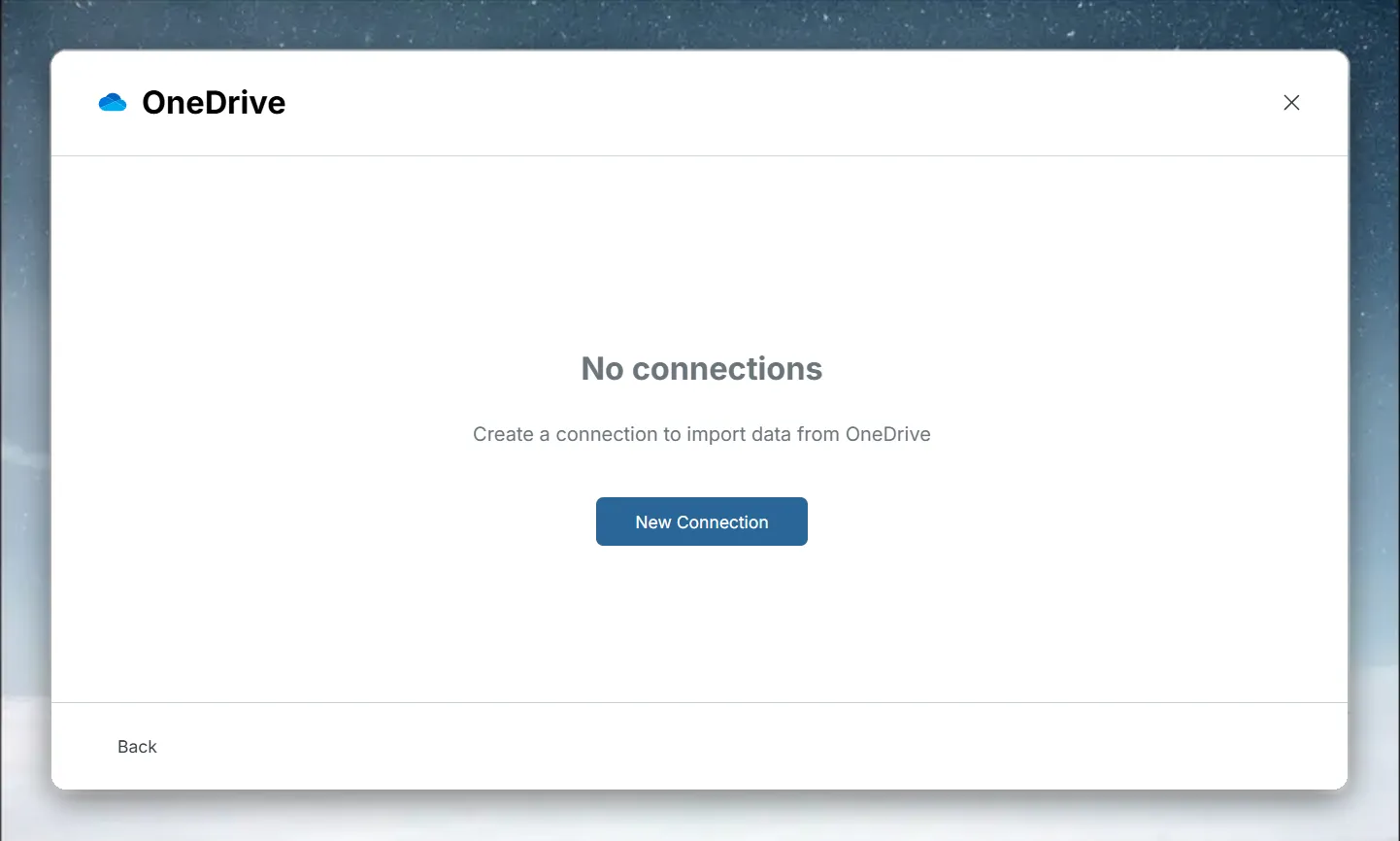
If no connection exists yet, you'll see a No connections panel with a New Connection button.
Step 2: Create a connection
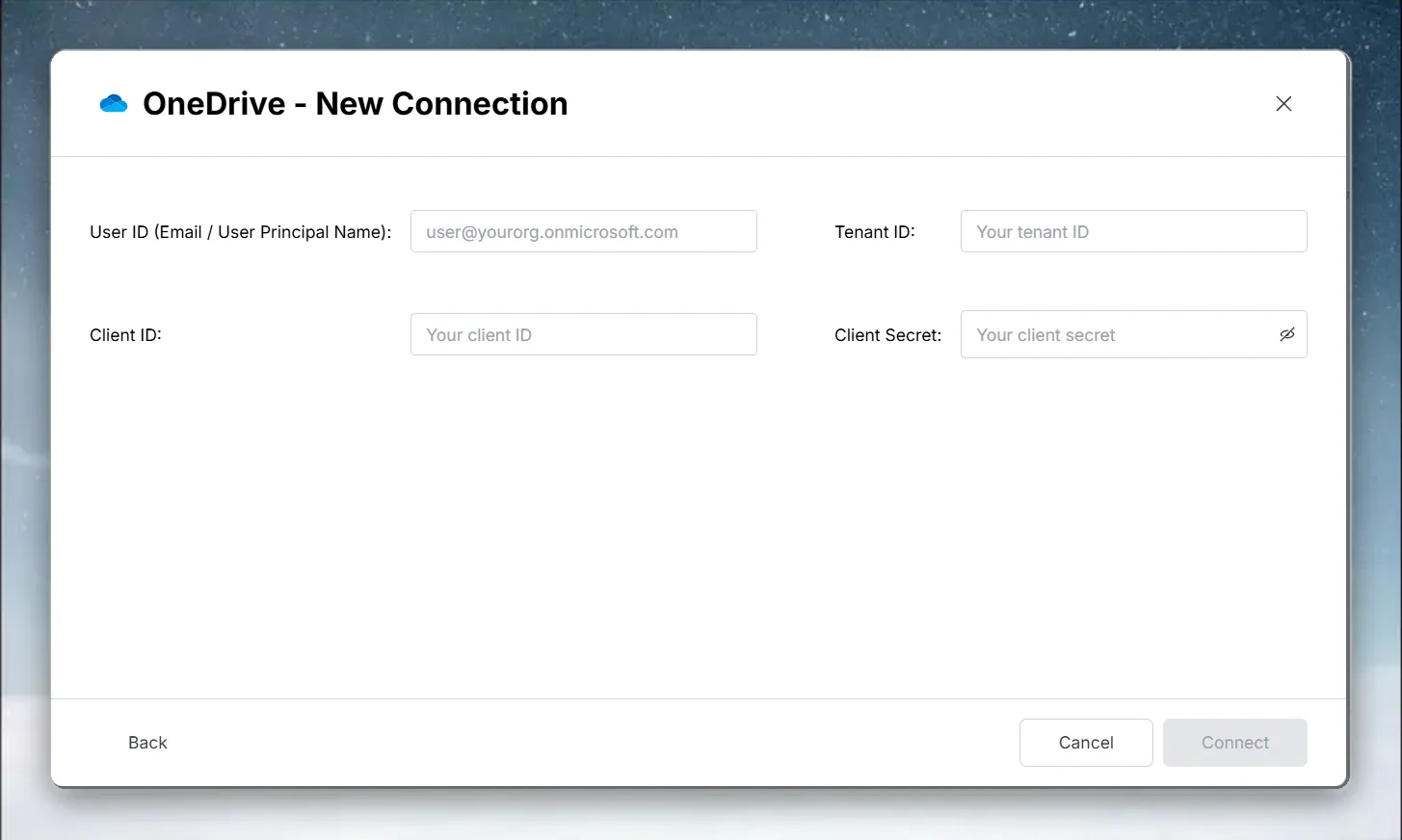
Click New Connection to open the OneDrive - New Connection form.
| Field | Description | Example |
|---|---|---|
| User ID (Email / User Principal Name) | The OneDrive account Mammoth should read from | user@yourorg.onmicrosoft.com |
| Tenant ID | Azure AD Directory (tenant) ID | xxxxxxxx-xxxx-xxxx-xxxx-xxxxxxxxxxxx |
| Client ID | Azure AD Application (client) ID | yyyyyyyy-yyyy-yyyy-yyyy-yyyyyyyyyyyy |
| Client Secret | The app secret value you created | — |
All four fields are required. Click Connect once they're filled in—there's no OAuth sign-in step, since the connector authenticates directly with the app credentials above. If validation fails, the error message appears at the bottom of the form.
Step 3: Find and select your OneDrive file
After connecting, select the connection under Existing Connections. Mammoth shows a folder tree of the connected OneDrive account, starting at the root.
- Click a folder to expand it—its contents load on demand (you'll briefly see "Loading folder contents…")
- Check the box next to a file to select it, or check a folder to include everything inside it
- You can select more than one file/folder in a single connection
Supported OneDrive file types
.txt · .csv · .tsv · .psv · .xls · .xlsx · .xml · .zip · .bz2 · .gz · .tar · .7z
Step 4: Create the OneDrive dataset
Click Create new dataset. Mammoth does not ask you to choose an update method for this connector.
To keep the dataset in sync as the source file changes in OneDrive, set up a Dataset Refresh automation.
Exporting to OneDrive
Separately from importing, you can push a View's output to OneDrive as an export action:
- In the data editor, click Export and Share, choose External Destinations, and select Export to OneDrive
- Fill in Tenant ID, Client ID, Client Secret, and User ID
- Set a Folder Path (the default is the root of the user's OneDrive) and a File Name
- Optionally enable Include hidden columns
Troubleshoot OneDrive connections
Authentication fails
- Check all four values (User ID, Tenant ID, Client ID, Client Secret) are copied correctly
- Confirm admin consent has been granted for the Graph API permission
OneDrive not found for the specified user
The error "OneDrive not found for the specified user" means the User ID doesn't match a valid mailbox/drive in the tenant—double-check for typos in the email/UPN
Client secret expired
- Client secrets expire based on the duration you set during creation—generate a new secret in Azure Portal and update the connection in Mammoth
File does not appear in the search list
- Confirm the file is one of the supported formats listed above
- Confirm the file lives in the connected user's own OneDrive, not a folder only shared with them