Publish
The Publish button in the View toolbar starts building a shareable dashboard, presentation, document or Q&A from your View data—no separate BI tool or file distribution needed.
Create from a View
The Publish button doesn't open a dialog. It takes you to a create page for the current View.
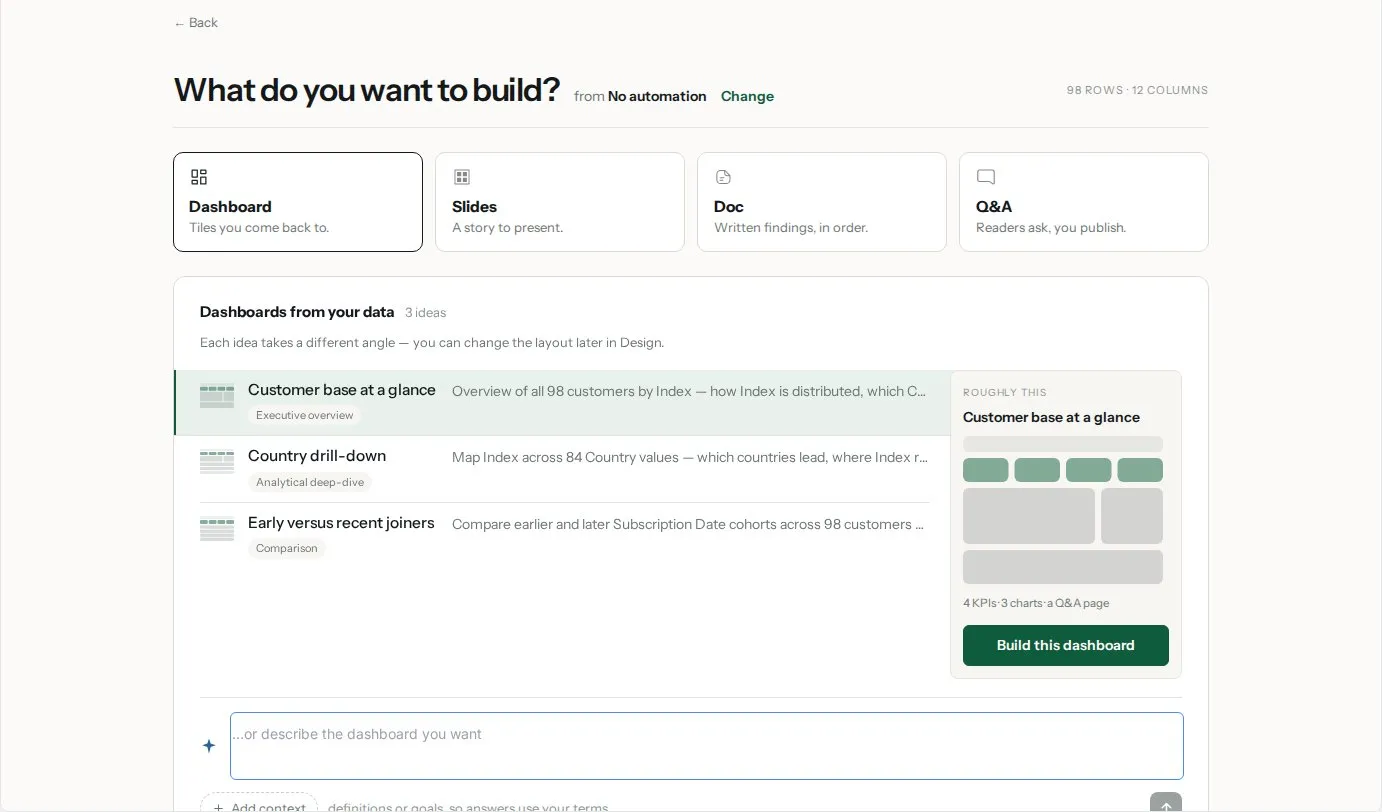
Creating from the Publish button
- Open the View you want to share.
- Click Publish in the View toolbar. The create page opens, headed What do you want to build?, with the name of your View and a Change link to pick another View.
- Choose a format card: Dashboard, Slides, Doc or Q&A.
- Pick one of the suggested ideas, or type what you want in the ...or describe the dashboard you want field and send it. Be specific about the charts, metrics and groupings you want.
- Mammoth opens the editor with what it built. Review it, then publish and copy the link.
Sharing, access and updates
Publishing, the Sign-in required and Anyone with the link access types, row-level security, invitations, Sync settings, Download PDF, Share as video and Unpublish are covered in Share a dashboard. The number of dashboards you can publish and the availability of row-level security depend on your plan.
Publish vs. other export options
| Publish Dashboard | Download | Live Link | |
|---|---|---|---|
| Format | Visual dashboard | CSV / XLSX file | CSV via URL |
| Recipient access | Via link | File download | URL |
| Updates automatically | Only if the dashboard's sync settings are on (see Share a dashboard) | No | Yes |
| Requires Mammoth account | Only with Sign-in required | No | No |
| Best for | Visual stakeholder sharing | Ad-hoc analysis | BI tool integration |
Tips for better dashboards
Be specific in your description. Instead of "show sales data," try "show total revenue by product category for the last 90 days, sorted by revenue descending, as a bar chart."
Review before sharing. Verify the visualizations match your intent before copying the share link.