Transformation errors
Pipeline transformation errors occur when a task can't process the data it receives—usually because column names changed, data types are wrong, or a math expression references something that no longer exists. This guide covers the common transformation problems and how to fix them.
How to read a pipeline error
When a task in a pipeline has an error, the pipeline shows a This pipeline has errors banner with the message Fix the failing tasks to continue. When you add or edit a task and the pipeline ends up with errors, Mammoth also tells you: Added task, but pipeline has errors or Edited task, but pipeline has errors.
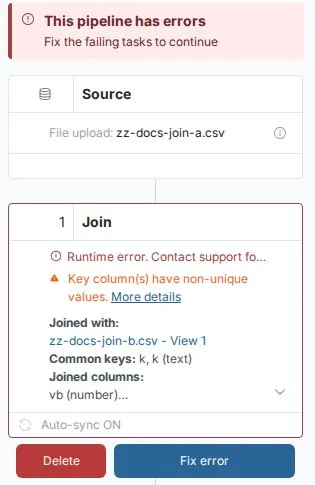
To find the cause:
- Find the failing task in the pipeline
- Open it and read the column or setting it references
- Compare that with the columns available at that point in the pipeline
Always start debugging at the first failing task. Later tasks often fail only because an earlier one did.
A task references a missing column
What it means: A task uses a column that no longer exists at that point in the pipeline.
Common causes:
- A column was renamed in an earlier step, but a later task still uses the old name
- A Remove Column task removed a column needed downstream
- A source dataset was refreshed with a schema change (a column was renamed or dropped in the source)
How to fix:
- Open the failing task
- Note which column it uses
- Look back through the pipeline to find where that column was last present
- If the column was renamed, update the failing task to use the new name
- If the column was removed unintentionally, delete or reconfigure the Remove Column task that removed it
Column type problems
What it means: A task received a column with a data type it can't process. The most common case is a numeric operation applied to a text column, or a date operation applied to a column that holds text.
Common causes:
- A date column was imported as text, so sort, filter, and aggregation on it give wrong results
- A number column contains text values (such as
N/A) that prevent numeric processing - A calculation uses a column that wasn't yet converted to numeric
How to fix:
- Check the type of the column in the failing task
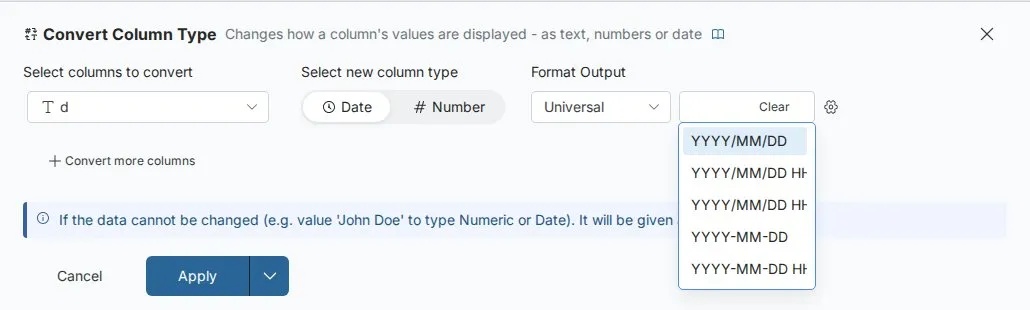
- Add a Convert Column Type task before the failing task
- Convert the column to the type the task needs. Clean text columns first (remove symbols, handle non-numeric values), then convert
Math Function expression errors
What it means: A Math Function task contains an expression that can't be evaluated. The expression editor tells you what is wrong.
Common messages include:
| Message | What to check |
|---|---|
| Column {name} is missing | The expression names a column that doesn't exist at this step. Check for typos and for columns renamed or removed in earlier steps |
| not a numeric column or Only numeric columns allowed | A column in the expression is text or a date. Convert it with Convert Column Type first |
| Empty expression | Enter an expression |
| Syntax error: unmatched brackets | Make sure every opening bracket has a closing one |
| Expected an operator {operators} before {token} | Two values or columns are next to each other with no operator between them |
| Expression can not begin with * or / or Expression can not end with any of ... | Add the missing value at the start or end of the expression |
| Invalid arguments for {token} or Function {token} takes exactly 1 argument | Check the number of arguments the function needs |
Division by zero depends on your data. If a denominator can be zero, filter those rows out first with a Conditional Filter, or handle them in a separate flow.
Join step issues
Join returning zero rows
A Join that returns no matching rows almost always means the key values don't match between the two datasets.
Common causes:
- Different formatting: one dataset has
USand the other hasUnited Statesfor the same country - Trailing whitespace:
New Yorkdoesn't matchNew York - Different case:
APPLEandapplemay not match - Different types: joining a text column to a number column
How to diagnose:
- Check the Join type. An Inner join drops rows from the current view that have no match, while a Left join keeps them with empty values in the joined columns
- Use Preview Data at this Task to look at the key values on both sides
- Compare a sample of the keys to spot the mismatch
How to fix:
- Whitespace: Add a Text Formatting task with Normalize whitespace to both sides before joining
- Case: Add a Text Formatting task with Change text case to both sides before joining
- Value variation: Add a Find & Replace task to standardize values on both sides
- Type mismatch: Add a Convert Column Type task to match types before joining
Join returning too many rows
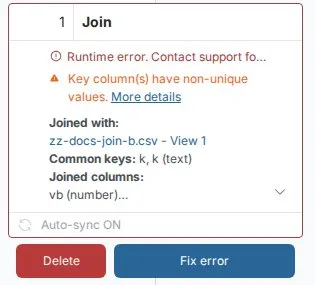
Mammoth warns you with Key column(s) have non-unique values when the key columns of a joined View contain duplicates, because non-unique key values on a joined table result in duplicate rows. Every row on the left matches multiple rows on the right. A Join that would produce more than 100,000 rows and more than five times the larger input is rejected instead of running. The Join task shows Runtime error. Contact support for help., and the full message reports that the row count would rise to a very large value.
How to fix:
- Switch to Lookup if you only need one matching value for each row
- Remove duplicates from the right-side dataset first, using Remove Duplicate Rows on the join key column
- Use Group & Pivot to summarize the right-side dataset to the level you need before joining
Group & Pivot issues
Aggregation on a non-numeric column
Numeric aggregations such as sum and average need a numeric column. If a column holds numbers as text, add a Convert Column Type task before Group & Pivot.
Unexpected empty group
If Group & Pivot produces an empty group for a grouping column, the source data has empty values in that column.
Decision: Either filter out those rows before grouping (if empty records aren't meaningful), or accept the group and handle it in downstream steps.
Conditional Filter not removing expected rows
If a Conditional Filter isn't filtering as expected:
- Check the condition logic. Review whether your conditions need to all be true or only one of them.
- Check data types. Filtering numbers stored as text produces unexpected results. Convert the column type first.
- Check for empty values. A condition such as
status = "active"excludes both non-active rows and rows where status is empty. If you want to keep empty rows, add a condition for them.
Pipeline ran successfully but output looks wrong
If a pipeline runs without errors but the output data is wrong:
- Step through the pipeline. Use Preview Data at this Task on each task to see the data at that point. Compare each task's output to what you expect to find which task introduced the wrong data.
- Check task ordering. Tasks apply in sequence—a Conditional Filter after a Join applies to the joined output, not to the individual datasets before joining. Reorder tasks if the sequence is wrong.
- Check your expressions. If a Math Function produces unexpected values, calculate the expected result by hand for a few rows and compare.
Pipeline error after source schema change
If a pipeline that previously worked starts failing after a scheduled data refresh, the source dataset's schema likely changed:
- A column was renamed in the source system
- A column was dropped from the source
How to fix:
- Open the pipeline and look for the failing tasks
- Each failing task uses a column that no longer exists under that name
- Update the column references to match the new schema
- If the change was unintentional (a source system changed something without notice), contact your data source owner to restore the previous schema
Error-resistant patterns:
- Filter early to reduce dataset size and complexity
- Validate data types before calculations
- Handle empty values explicitly (don't assume they won't exist)
- Use conditional logic to route problematic data separately
Pipeline testing strategy
Unit testing: Test individual transformations with known data
- Use small, controlled datasets
- Include edge cases (empty values, duplicates, extremes)
- Check the result of each task with Preview Data at this Task
Integration testing: Test the complete pipeline end to end
- Use realistic data volumes
- Include upstream data variations
- Use Draft mode to queue tasks and review them before they take effect
Ongoing monitoring: Add quality checkpoints
- Add a Data Check task at key points. It runs automated data quality checks on the pipeline output and can either halt the pipeline or warn and continue, and you can choose who is notified
- Compare row counts at key pipeline stages
- Review the Data Quality report after changes
Common error scenarios and solutions
Date format standardization error
Scenario: A reporting pipeline gives wrong results because dates arrive in inconsistent formats from different systems.
Symptoms:
- Date columns are treated as text
- Sorting or date calculations give wrong results
- Some values are not valid dates, such as
2024-13-01orFeb 30 2024
Resolution steps:
- Identify the issue: Check the column type and review the Data Quality report
- Review the data: Use Explore cards to see the mix of formats
- Apply the fix: Add a Convert Column Type task and set Format Output (Universal, UK, US or Custom) and pick the date format that matches the data
- Test the solution: Use Draft mode or Preview Data at this Task to confirm the conversion works
- Deploy and monitor: Apply the pipeline and check the result
Prevention: Standardize date formats at the data source or add validation at the start of the pipeline.
Join failure: missing key values
Scenario: Customer data enrichment produces fewer results than expected because the join key has empty values.
Symptoms:
- The join completes but the output row count drops significantly
- Enrichment columns contain unexpected empty values
Resolution steps:
- Diagnose the problem: The Data Quality report shows a high share of empty values in the join key
- Understand the impact: Rows with no Customer_ID can't be matched
- Design the solution: Create separate flows for valid and invalid records
- Implement error handling:
- Add a Conditional Filter to separate empty Customer_IDs
- Create an error View for records needing attention
- Set up a Messaging automation to alert the data quality team
- Validate the approach: Ensure both the valid and error flows work correctly
Prevention: Validate join key completeness before building complex pipelines.
AI transformation ambiguity
Scenario: A task created with Describe your transformation produces unexpected results because the natural language instructions are unclear.
Symptoms:
- The task completes without an error
- Results don't match business intent
- Later calculations give wrong results
Resolution steps:
- Review the prompt: Open the task and read the instruction
- Test with sample data: Check the output on a few rows
- Refine the language: Make the prompt more specific and unambiguous
- Compare approaches: Test the AI-generated task against a manual transformation task
- Choose the best method: Select the approach that best matches your business logic
- Document the solution: Record successful prompt patterns for reuse
Prevention: Start with simple, specific prompts and build complexity gradually.
Dataset Refresh automation failure
Scenario: A scheduled dataset refresh fails overnight because a connection's authentication expired.
Symptoms:
- The automation shows an Error status in the Data Library
- Last run result shows the failure
- Dashboards show stale data
Resolution steps:
- Check the automation: Open it in the Data Library Automations tab and read Last run result
- Fix the connection: Re-authenticate the connection (see Connection troubleshooting)
- Test the fix: Use Run now to confirm the automation succeeds
- Monitor future runs: Check the automation status after the next scheduled run
Prevention: Check connection health regularly, and re-authenticate connections before their credentials expire.
Error handling architectures
Error flow pattern
Inspired by biotech customer success: Route problematic data through separate processing flows instead of blocking entire pipelines.
Implementation approach:
Main Pipeline:
Source Data → Quality Check → Valid Data Processing → Output

Error Pipeline:
Source Data → Quality Check → Invalid Data → Error Notification → Manual Review
Setup steps:
- Create a main View with the standard processing pipeline
- Create an error View with a Conditional Filter for quality issues
- Set up a Messaging automation for error notifications
- Document error handling procedures for your team
Quality gates
Use a Data Check task as a gate between major processing stages. When a check fails, the Data Check result shows how many checks failed. Depending on how you configured the check, the pipeline either halts and blocks downstream tasks, or warns and continues. Fix the data issue and re-run, or change the check threshold.
Best practices:
- Design pipelines with logical checkpoints
- Put quality gates between major processing steps
- Use Send to Dataset to create processing branches
Getting help
When you need additional support beyond self-service troubleshooting:
Escalation path:
- Document the scenario: Include data samples and pipeline configuration
- Contact support: Provide context about business impact and urgency
- Share screen recordings: Show the error occurring in real time
Self-help resources:
- Search documentation for specific error messages
- Test with simplified data samples to isolate variables
Related resources
- Data quality report—Identify issues before they cause errors
- Monitor—Where pipeline and automation problems surface
- Activity Log—History of changes made in a workspace
- Pipeline optimization—Speed up slow transformations
- Data quality issues—Fix duplicates, nulls, and type mismatches
- Validation guide—Build checks into your pipelines
- Audit logs—Compliance and governance records
Still not resolved?
If your pipeline error doesn't match any of the above patterns, contact support@mammoth.io with:
- Your workspace name and project name
- The name of the pipeline and the failing step
- A screenshot of the failing task
- What the pipeline was doing before the error started occurring