Audit logs
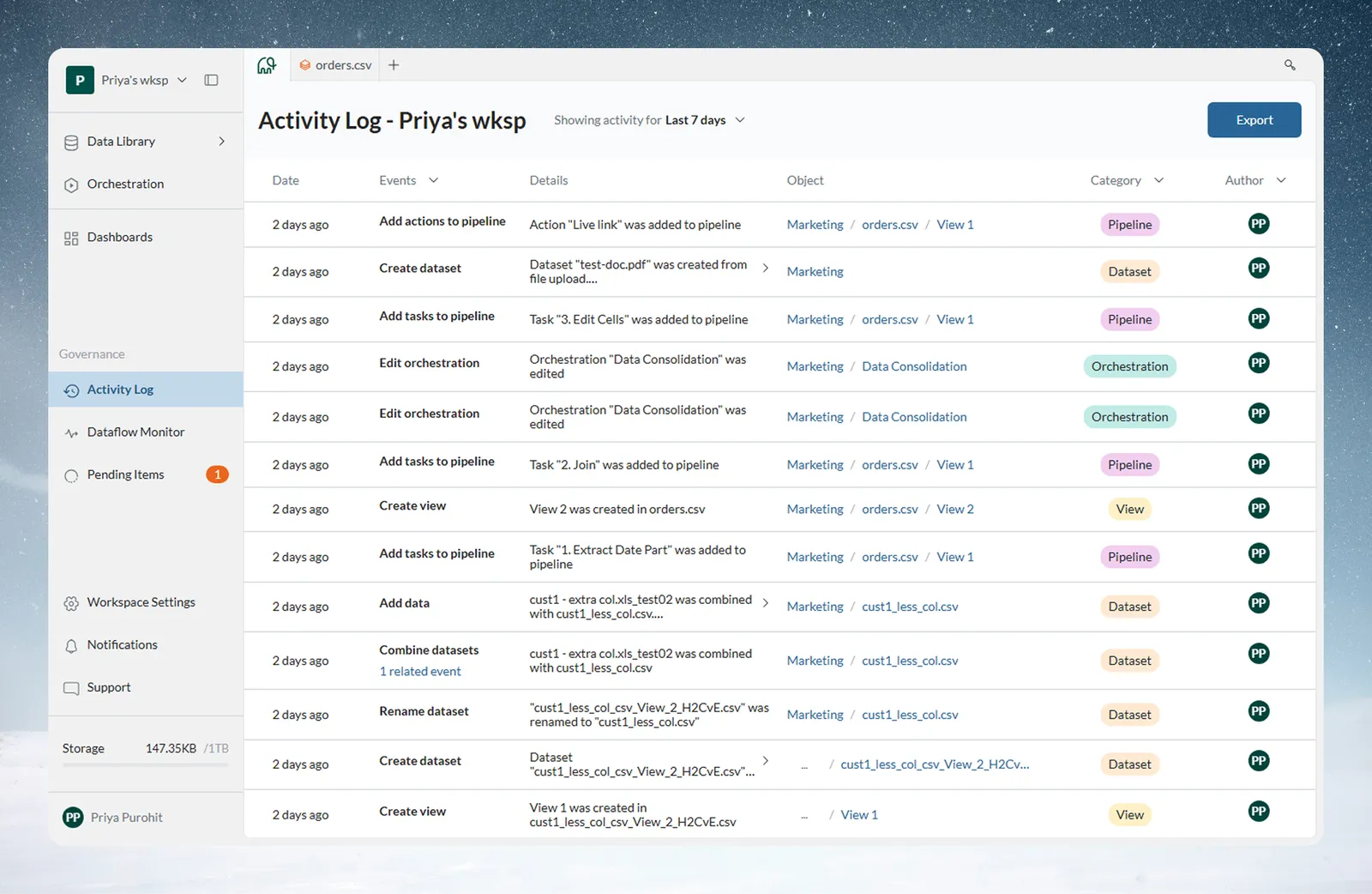
The Activity Log is Mammoth's audit trail: a chronological record of actions taken in your workspace. It captures who did what, when, and on which resource. This page is for Workspace Owners and Members who review or export that record.
Open the Activity Log
- Click Monitor in the left sidebar
- Select the Activity Log tab
Workspace Owners and Workspace Members can view the Activity Log. Your project role does not affect access. For details on filtering and exporting, see Activity Log.
What is captured
| Category | Events logged |
|---|---|
| Dataset | Create, rename, duplicate, delete, add data, combine, replace, delete batches, suspend and resume batches |
| View | Create, rename, delete, rerun |
| Pipeline | Add, edit, rename, delete, suspend, and restore tasks and actions |
| Automation | Create, edit, rename, delete, update |
| Connector | Create, edit, and delete connections |
| Project | Create, rename, delete, property updates |
| Folder | Create, rename, delete |
| Workspace | Rename workspace, invite users, remove users, delete invites |
| Data Retention | Create, edit, delete, and run retention policies; retention approval requests |
Each log entry shows:
- Date: when the action happened
- Events: the action type (for example, Create dataset or Edit automation)
- Details: a description including resource names
- Object: the affected resource, with a link
- Category: the resource type, color coded
- Author: the workspace member who performed the action
Time range
The log defaults to This month. Use the date control to choose Today, Yesterday, Last 7 days, This week, Last week, This month, Last 3 months, Last 6 months, This quarter, Last quarter, Year to date, or a custom range.
Filtering
Use the column header controls to filter the log:
| Filter | Options |
|---|---|
| Events | Filter by specific action type |
| Category | Connector, Dataset, Folder, Automation, Pipeline, Project, View, Workspace |
| Author | Filter to a specific team member |
Filters can be combined, and they also apply when you export.
Exporting audit logs
Click Export (top right), choose a format, and click Confirm.
Expected result: Mammoth exports the log with your active filters and date range applied.
| Format | Use case |
|---|---|
| CSV | Spreadsheet review, bulk analysis, external audit tools |
| XLSX | Excel-compatible reporting |
| Mammoth Dataset | Load into a project to query and analyze with pipelines |
The export applies your active filters and date range. Clear all filters before exporting to get the full log for the selected period.
Log retention
How far back the Activity Log reaches depends on your plan:
| Plan | Activity Log history |
|---|---|
| Free | 7 days |
| Starter | 90 days |
| Team | 1 year |
| Pro | 3 years |
Older activity isn't available on your plan. Mammoth shows a banner in the Activity Log when your plan limits the history.
Access control auditing
Filter Events to Invite users to workspace, Remove user from workspace, and Delete invite to review who was invited to or removed from the workspace. Each entry has a timestamp and the author of the change.
Troubleshooting
Recent events are missing
: Check the date range. It defaults to This month. Widen the range for older activity.
Export is incomplete
: Active filters apply to the export. Reset all filters before exporting to get the complete log.
Older events are missing
: Your plan limits how far back the log reaches. See the retention table above.
The Activity Log tab is missing
: Only Workspace Owners and Workspace Members see it. Contact your Workspace Owner to check your role.