Automation types
Mammoth has four automation types: Dataset Refresh, Data Consolidation, Messaging, and File Collection. Each solves a different problem. This page compares them so you can choose one, then links to the setup guide for that type.
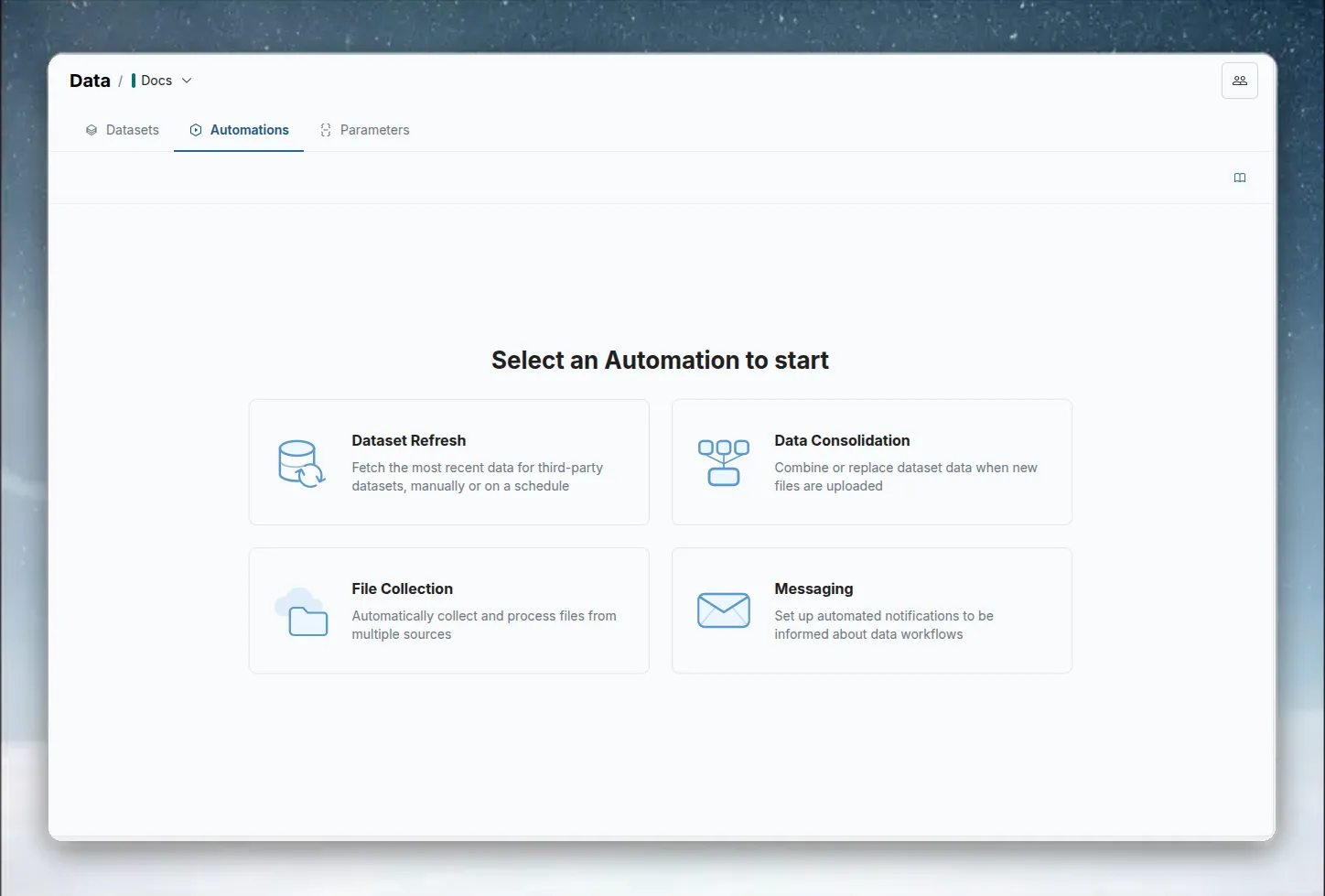
Quick comparison
| Dataset Refresh | Data Consolidation | File Collection | Messaging | |
|---|---|---|---|---|
| What it automates | Pulling fresh data from cloud sources | Merging uploaded files into a dataset | Collecting files from external cloud sources | Sending email reports |
| Trigger | Schedule (time-based) | File upload event | Schedule or manual | Schedule (time-based) |
| Source | Cloud-connected dataset | Folder in your Data Library | Folders in a cloud platform | Dataset Views |
| Destination | Updates the same dataset | Appends/replaces a target dataset | Folder in Mammoth | Email recipients |
| Schedule options | Minutely → Yearly (shortest interval depends on your plan) | Event-driven (no schedule) | Minutely → Yearly (shortest interval depends on your plan) | Hourly → Yearly (shortest interval depends on your plan) |
Dataset Refresh
Use Dataset Refresh to keep cloud-connected datasets current. When a dataset is connected to a third-party source (Google Sheets, Salesforce, a database, etc.), it reflects data from the moment it was created. Dataset Refresh re-fetches the latest data on a schedule.
Best for:
- Daily CRM or ERP data pulls
- Regularly updated Google Sheets you query in Mammoth
- Any source where data changes frequently and you want it reflected automatically
How a Dataset Refresh is triggered: You set a repeat interval (every N minutes, hours, days, weeks, months, or years). Optionally configure a start date and an end date.
One automation, multiple datasets: A single Dataset Refresh automation can refresh multiple cloud datasets at once, all on the same schedule.
Data Consolidation
Use Data Consolidation to automatically process incoming files. When your team uploads CSV or Excel files to a designated source folder, this automation appends the data to a target dataset—without any manual intervention.
Best for:
- Sales teams dropping daily export files into a shared folder
- Field teams uploading regional reports that need to be combined centrally
- Any workflow where periodic file uploads feed a master dataset
How a Data Consolidation is triggered: The automation watches the source folder. Any new file uploaded to that folder triggers consolidation automatically. There is no schedule—it fires on each upload event.
Two consolidation modes:
- Combine—Appends new file data to the existing dataset (rows accumulate over time)
- Replace—Overwrites the dataset with the new file's data each time
Note: Both source files and the target dataset must share compatible column schemas. Mammoth validates the schema before consolidating.
Messaging
Use Messaging to send automated email notifications with data attached. You configure a schedule, a list of recipients, an email subject and body, and one or more Dataset Views to attach. Mammoth sends the email at each scheduled interval with the latest data exported as attachments.
Best for:
- Weekly KPI reports to executives
- Daily sales summaries to the sales team
- Any situation where stakeholders need data delivered to their inbox on a schedule
How a Messaging automation is triggered: Schedule-based. Messaging offers the same frequency options as Dataset Refresh, except Minute.
Attachment format: Dataset Views are exported as CSV files and attached to the email.
Row limit: The attached views can total at most 100,000 rows (see limits and quotas). If the combined row count is higher, Mammoth does not let you attach them. Choose views with fewer rows or attach fewer views.
Test before sending: You can click Send test email on the creation form to verify the email and attachment arrive correctly before saving the automation.
File Collection
Use File Collection to automatically collect files from folders in external cloud platforms into a destination folder in Mammoth. It is available on plans that include it.
Best for:
- Pulling files that partners or systems drop into cloud storage into Mammoth without manual downloads
Sources: You pick a cloud platform and then the folder or folders to collect from. Platforms offered include Dropbox, Google Cloud Storage, Google Drive, Email (IMAP), SFTP, SharePoint, and OneDrive. You can include folders nested inside the ones you pick, and you can limit collection to file names that start with, end with, contain, or exactly match a pattern.
Destination: Choose a folder inside Mammoth where the collected files are stored.
How a File Collection is triggered: On a schedule, or manually.
Choosing between types
| Scenario | Recommended type |
|---|---|
| My dataset connects to Salesforce and needs daily updates | Dataset Refresh |
| My team uploads CSV files every morning to a shared folder | Data Consolidation |
| Finance needs a Monday morning report emailed to them | Messaging |
| Partners drop files into cloud storage and I want them in a Mammoth folder | File Collection |
| I want to pull data AND email a report | Create one of each—they're independent |
To set one up, see Creating an automation.