SQL Server connector
The SQL Server connector imports data from Microsoft SQL Server into Mammoth as a dataset. You can import tables from any schema or write custom T-SQL queries to filter and shape your data. Mammoth offers AI-assisted query generation when it is enabled for your workspace, and you can refresh the dataset manually or on a schedule.
Before you start
You need:
- A SQL Server instance accessible from the internet
- A SQL Server login with
SELECTpermission on the relevant tables - Your server's hostname or IP, port (default: 1433), database name, username, and password
- Mammoth's IP address allowed in Windows Firewall and any cloud security groups—see Network requirements
Step 1: Select the SQL Server connector
- In Mammoth, go to Data Library and click + New Dataset
- Select Connectors
- Search for SQL Server
- Click the SQL Server tile
Step 2: Create a connection
Click New Connection to open the credential form.
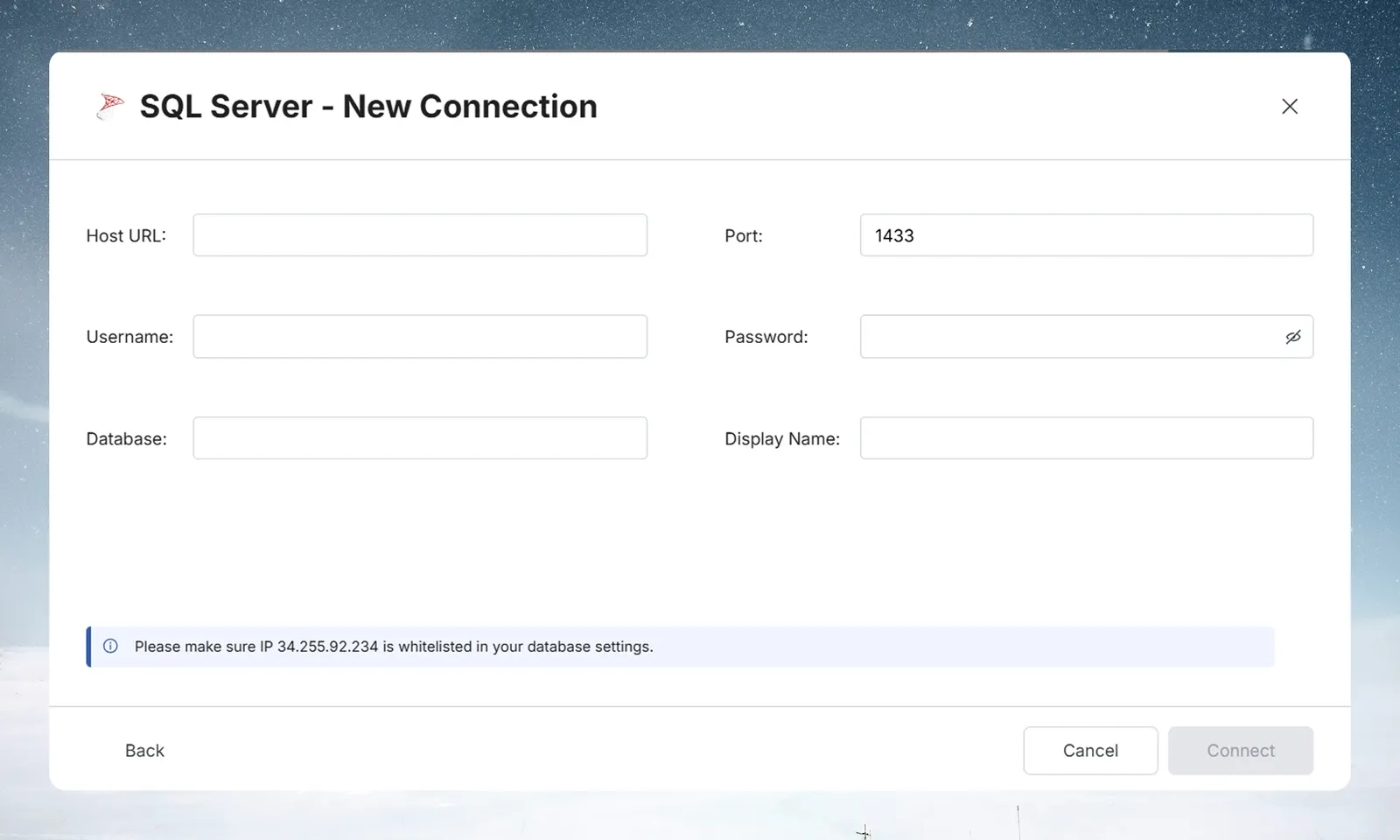
| Field | Description | Example |
|---|---|---|
| Host URL | Hostname or IP address of your SQL Server | sqlserver.example.com |
| Port | TCP port SQL Server listens on | 1433 (default) |
| Username | SQL Server login with SELECT access | mammoth_reader |
| Password | Password for the login | — |
| Database | Name of the database to connect to | SalesDB |
| Display Name | Optional label for this connection | SQL Server Production |
A callout below the fields shows the Mammoth IP address to allow in your database settings—see Network requirements.
After filling in the fields, click Connect. Mammoth validates the credentials and saves the connection; if validation fails, the error message appears at the bottom of the form.
Step 3: Select a SQL Server schema and query your data
Select a SQL Server schema
SQL Server databases typically have multiple schemas (the default is dbo). Select your connection under Existing Connections, then click the schema that contains your tables in the Profile list. If the database has only one schema, Mammoth opens it automatically.
Browse and select SQL Server tables
Click any table in the List of tables panel to load a SELECT * query for it and its preview.
Write a custom T-SQL query
Edit the SQL to filter or transform data. SQL Server uses square brackets for identifiers:
SELECT [OrderID], [CustomerID], [OrderDate], [TotalAmount]
FROM [dbo].[Orders]
WHERE [OrderDate] >= DATEADD(day, -90, GETDATE())
  AND [Status] = 'Completed'
Generate a SQL Server query with AI
When enabled for your workspace, the Describe the data you need... box appears above the query editor. Use it to tell Mammoth what you want in plain language—for example, "all completed orders in the last 90 days"—and click the generate button. Mammoth writes the SQL query based on your table structure and description. The box is disabled while Mammoth sets up metadata for AI query.
See Understanding data preview & query for a full guide.
Step 4: Save the SQL Server dataset
- Enter a dataset name in the Save table as field
- Check the Update Method (the default is Replace all data). To change it, click the edit icon, pick an option, and click Save changes:
- Replace all data—Replaces all existing data
- Add new data—Adds new data based on a unique sequential column
- Replace with new data—Replaces existing data with new data based on a unique sequential column For Add new data and Replace with new data, also choose a Key column—a numeric or date column with incrementing values, such as an ID or a date.
- Click Save as dataset. When the dataset is saved, click Done
Keep SQL Server data up to date
Set up a Dataset Refresh automation for scheduled updates. See Connector performance & best practices for large-table strategies.
Troubleshoot SQL Server connections
Connection fails
- Ensure TCP/IP is enabled in SQL Server Configuration Manager → Protocols
- Confirm port 1433 is open inbound from Mammoth's IP address in Windows Firewall and any cloud security groups
Login fails
-
Check that SQL Server Authentication is enabled (not just Windows Authentication)
-
Verify the user exists and has
CONNECTpermission on the database:CREATE LOGIN mammoth_reader WITH PASSWORD = 'strong_password'; CREATE USER mammoth_reader FOR LOGIN mammoth_reader; GRANT SELECT ON SCHEMA::dbo TO mammoth_reader;